Extract structured financial data from SEC 10-K filings for investment analysis, competitive intelligence, or compliance automation.

Sample Document

Download the sample: 10k-apple.pdf

Create API Key

1

Open Studio

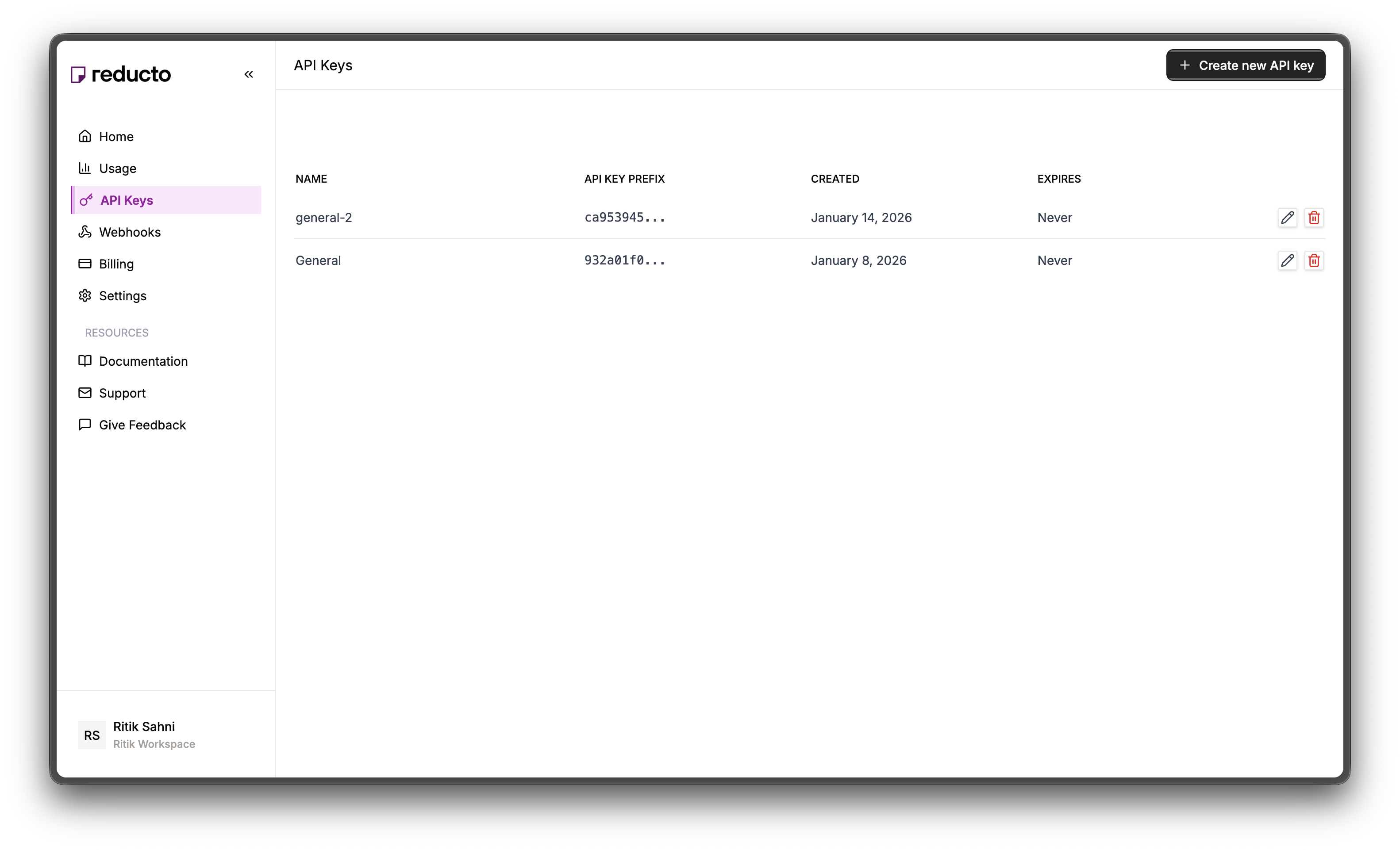
Go to studio.reducto.ai and sign in. From the home page, click API Keys in the left sidebar.
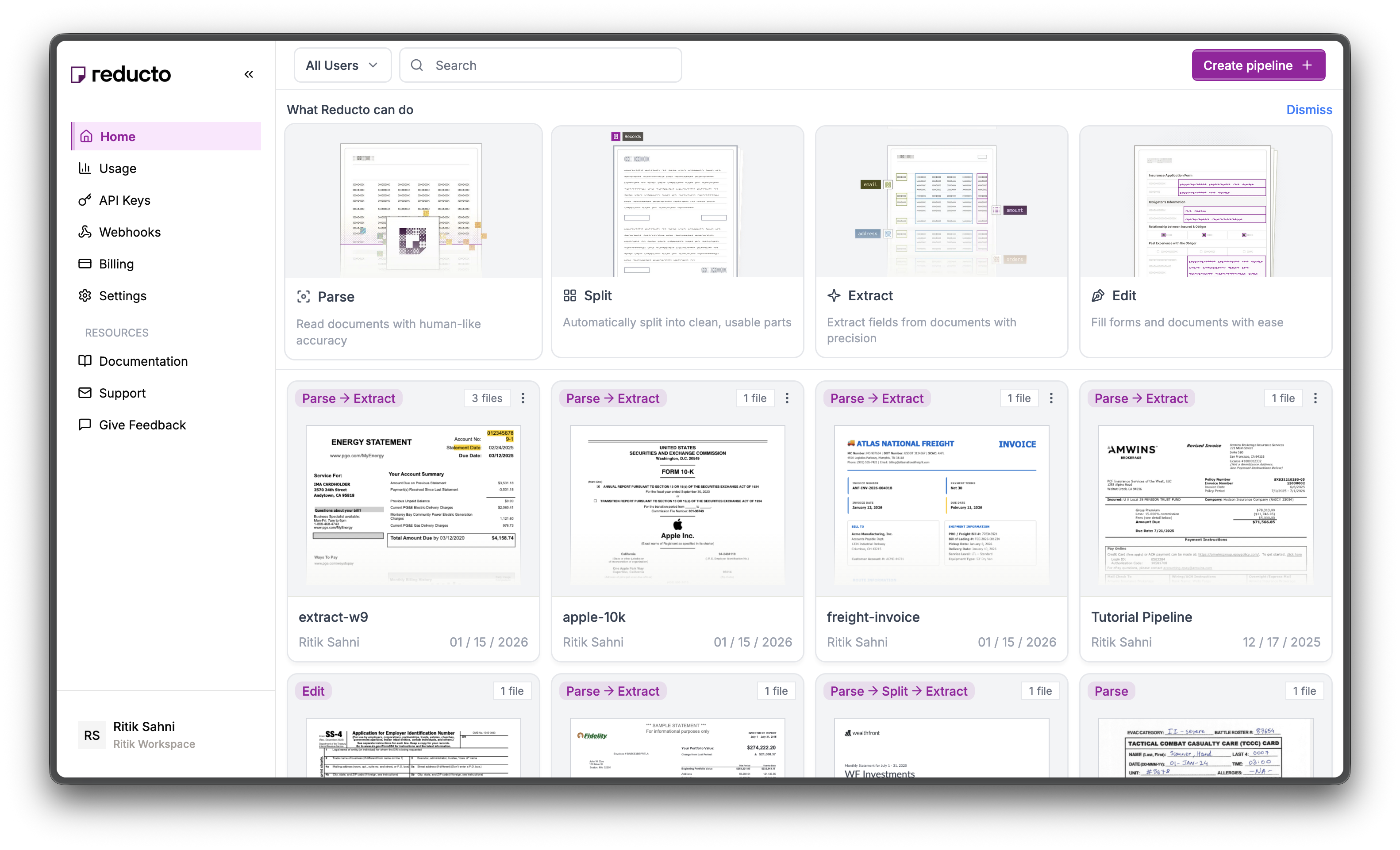
Studio home page with API Keys in sidebar
2

View API Keys

The API Keys page shows your existing keys. Click + Create new API key in the top right corner.
API Keys page with Create button
3

Configure Key

In the modal, enter a name for your key and set an expiration policy (or select β€œNever” for no expiration). Click Create.
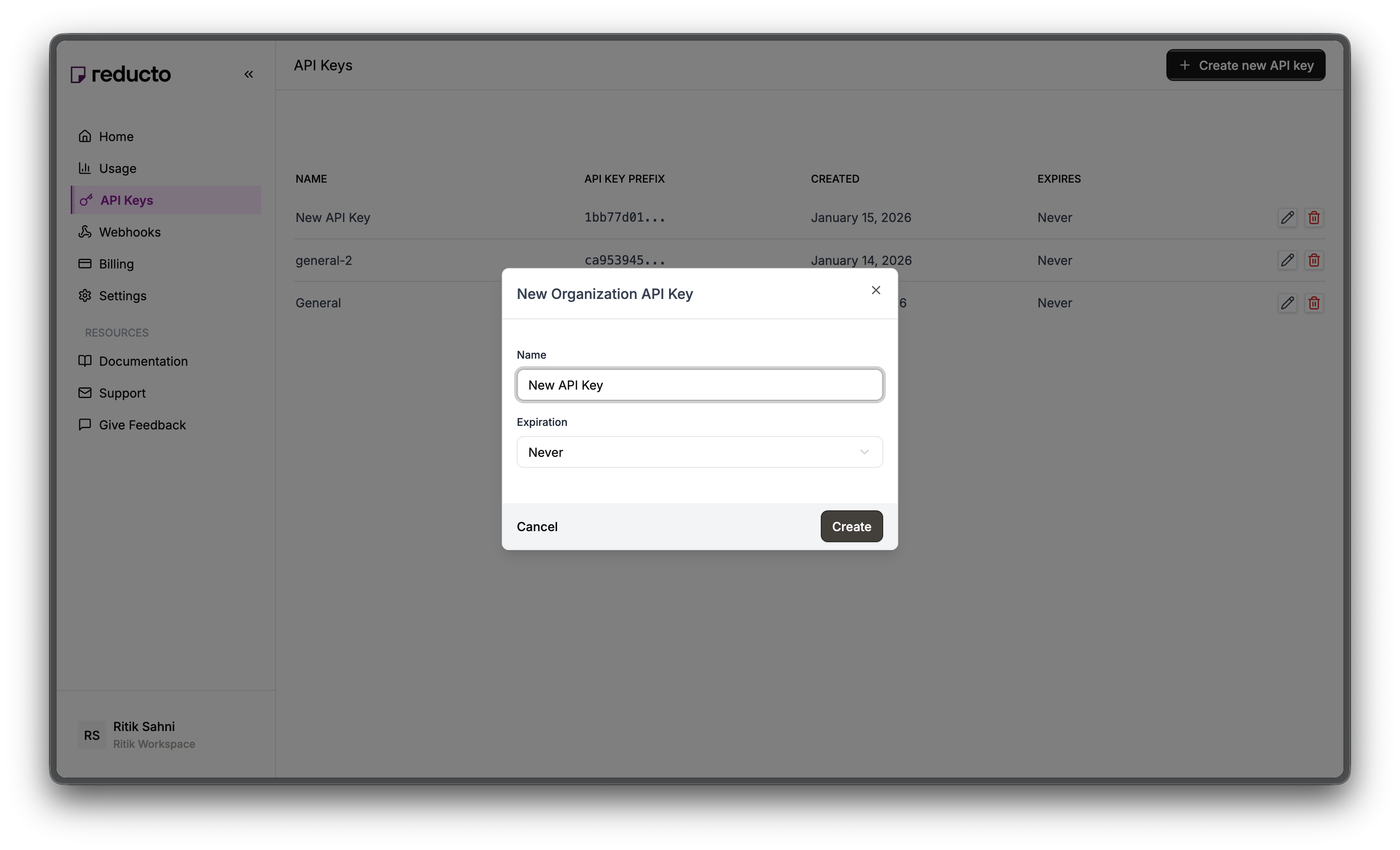
New API Key modal with name and expiration fields
4

Copy Your Key

Copy your new API key and store it securely. You won’t be able to see it again after closing this dialog.
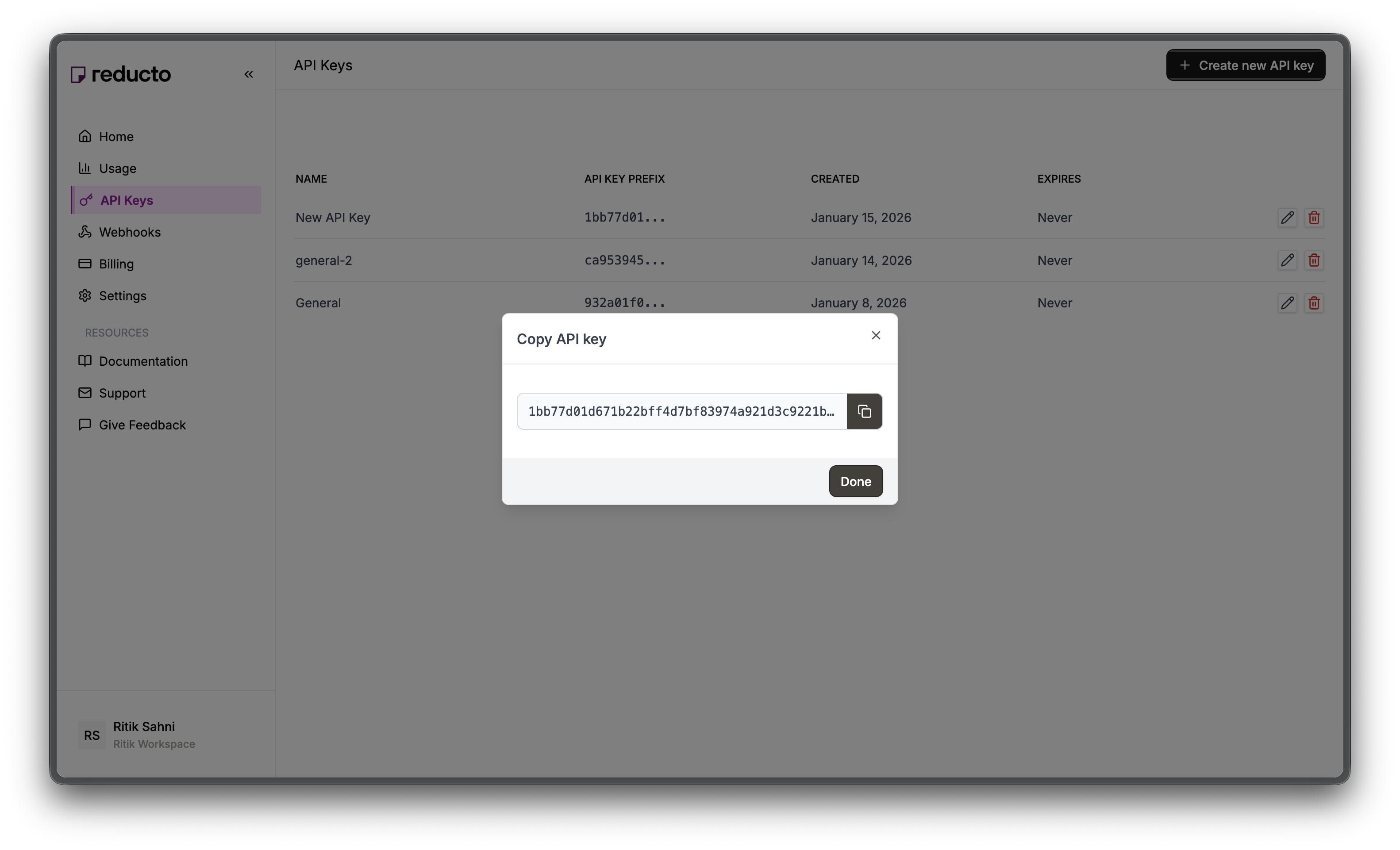
Copy API key dialog
Set the key as an environment variable:
export REDUCTO_API_KEY="your-api-key-here"

Studio Walkthrough

1

Create an Extract Pipeline

Go to studio.reducto.ai and create an Extract pipeline. Upload the 10-K PDF.Extract runs Parse under the hood, then uses an LLM to locate and return only the specific fields you define. This is ideal for pulling financial metrics from 10-K filings.
2

Configure Parse Settings

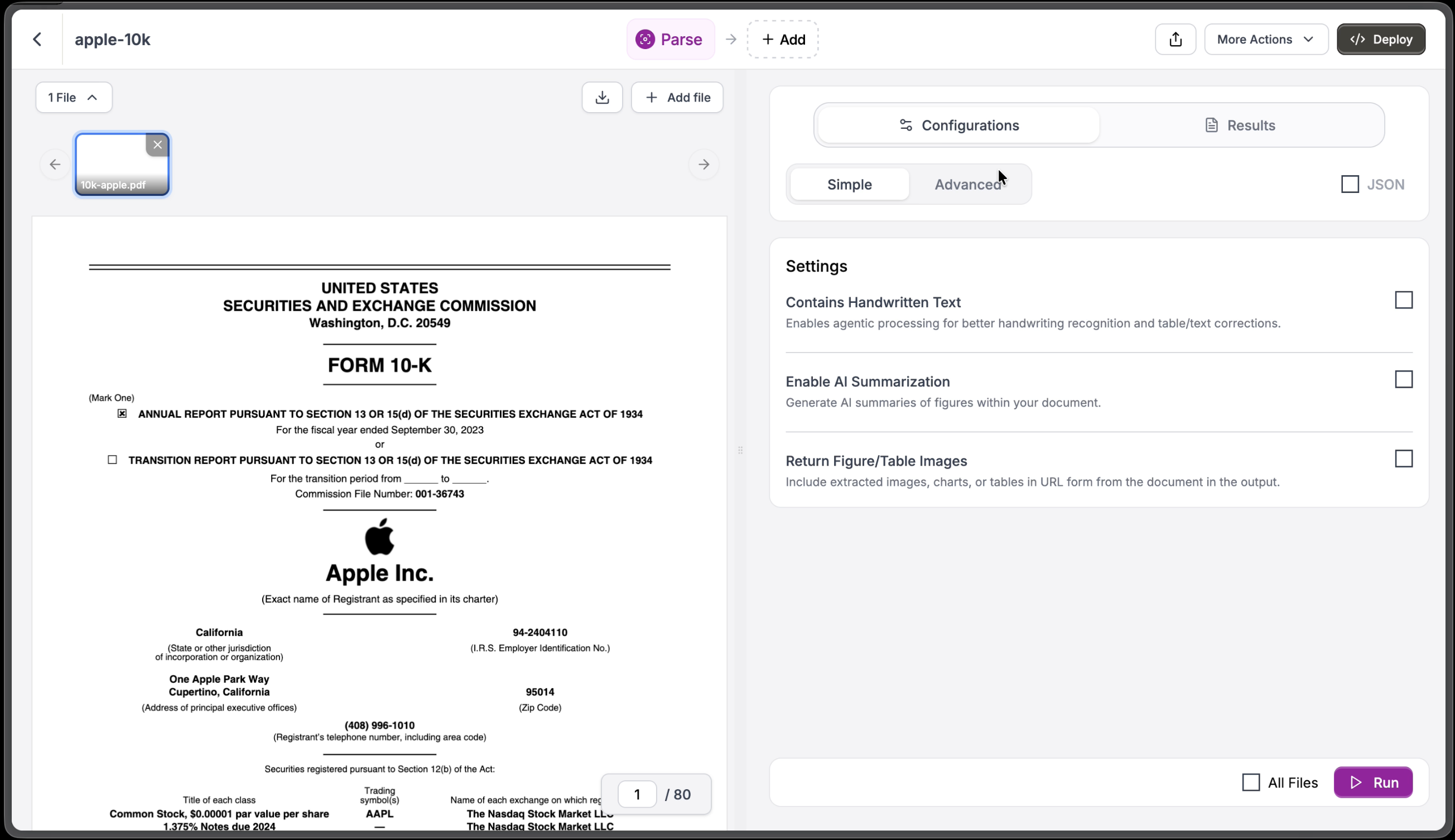
Before defining your schema, check the Parse settings that Extract will use. Open the Configurations tab to access settings.
Parse view with Configurations showing settings options
Key settings for financial documents:
  • Enable AI Summarization β€” Generate summaries of figures and charts
  • Return Figure/Table Images β€” Include extracted images of charts and tables
3

View Parse Results

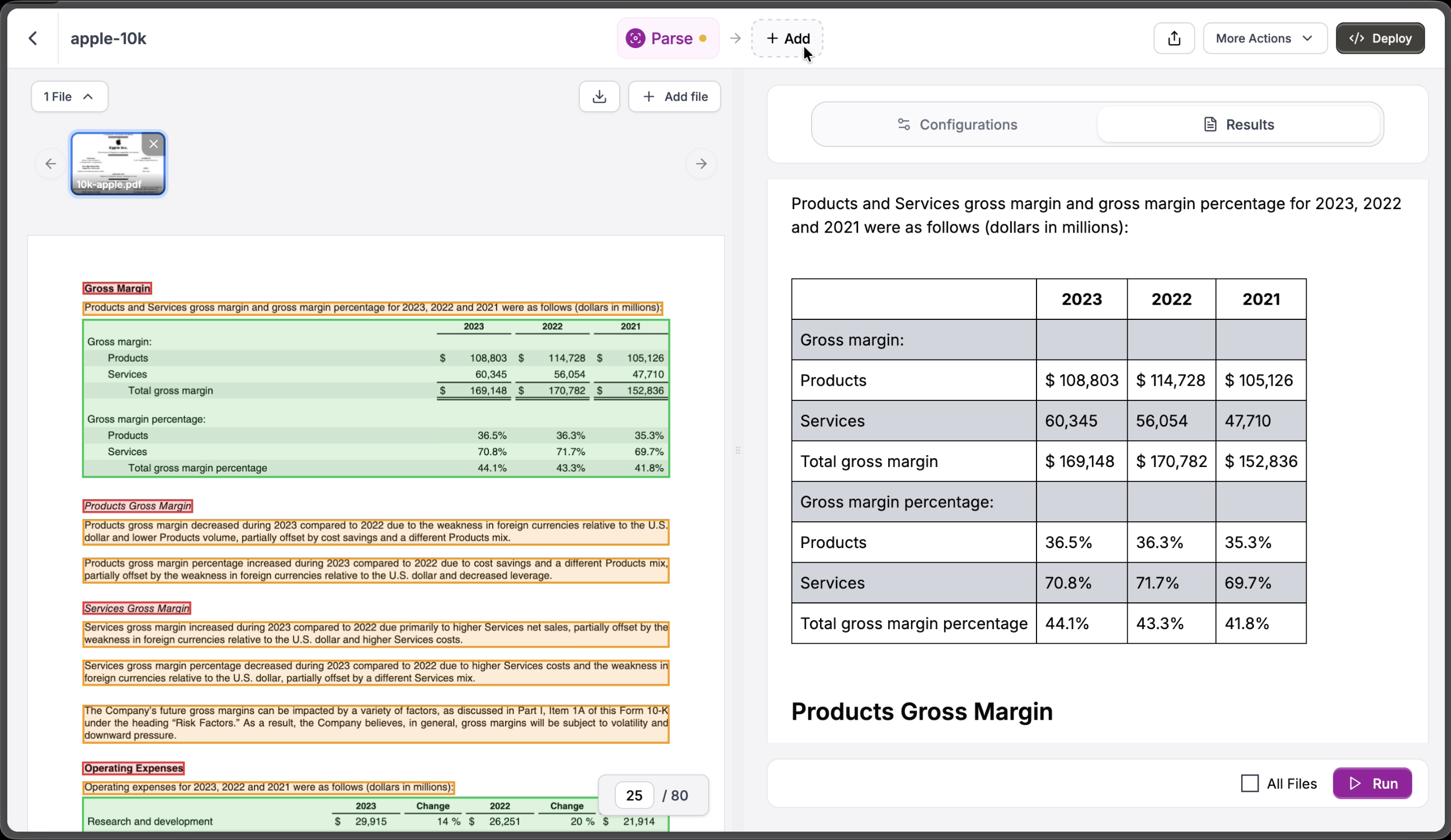
Click Run to see the parsed content. Reducto parses financial tables with their structure preserved, including multi-year comparative data.
Parse results showing extracted financial table with gross margin data
Notice how the Products and Services gross margin table keeps proper row/column structure with data for 2023, 2022, and 2021. If a value doesn’t appear in Parse output, Extract can’t find it either.
4

Switch to Extract and Import Schema

Click Extract to switch views. While Parse gives you the full document content, Extract lets you define a schema to pull only the specific fields you need as structured JSON.For 10-K analysis, we want to extract two categories of data:
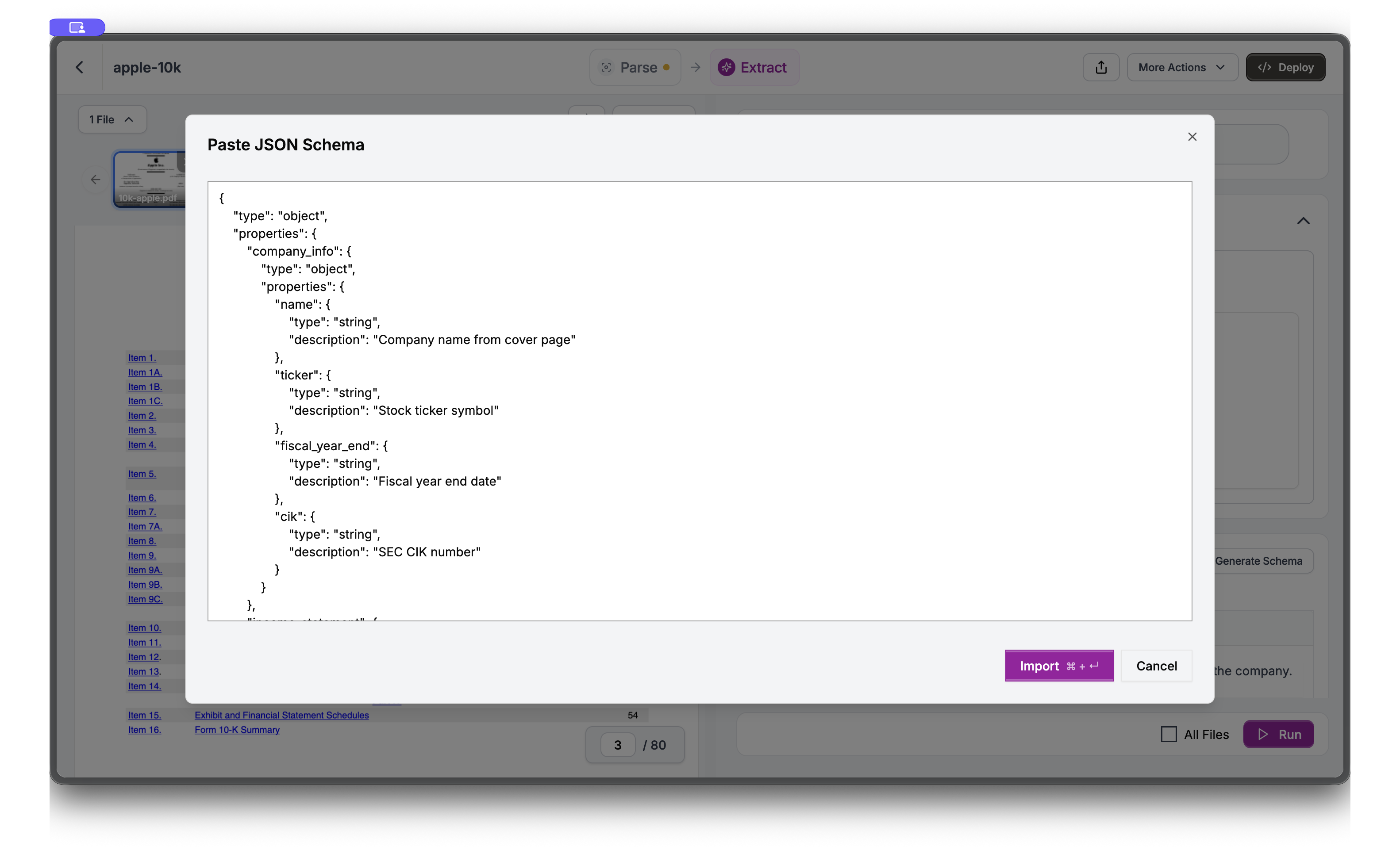
  • Company info β€” Name, ticker symbol, fiscal year end, and SEC CIK number from the cover page
  • Income statement β€” Key metrics like total revenue, cost of sales, gross profit, operating expenses, and operating income from the financial statements
Click Import in the Schema Builder to paste this pre-defined JSON schema:
{
  "type": "object",
  "properties": {
    "company_info": {
      "type": "object",
      "properties": {
        "name": {
          "type": "string",
          "description": "Company name from cover page"
        },
        "ticker": {
          "type": "string",
          "description": "Stock ticker symbol"
        },
        "fiscal_year_end": {
          "type": "string",
          "description": "Fiscal year end date"
        },
        "cik": {
          "type": "string",
          "description": "SEC CIK number"
        }
      }
    },
    "income_statement": {
      "type": "object",
      "description": "Data from Consolidated Statements of Operations",
      "properties": {
        "total_revenue": {
          "type": "number",
          "description": "Total net sales/revenue in millions"
        },
        "cost_of_sales": {
          "type": "number",
          "description": "Cost of goods sold in millions"
        },
        "gross_profit": {
          "type": "number",
          "description": "Gross profit (revenue minus COGS)"
        },
        "operating_expenses": {
          "type": "number",
          "description": "Total operating expenses"
        },
        "operating_income": {
          "type": "number",
          "description": "Operating income"
        }
      }
    }
  }
}
Paste JSON Schema modal showing company_info and income_statement schema
5

Run and View Results

The Schema Builder shows your imported schema with nested structure. Click Run to execute the extraction.The Results tab shows your extracted data matching your schema. Use the toolbar to copy or download the results or switch to JSON.
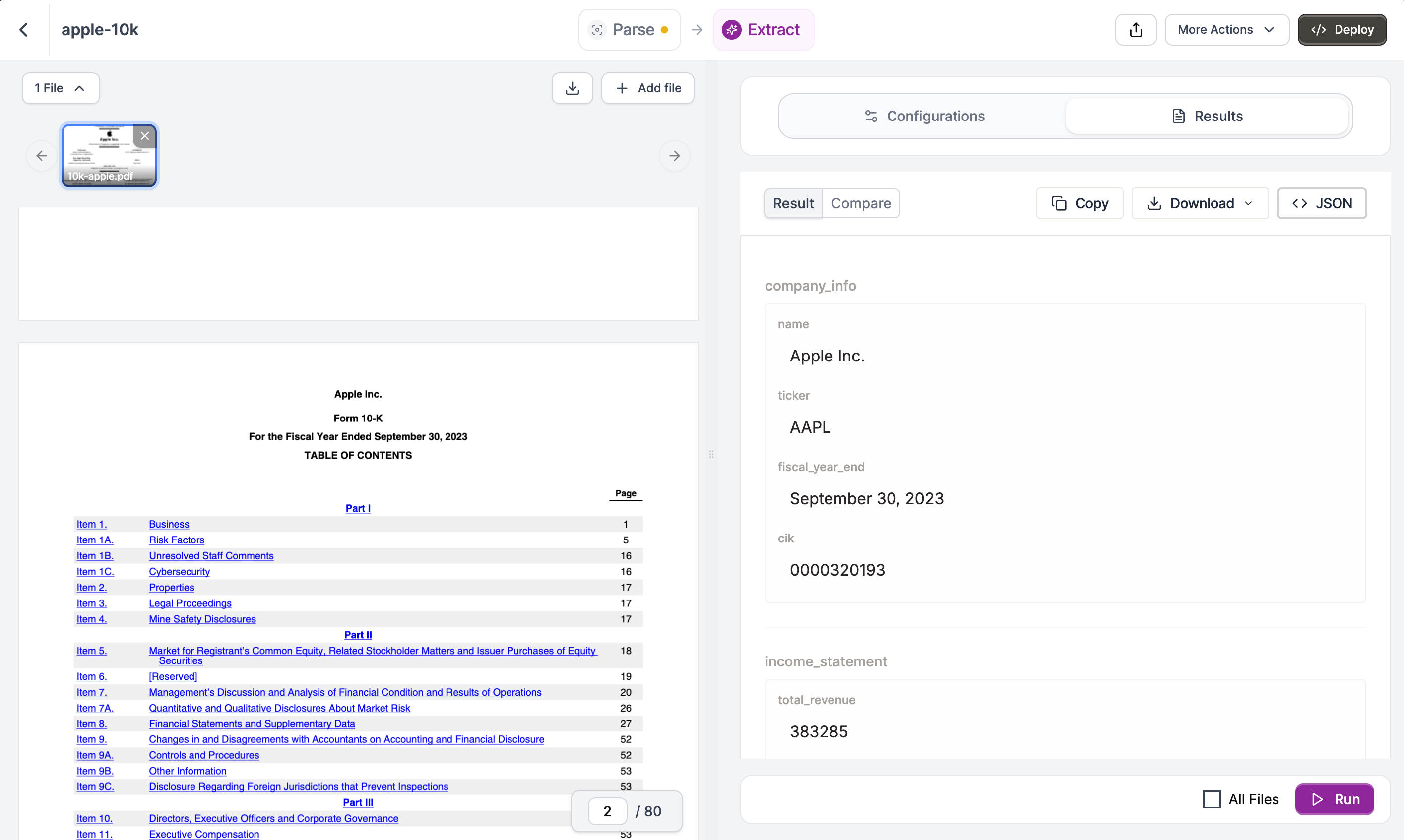
Extraction results showing company_info and income_statement data

Using the API

To run this extraction programmatically, click Deploy in Studio.
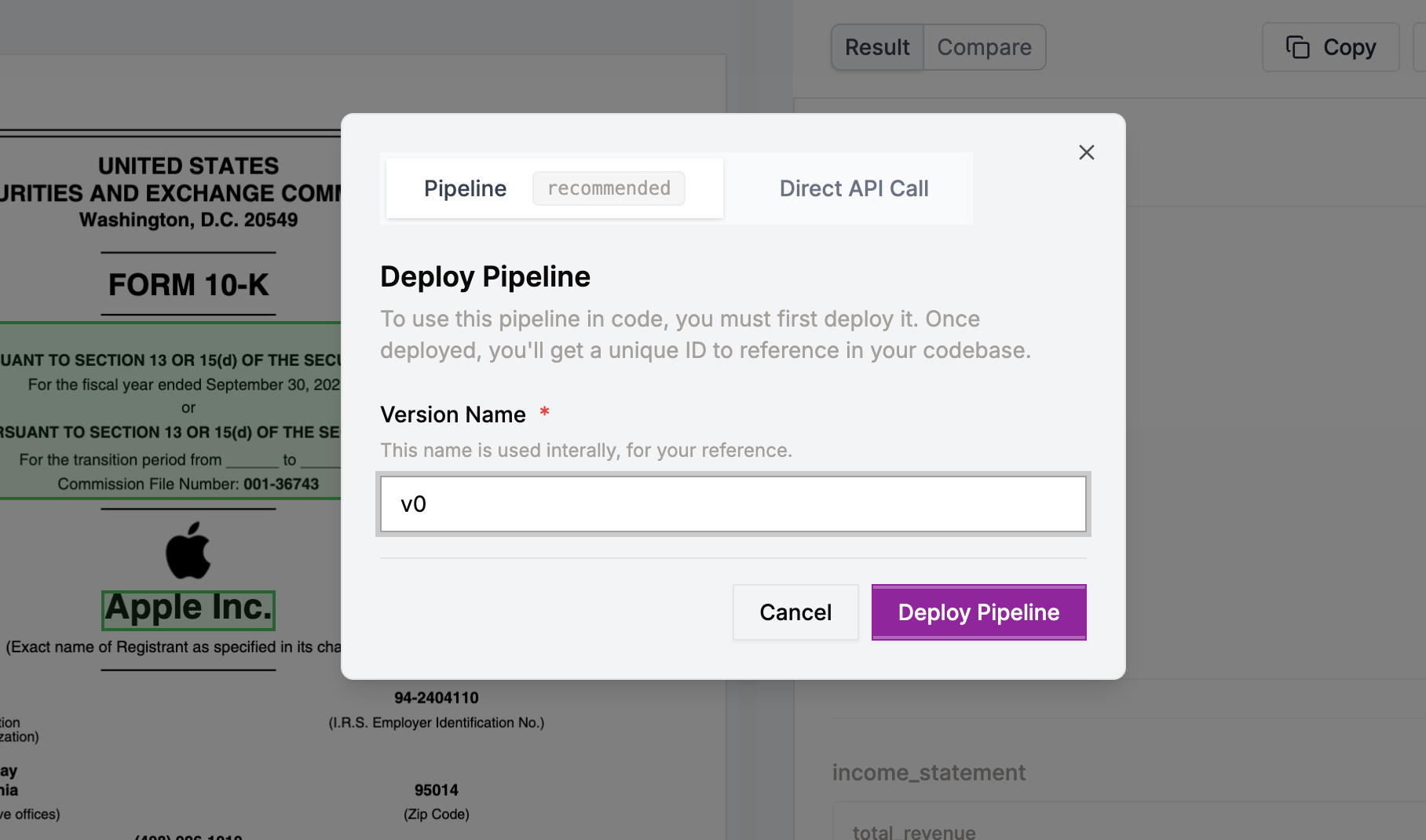
Deploy Pipeline dialog showing Pipeline and Direct API Call options
Pipeline ID creates a stable endpoint with a single identifier. Your code stays simple regardless of workflow complexity. Update settings in Studio and redeploy without changing code.
from pathlib import Path
from reducto import Reducto

client = Reducto()
upload = client.upload(file=Path("10k-apple.pdf"))

result = client.pipeline.run(
    input=upload,
    pipeline_id="k97c67gd5jahhs5anj3zr1gqd97zadrg"
)
Direct API Call exports the raw configuration as code. Use this when you need runtime flexibility or want configuration in version control.
from pathlib import Path
from reducto import Reducto

client = Reducto()
upload_response = client.upload(file=Path("10k-apple.pdf"))

instructions = {
  "schema": {
    "type": "object",
    "properties": {
      "company_info": {
        "type": "object",
        "properties": {
          "name": {"type": "string", "description": "Company name from cover page"},
          "ticker": {"type": "string", "description": "Stock ticker symbol"},
          "fiscal_year_end": {"type": "string", "description": "Fiscal year end date"},
          "cik": {"type": "string", "description": "SEC CIK number"}
        },
        "required": ["name", "ticker", "fiscal_year_end", "cik"]
      },
      "income_statement": {
        "type": "object",
        "description": "Data from Consolidated Statements of Operations",
        "properties": {
          "total_revenue": {"type": "number", "description": "Total net sales/revenue in millions"},
          "cost_of_sales": {"type": "number", "description": "Cost of goods sold in millions"},
          "gross_profit": {"type": "number", "description": "Gross profit (revenue minus COGS)"},
          "operating_expenses": {"type": "number", "description": "Total operating expenses"},
          "operating_income": {"type": "number", "description": "Operating income"}
        },
        "required": ["total_revenue", "cost_of_sales", "gross_profit", "operating_expenses", "operating_income"]
      }
    },
    "required": ["company_info", "income_statement"]
  }
}
settings = {
  "citations": {"enabled": True, "numerical_confidence": False}
}

result = client.extract.run(
    input=upload_response,
    instructions=instructions,
    settings=settings
)
print(result)

Next Steps