

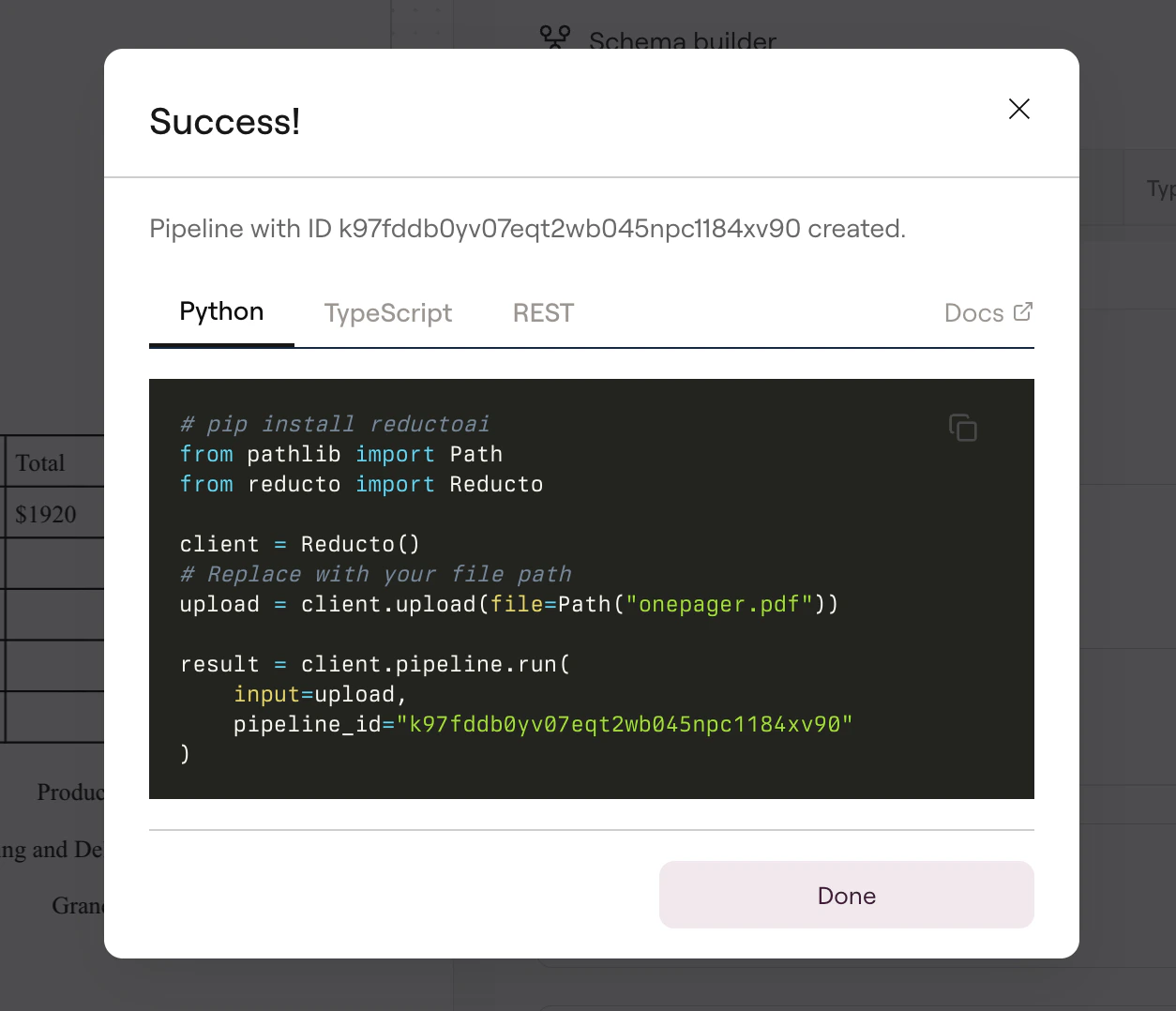
pipeline_id, then call it from your code with one API request. The pipeline orchestrates Classify, Parse, Extract, Split, and Edit steps behind the scenes, giving you a complete document workflow in a single call.
Why pipelines?
Without pipelines, building a multi-step document workflow means writing separate API calls for each step. You call Parse, wait for the result, feed that into Extract, handle errors at each stage, and manage all the configuration in your application code. This works, but it couples your code tightly to Reducto’s API structure and makes configuration changes require code deployments. Pipelines solve this by moving the workflow definition out of your code and into Studio. You configure the steps visually, test with real documents, and deploy. Your code then reduces to a single call:Creating a pipeline in Studio
Build your pipeline in Studio by adding steps and configuring each one. The Studio guides cover each step type in detail:- Parse for document conversion
- Extract for structured data extraction
- Split for document sectioning
- Edit for form filling
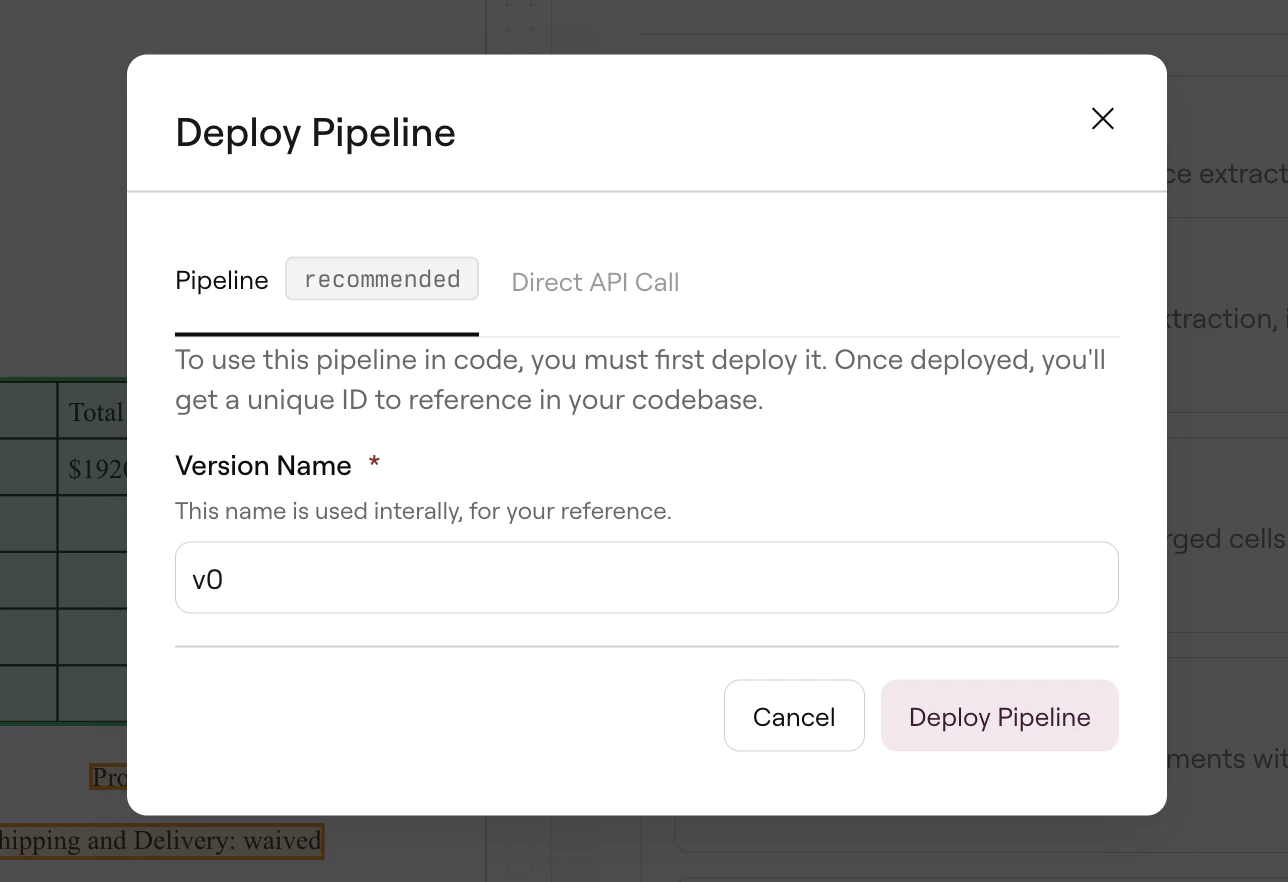
Deploy dialog showing Pipeline option with version naming
pipeline_id that you can copy directly into your code. This ID points to your exact configuration, so API calls always match what you tested in Studio.
Changes made in Studio don’t affect production until you deploy. This lets you iterate and test without impacting live systems.
Updating a pipeline
When you need to modify a deployed pipeline, make your changes in Studio and test with sample documents. Then click Deploy, select Pipeline, update the version name, and click Redeploy. The update takes effect immediately, and all API calls using thatpipeline_id will use the new configuration.
The Activity option shows all previous versions of your pipeline, letting you track what changed and when:
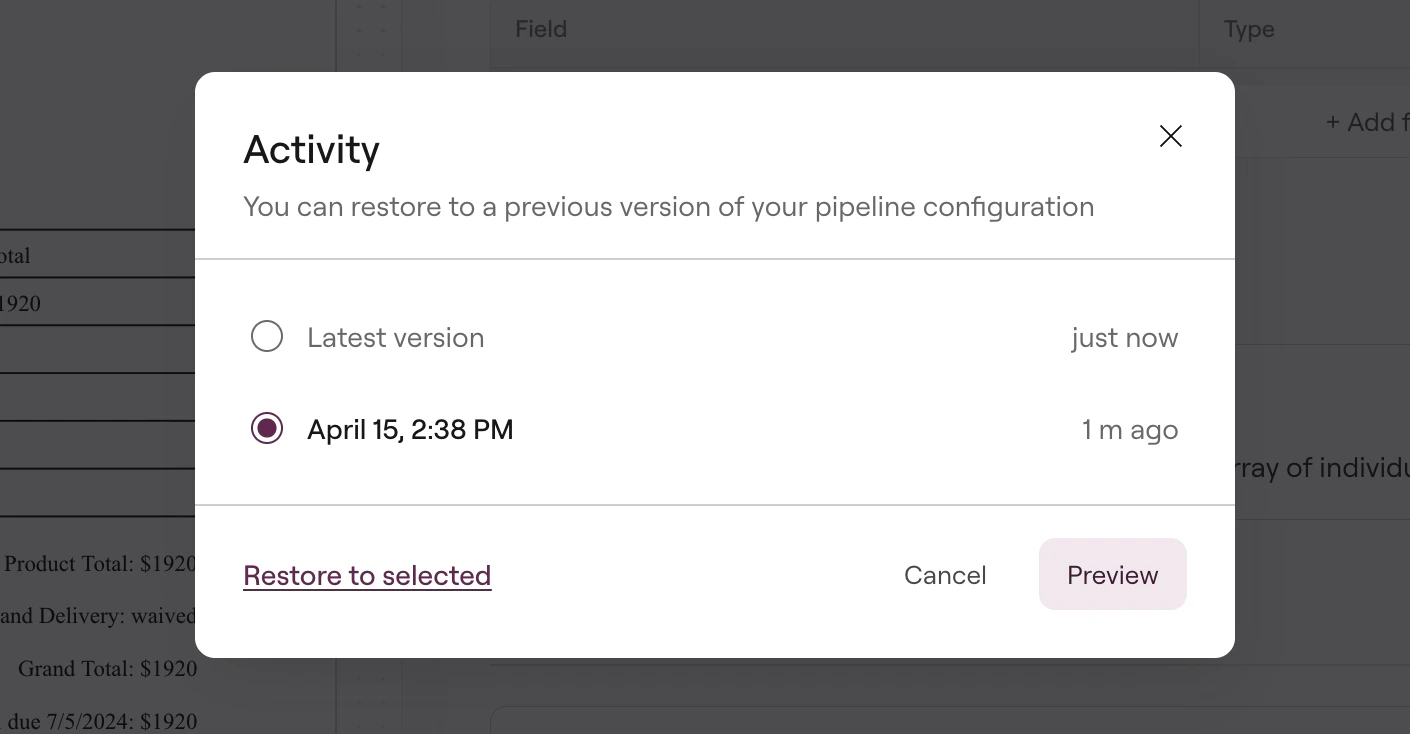
Activity history showing pipeline versions
Pipeline types
Studio determines the pipeline type based on which steps you add:Basic usage
The Go SDK does not yet support the Pipeline endpoint. Use the HTTP example above or the cURL snippet as a reference for Go implementations.
Response structure
Every pipeline returns aPipelineResponse with the same shape. Which fields are populated depends on the pipeline type you configured in Studio.
parse field is present for Parse, Parse→Extract, and Parse→Split→Extract pipelines. The extract field appears as an object for Parse→Extract pipelines, or as an array for Parse→Split→Extract pipelines where each entry corresponds to a section. The split field only appears when Split is configured. The edit field only appears for Edit pipelines.
Parse pipeline response
Parse pipeline response
Parse → Extract pipeline response
Parse → Extract pipeline response
Parse → Split → Extract pipeline response
Parse → Split → Extract pipeline response
When Split is involved,
extract becomes an array with one entry per section:Edit pipeline response
Edit pipeline response
Edit pipelines return a URL to the modified document. Note that for edit pipelines, the
input parameter contains the edit instructions rather than a document URL. The document to edit is configured in Studio as part of the pipeline.Next steps
Studio Quickstart
Build and deploy your first pipeline in Studio.
Multi-document Pipelines
Process multiple documents in a single call.
Deploy to Production
Manage pipeline versions and view execution logs.
Async Processing
Run pipelines asynchronously with webhooks.