

Start with a document
Upload a blank form template to your Edit pipeline. Edit works with:- PDFs with fillable fields (text boxes, checkboxes, dropdowns)
- PDFs without form fields (Edit uses vision to detect fillable areas)
- DOCX documents with form controls or table cells
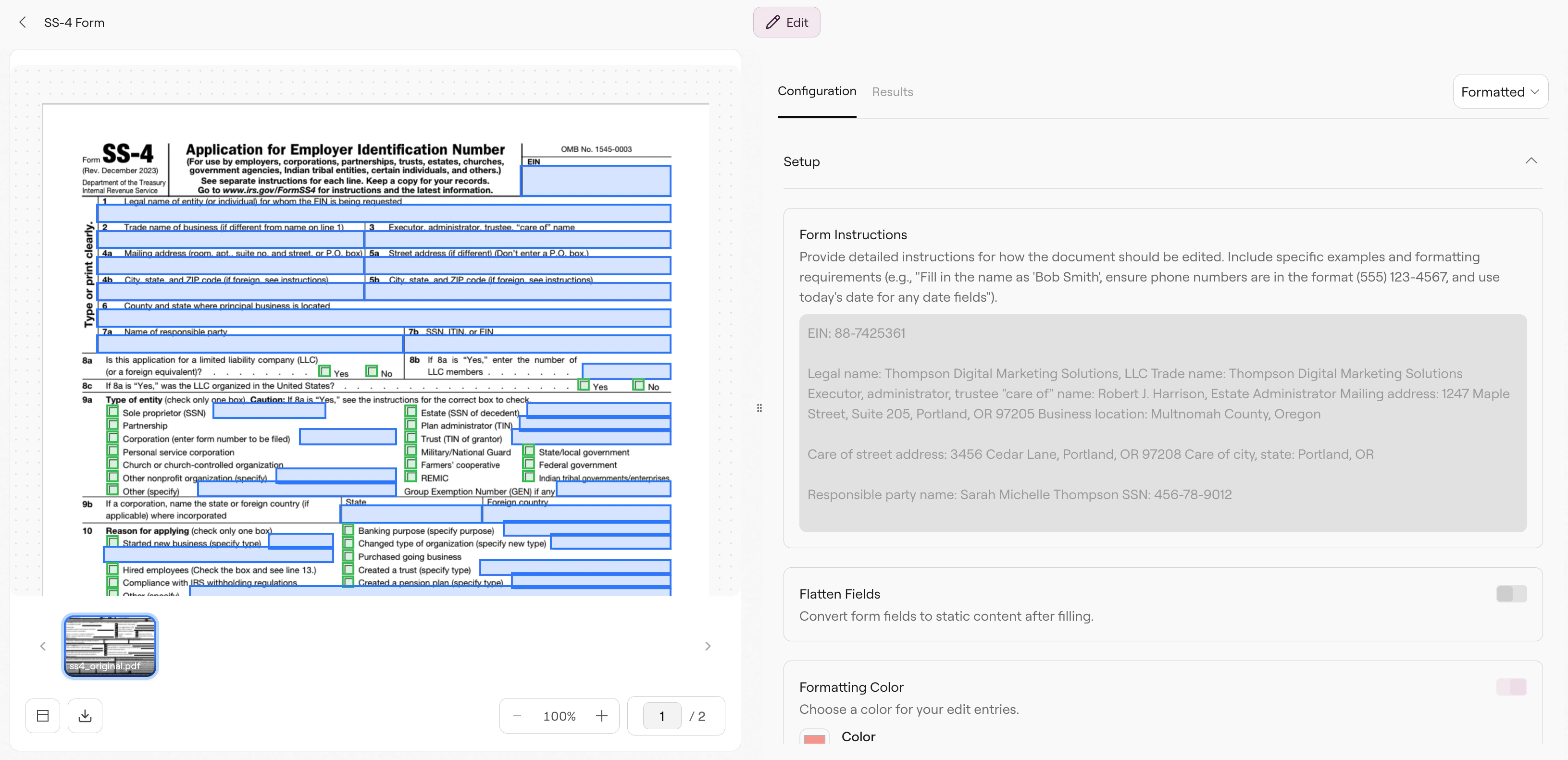
Edit pipeline interface showing the configuration panel
Write your instructions
The Instructions panel is where you describe what data to fill. Be specific about values and which fields they belong to:- Use the exact labels from the form. “Applicant First Name” instead of “Name.”
- Specify the section when available. “Section 2: Personal Information → Phone Number.”
- Number inputs for multi-row or repeatable fields. “First asset:”, “Second asset:”
- Include formatting hints. If a field requires a specific format, state it explicitly. Examples:
Phone: (555) 123-4567,Date: MM/DD/YYYY - Be explicit about checkboxes. Say “Check the ‘US Citizen’ checkbox” rather than “US Citizen: Yes”—the LLM needs to understand you mean check a box, not fill text.
- (Optional) Match the form’s field order. Present instructions in the same sequence as the form.
Form Schema (recommended)
The Results section shows an optional Form Schema panel. This is for repeatable form filling. When you run Edit without a form schema, it detects all fillable fields automatically and returns the detected form schema in the response. You can then import that form schema for subsequent runs—this skips detection, making fills faster and more consistent. How to use it:- Run Edit once without a form schema to detect the form schema fields
- Form schema will appear in Configurations under Results
- Edit, duplicate, or delete existing fields. Add missing fields.
- Now, even when Edit instructions are updated, the form schema will be used in the pipeline moving forward
Run and view results
Click Run to execute the edit. Edit:- Detects form fields (or uses your form schema if provided)
- Analyzes context around each field (labels, surrounding text)
- Maps your instructions to fields
- Fills values and returns the edited document
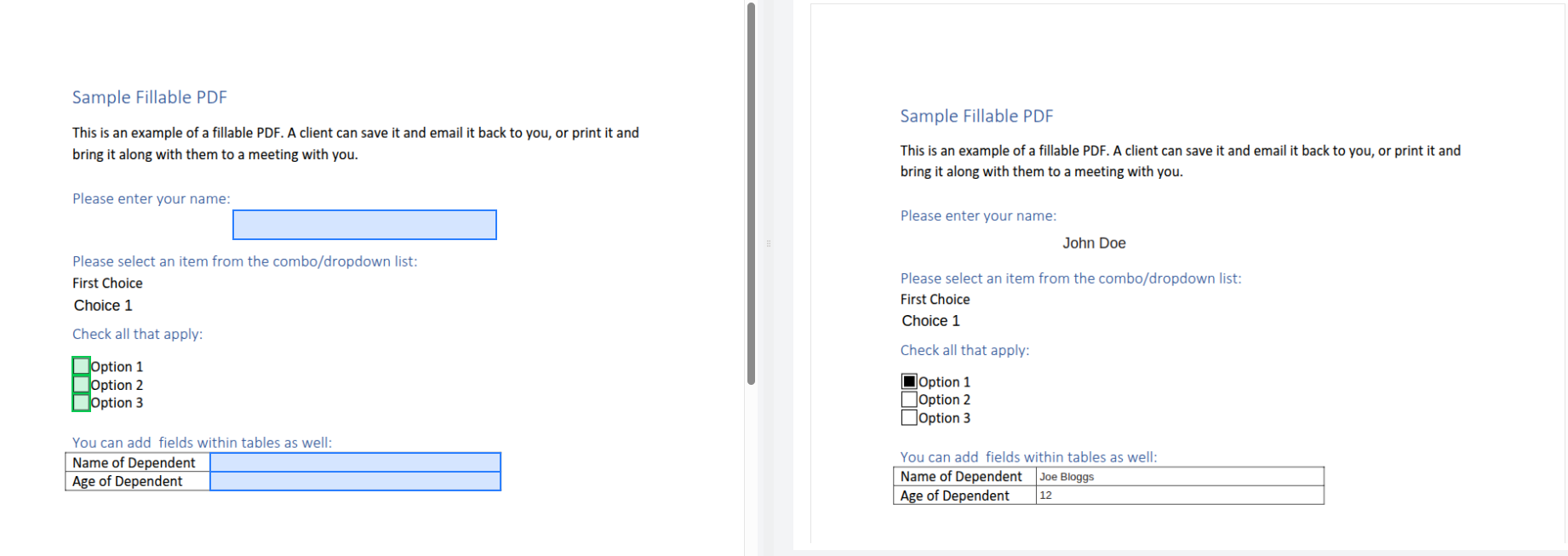
Before and after comparison showing the original form and filled version
- Download — Save the filled document
- Copy URL — Get a link to the filled document
Troubleshooting
Why are some fields still empty?
Why are some fields still empty?
Several things can cause unfilled fields:
- Instructions didn’t match: The LLM couldn’t map your instructions to that field. Use terms that appear on the form itself.
- Dropdown mismatch: The value must exactly match an available option (“CA” vs “California”)
- Detection missed it: Use Form Schema to explicitly define field locations
Why is text getting cut off in PDF fields?
Why is text getting cut off in PDF fields?
PDF form fields have fixed sizes. When your content exceeds the field capacity, it gets truncated.Solutions:
- Enable overflow pages in the API (
enable_overflow_pages: true) to create appendix pages for long text - Abbreviate values in your instructions if the form expects short values
Why isn't the checkbox getting checked?
Why isn't the checkbox getting checked?
Be explicit about checkbox actions. Instead of “US Citizen: Yes”, say “Check the ‘US Citizen’ checkbox”. The LLM needs to understand you mean check a box, not type the word “Yes” into a text field.
Why is the wrong field getting filled?
Why is the wrong field getting filled?
When fields have similar labels, the LLM may map incorrectly.Solutions:
- Be more specific: “Applicant First Name: John” rather than “Name: John”
- Reference position: “The name field in the top-left of page 1”
- Use Form Schema to define exactly which field is which using coordinates
No form fields were detected—what now?
No form fields were detected—what now?
The PDF has no widgets and vision couldn’t detect fillable areas. This happens with:
- Scanned images without clear form structure
- Fields that blend into the background
- Documents that aren’t actually fillable forms
Related
Edit API
API reference with all parameters and options.
Form Schema
Pre-define field locations for faster, more consistent filling.