

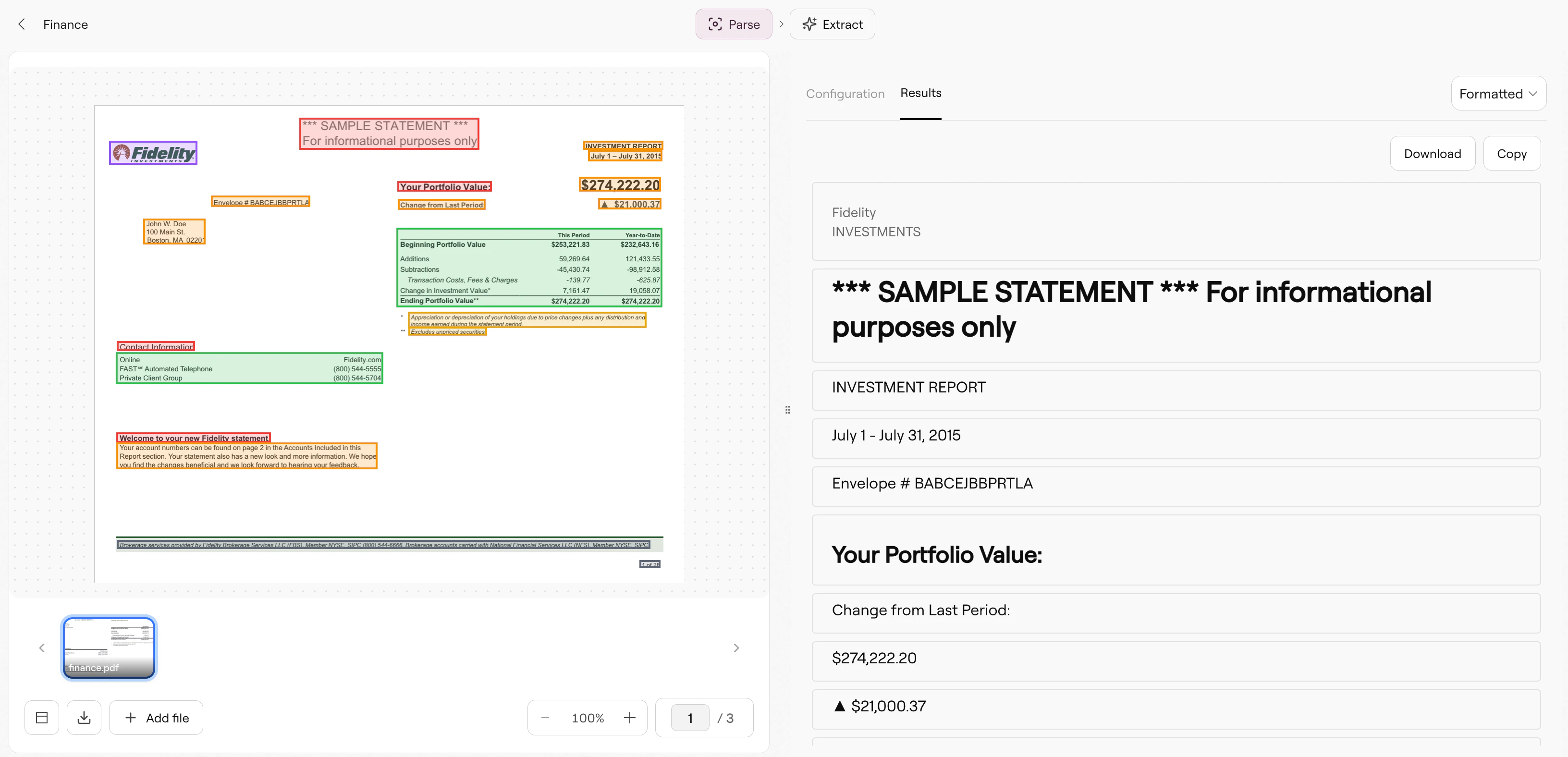
Parse pipeline in Studio showing a financial statement with detected regions
What Parse extracts
Parse breaks your document into chunks, each representing a semantic unit of content:- Text blocks: Paragraphs and body text, preserving reading order across columns
- Tables: Structured data with rows and columns, output as markdown, HTML, or JSON
- Figures: Images, charts, and diagrams with optional AI-generated descriptions
- Headers: Section titles with hierarchy levels for document structure
- Key-value pairs: Form-like content where a label maps to a value
- Footers: Page numbers, disclaimers, and repeated bottom-of-page content
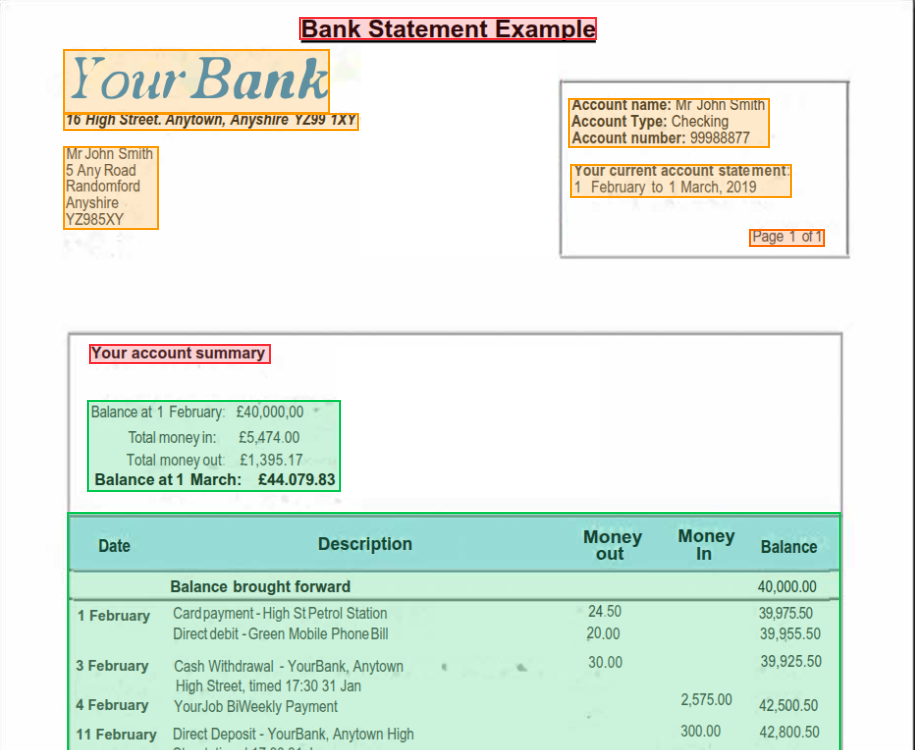
Bounding boxes showing detected content types
When to adjust configurations
The default configuration handles most documents well. The Configurations tab contains the whole list of available configurations, split into 5 buckets: Enhance: r-1 handles general parsing accuracy natively. Enable agentic processing when a workflow needs custom prompts or specialized augmentation. It adds latency and, on legacy Parse, cost. Retrieval: Configure chunking for RAG pipelines. The default may produce segments too large or small for your embedding model. Set chunking mode tovariable with a target size around 500-1000 characters.
Formatting: Control output structure. Switch table format to html or json for programmatic use. Formatting also includes configurations for detecting attributes like change tracking, hyperlinks, highlights, and more.
Spreadsheet: Handle Excel and CSV files. Control inclusions of cell colors, formulas, dropdowns, and hidden items in your outputs, as well as table clustering detection.
Settings: Core processing controls such as specifying page ranges, returning images, and forcing a URL result.
See Parse Configurations for the complete reference.
Working with results
The Results tab shows parsed output as formatted markdown by default. The toolbar offers several options:- Copy: Copy the output to your clipboard
- Download: Save results as a file
- JSON: Toggle to see the raw API response structure
Processing multiple files
Studio supports batch processing. Add multiple files using the Add file button in the file carousel, then check All Files before clicking Run to process the entire batch with your current configuration. This is helpful for testing configurations across a representative sample before deploying. If results vary significantly across documents, you may need to adjust settings or consider whether a single pipeline can handle your document variety.From Parse to Extract
Parse alone gives you the document’s content and structure. If you need specific fields, such as invoice totals, contract dates, or patient names, add an Extract step. Click Add in the pipeline header to chain Parse → Extract, creating a multi-step pipeline you can deploy with a single Pipeline ID. See Extract Pipeline for schema configuration.Related
Parse API
API reference and response schema.
Parse Configurations
All configuration options with examples.