

API Keys
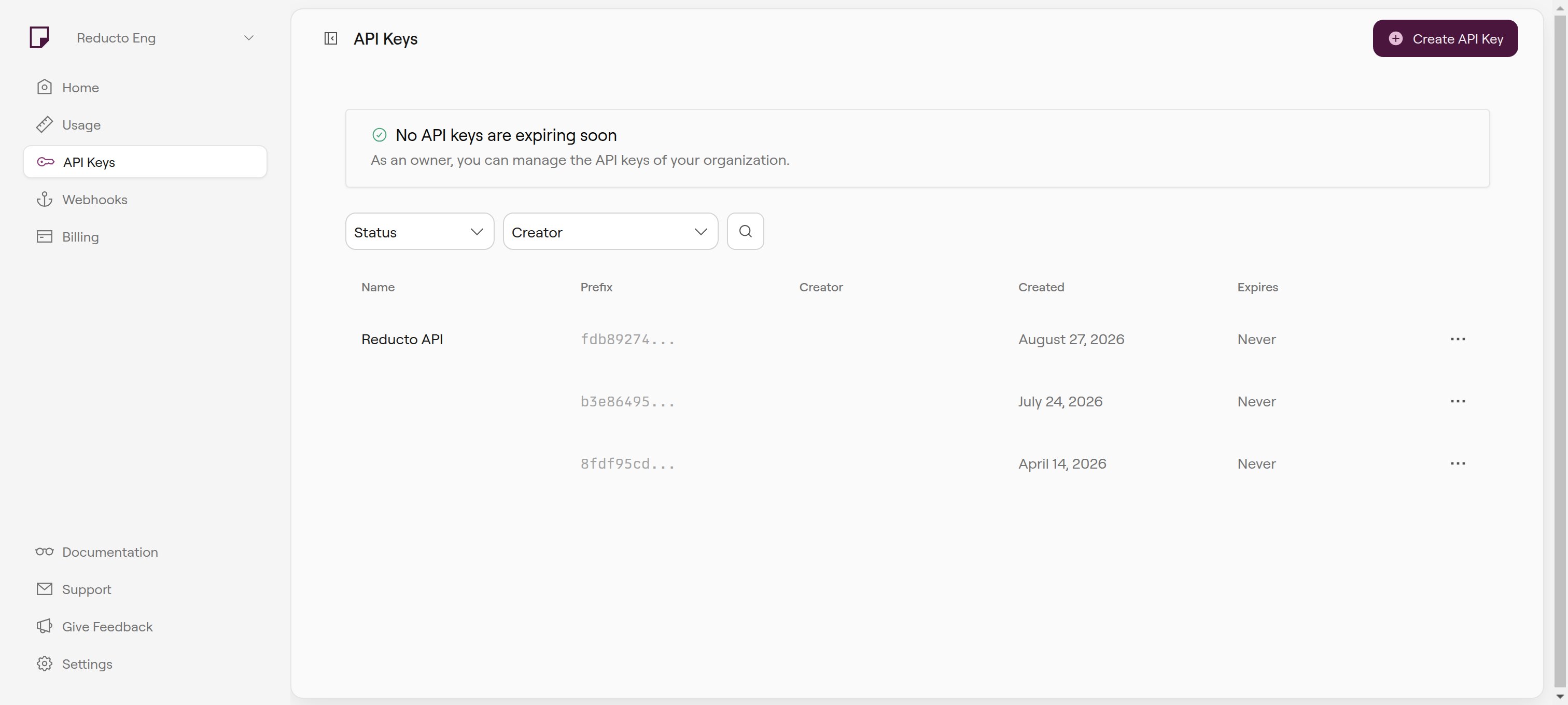
All roles can create API keys. Only Owners and Admins can edit or delete keys. See Roles & Permissions for details.
- Click Create API Key
- Give it a descriptive name (e.g., “production”, “staging”, “local-dev”)
- Copy the key immediately, you won’t be able to see it again
For security, create separate API keys for different environments (development, staging, production). If a key is compromised, you can revoke it without affecting other environments.
Usage
The Usage page tracks your Reducto consumption. Navigate to Usage in the sidebar to view your dashboard.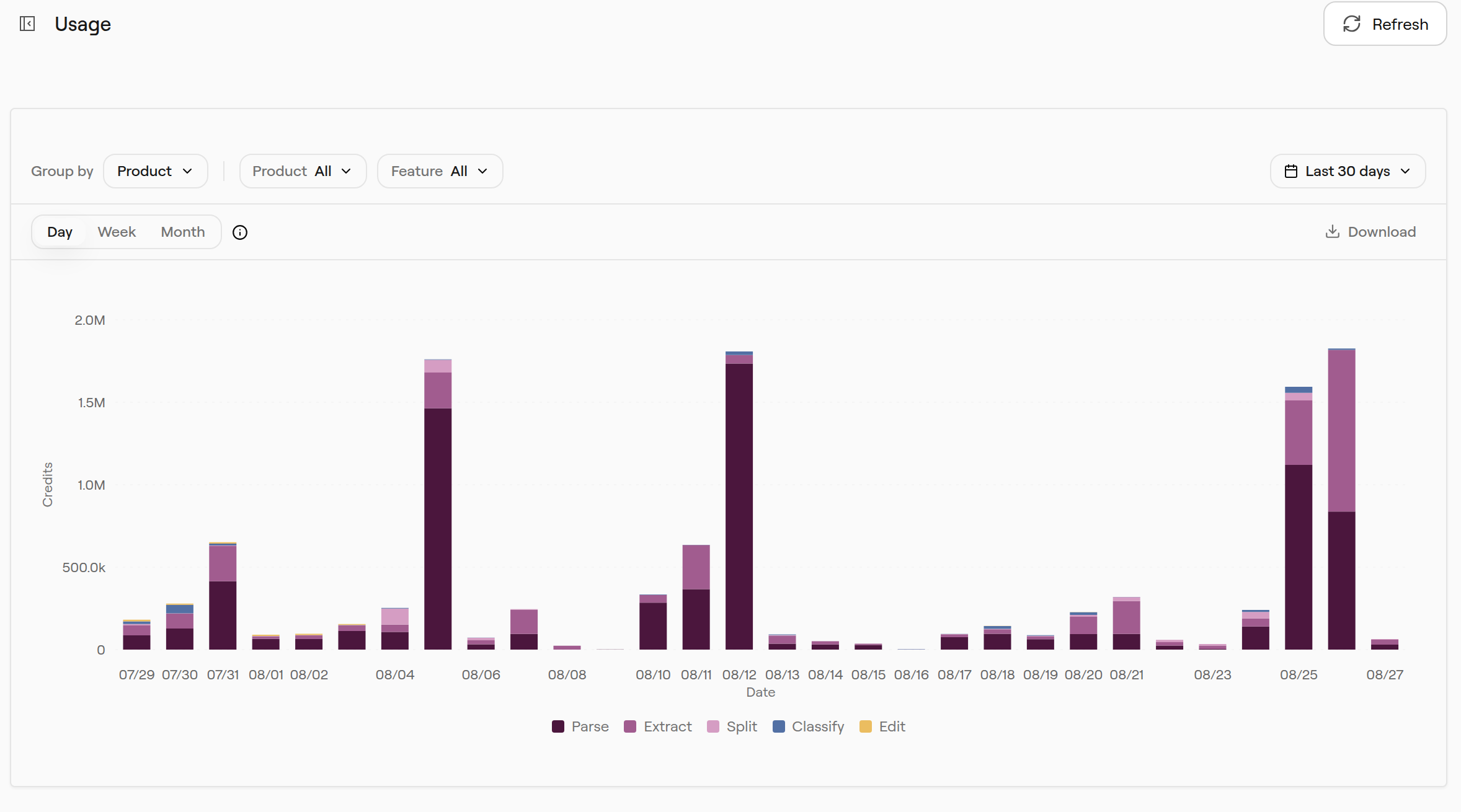
Usage chart
The chart shows usage over time, broken down by product (Parse, Extract, Split, Edit, Classify). The unit on the y axis depends on your pricing model (see the Pricing Migration Guide):- Pages: accounts on per-product pricing. The chart shows billable pages, the count Reducto uses for pricing.
- Credits: accounts on credit-based pricing. The chart shows credits consumed.
- Group by: Switch the breakdown. Accounts on per-product pricing can group by Product or API key. Accounts on credit-based pricing can also group by Feature or File type.
- Product / API key: Filter to specific products or API keys. Accounts on credit-based pricing can also filter by Feature and File type.
- Time range: View the last 7, 30, or 90 days, or pick a custom range
- Granularity: Toggle between Day, Week, and Month views
Request logs
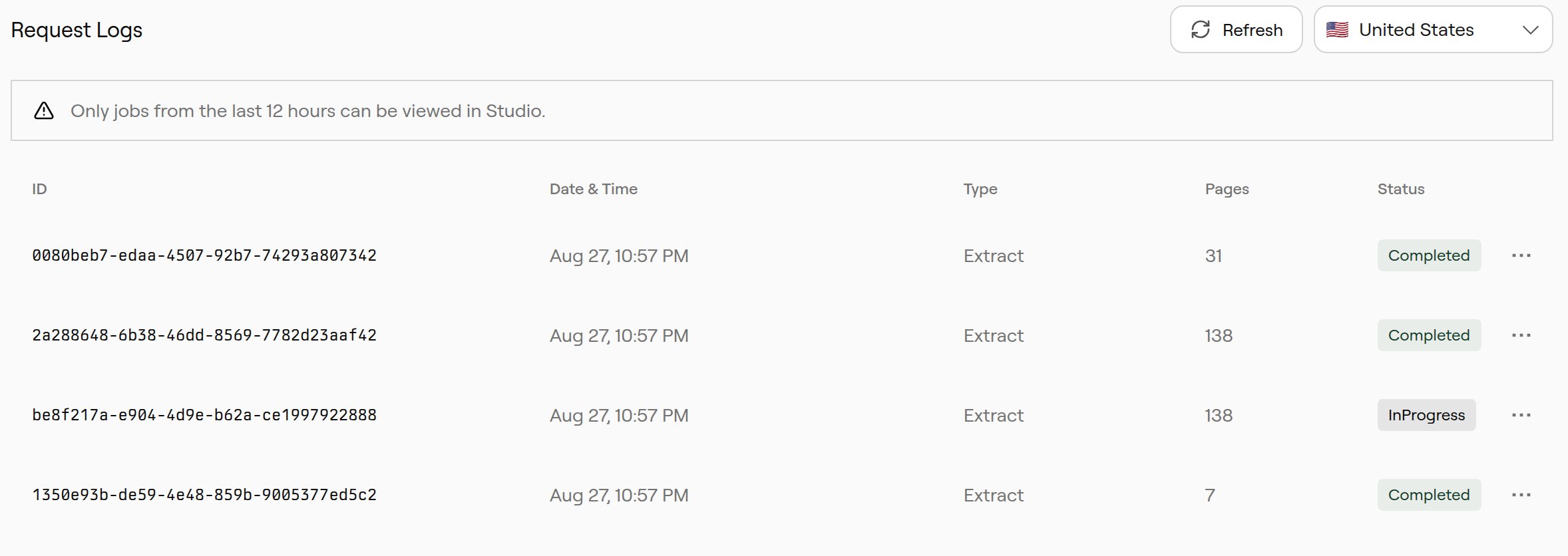
Below the chart, the Request Logs table shows individual API requests. Each entry includes:- Job ID
- Date and time
- Type (Parse, Extract, Split, Edit, Classify)
- Page count processed
- Status
Billing
Navigate to Billing in the sidebar to see your current plan, usage alerts, and billing history.The billing page is only visible for account owners and organizations on a subscription plan.
- View invoices: See past and upcoming charges under Billing history
- Update payment methods: Click Add payment method
- Manage subscription: Click Manage plan to open the Stripe customer portal
- Download receipts: Click View invoices in Stripe
Subscription changes
Monthly and yearly plans are available. To change your plan, use Manage plan or contact support@reducto.ai.Usage alerts
Configure usage alerts from the Billing page to get an email when your current invoice crosses a threshold you set. Click Create alert to open the dialog.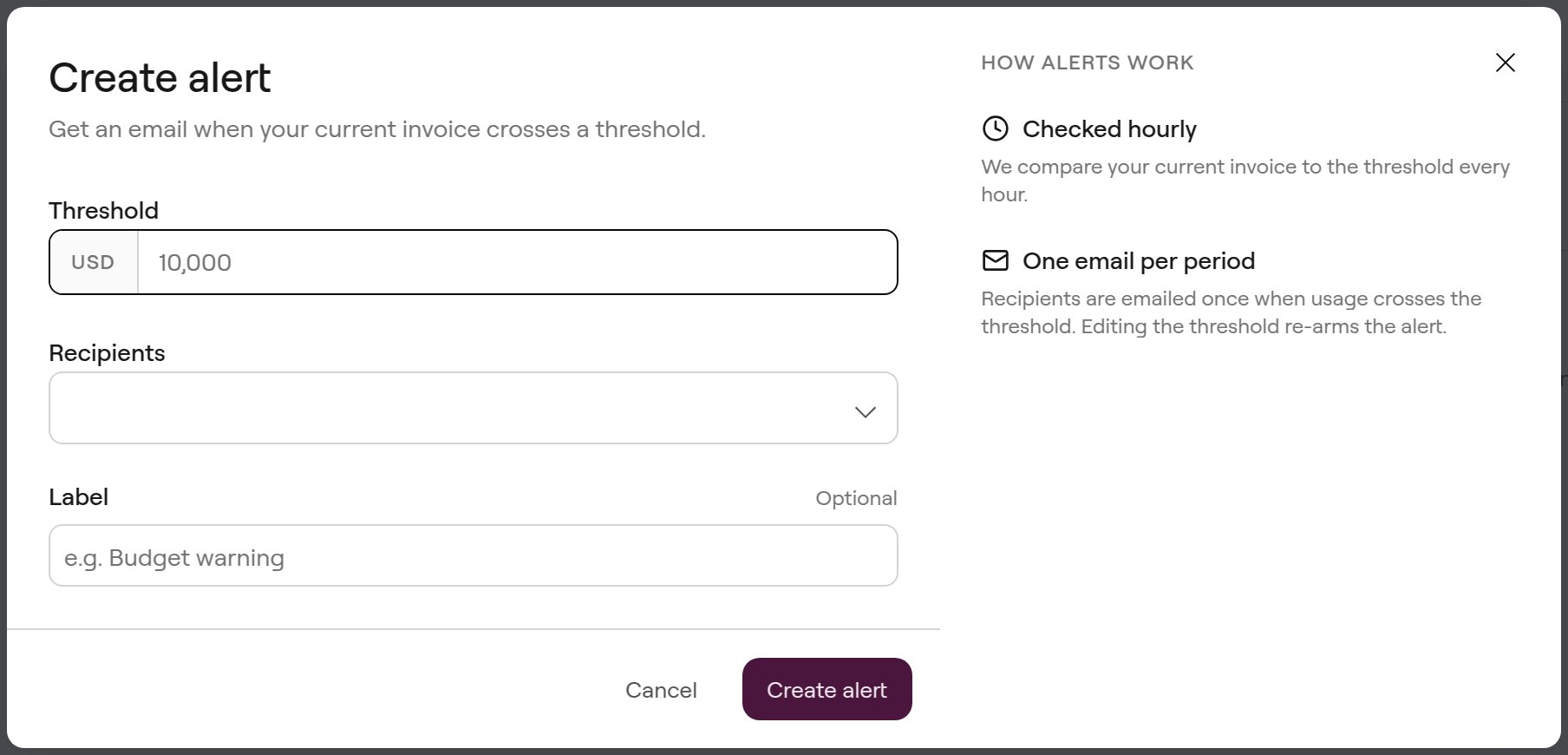
- Threshold: The invoice amount (in USD) that triggers the alert
- Recipients: The organization members who receive the email
- Label: An optional name for the alert (e.g., “Budget warning”)
Organization Settings
The Settings page lets you manage your profile and organization.Account settings
On the Account tab, you can:- Edit your name and email
- Change your profile picture
- Set a password or enable two-factor authentication (2FA)
- Choose a theme (Light or Dark)
- Manage cookie preferences
Organization management
If you’re an organization Owner or Admin, you can:- Invite team members
- Manage member roles and permissions
Webhooks
Configure webhooks to receive notifications when jobs complete. Navigate to Webhooks in the sidebar. Webhooks let you:- Get notified when async jobs finish
- Trigger downstream workflows automatically
- Avoid polling the API for job status
Related
API Quickstart
Set up your API key and make your first request.
Credit Usage
How credits are calculated and billed.
Webhook Setup
Configure webhooks for async job notifications.
Security Policies
Data handling, retention, and compliance information.