

How Split works in Studio
When you add a Split step to a pipeline, Studio shows two configuration areas:- Instructions — Rules for how pages should be classified (the default allows overlap only at section boundaries)
- Sections & Partitions — The sections you want to identify, each with a Title and Description
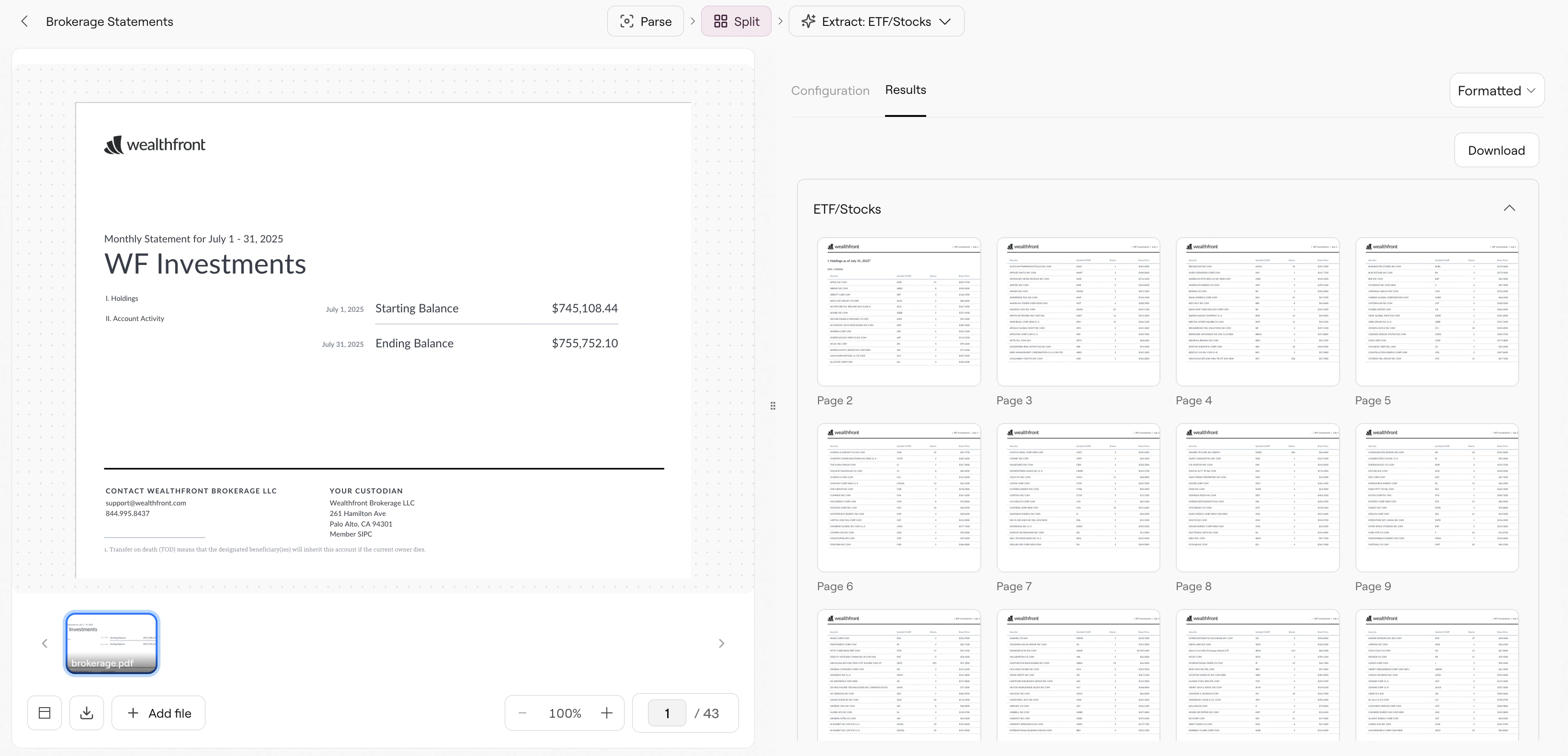
Split pipeline
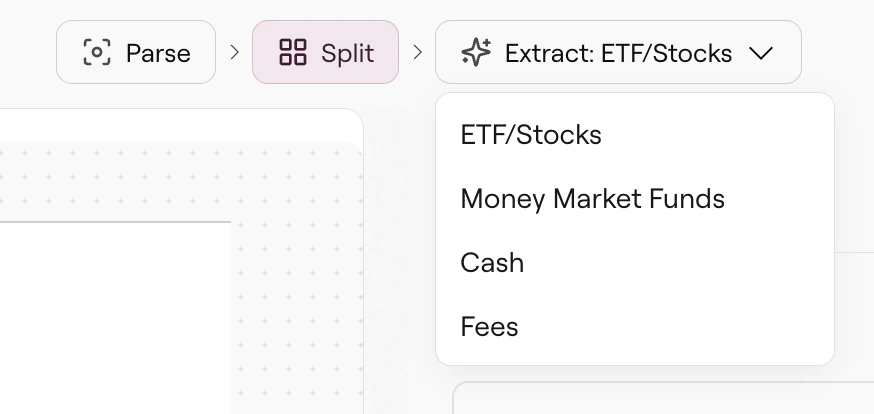
Extract step with section selector
Partitions
For sections that repeat with different identifiers (like multiple accounts in one statement), use partitions. Click ADD PARTITION under any section to specify a partition key. For example, if a statement contains holdings for accounts A, B, and C:- Section: “Account Holdings”
- Partition key: “account number”
Instructions
The Instructions text area controls how Split handles page classification:Troubleshooting
Why is a section returning no pages?
Why is a section returning no pages?
Check your description. If you said “Account Summary” but the document header says “Portfolio Overview”, Split won’t match. Use terms that appear in the actual document.Try broadening the description first, then narrow down once you confirm Split can find the section.
Why are pages showing up in the wrong section?
Why are pages showing up in the wrong section?
Add more distinguishing details to your descriptions. If pages look similar, mention specific text, headers, or visual elements: “The page with the pie chart showing asset allocation” is more specific than “holdings breakdown”.
Why don't partitions appear in results?
Why don't partitions appear in results?
The partition key must appear as identifiable text in the document. If you’re partitioning by “account number” but the document doesn’t have visible account numbers (only account names), use “account name” as the partition key instead.
Can I have multiple Extract steps for different sections?
Can I have multiple Extract steps for different sections?
Yes. After Split, you can add multiple Extract steps. Each Extract step has its own section dropdown, schema, and settings. Use the Add button in the pipeline header to add additional steps.
Related
Split API Reference
Complete API documentation for programmatic Split calls.
Extract Pipeline
Define extraction schemas for your Split sections.
Parse Pipeline
Split runs Parse internally—understand what it sees.
Deploy Pipelines
Deploy your Split + Extract pipeline for API access.