ACORD 25 is the standard certificate of liability insurance in the US. Agencies issue hundreds daily, pulling data from policy declarations pages. This cookbook extracts declarations data and maps it to ACORD 25 fields.

Sample Documents

ACORD 25 Certificate

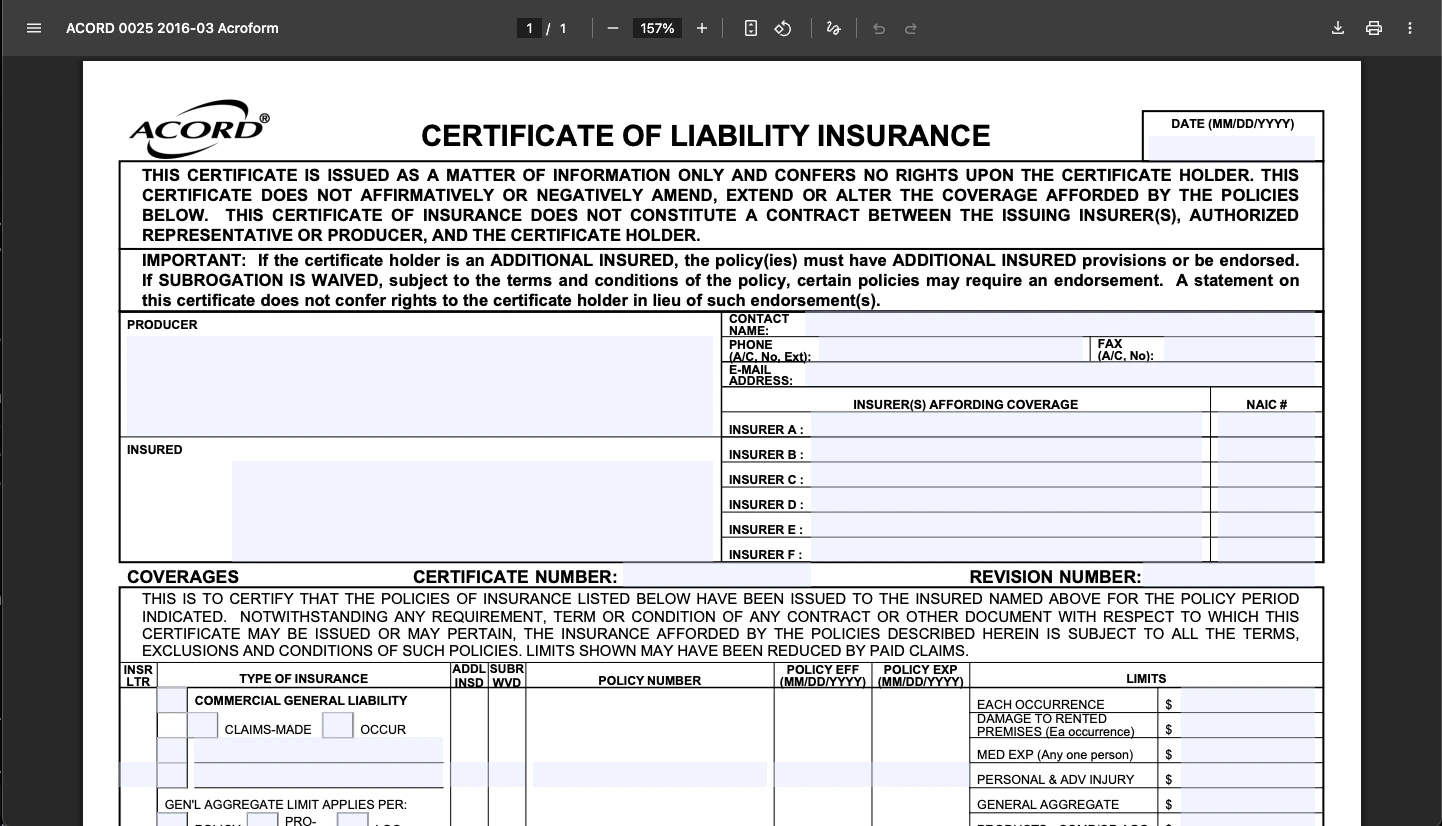
This is a blank ACORD 25 Certificate of Liability Insurance. We’ll extract data from a declarations page and use it to fill this form. The ACORD 25 is a standardized form with specific field locations for policy numbers, coverage limits, and dates. The Edit API detects these fields automatically.

Declarations Page (Source Data)

The declarations page contains all policy details: insured name, policy numbers, effective dates, and coverage limits. This is the source data we’ll extract.

Create API Key

1

Open Studio

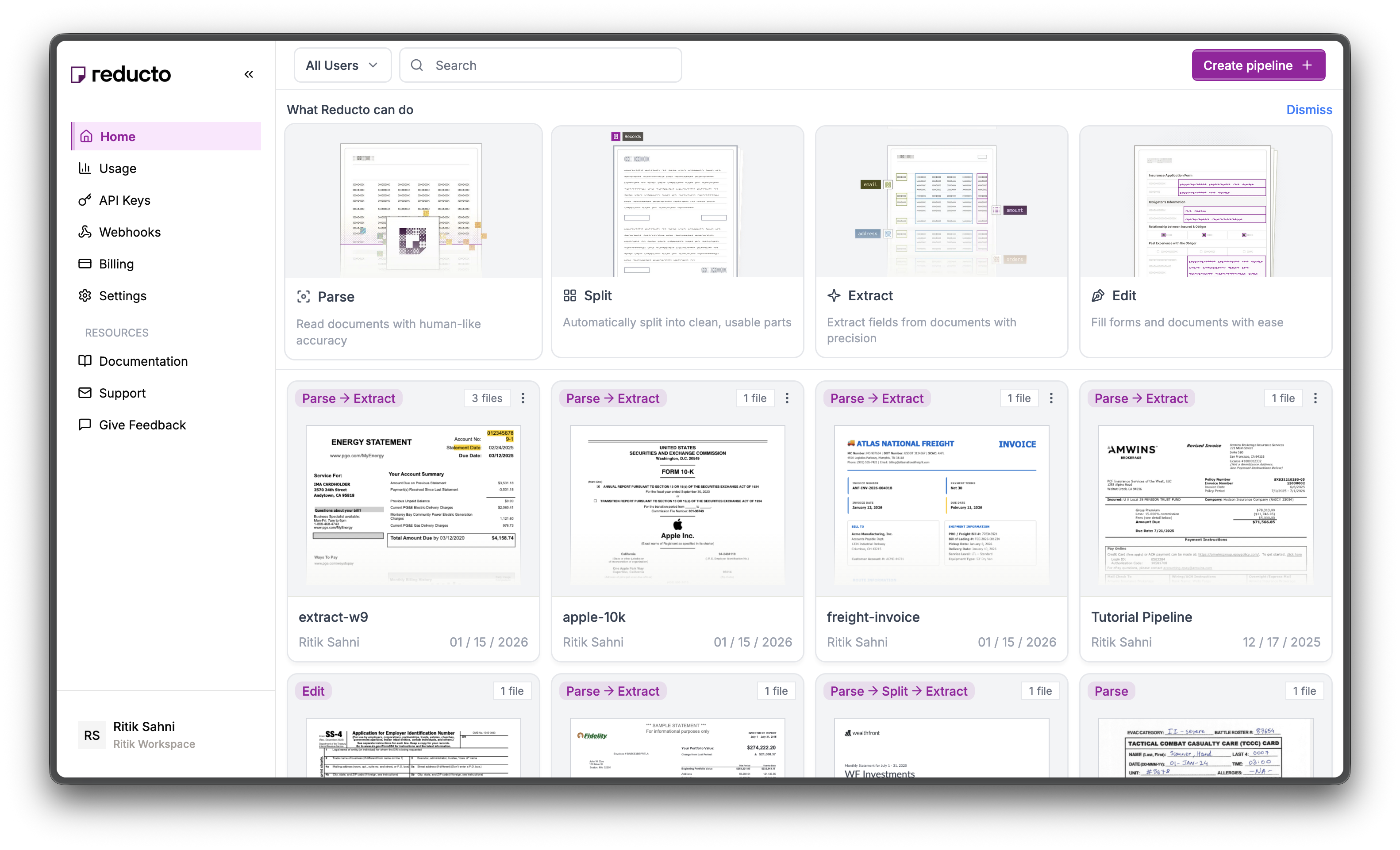
Go to studio.reducto.ai and sign in. From the home page, click API Keys in the left sidebar.
Studio home page with API Keys in sidebar
2

View API Keys

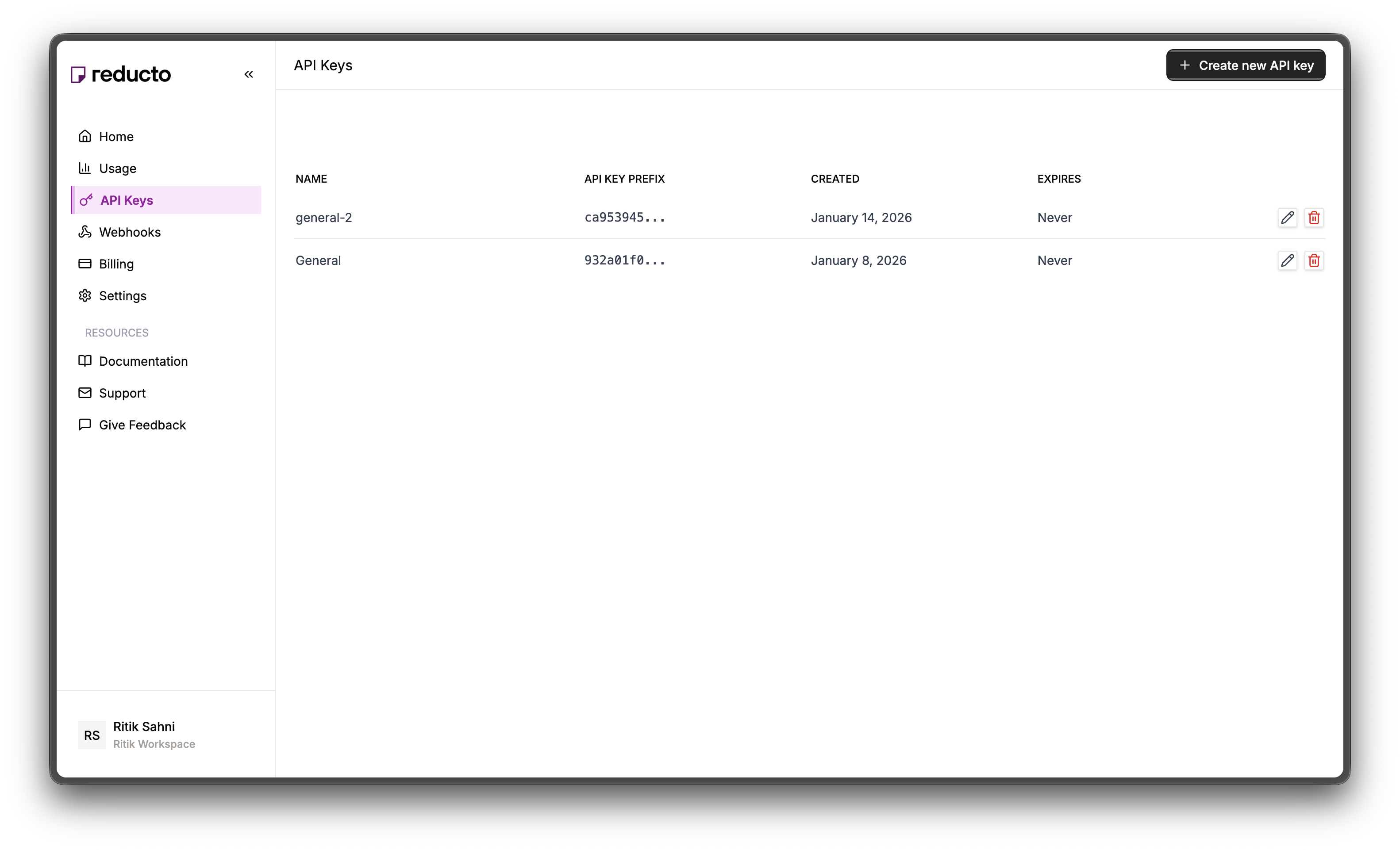
The API Keys page shows your existing keys. Click + Create new API key in the top right corner.
API Keys page with Create button
3

Configure Key

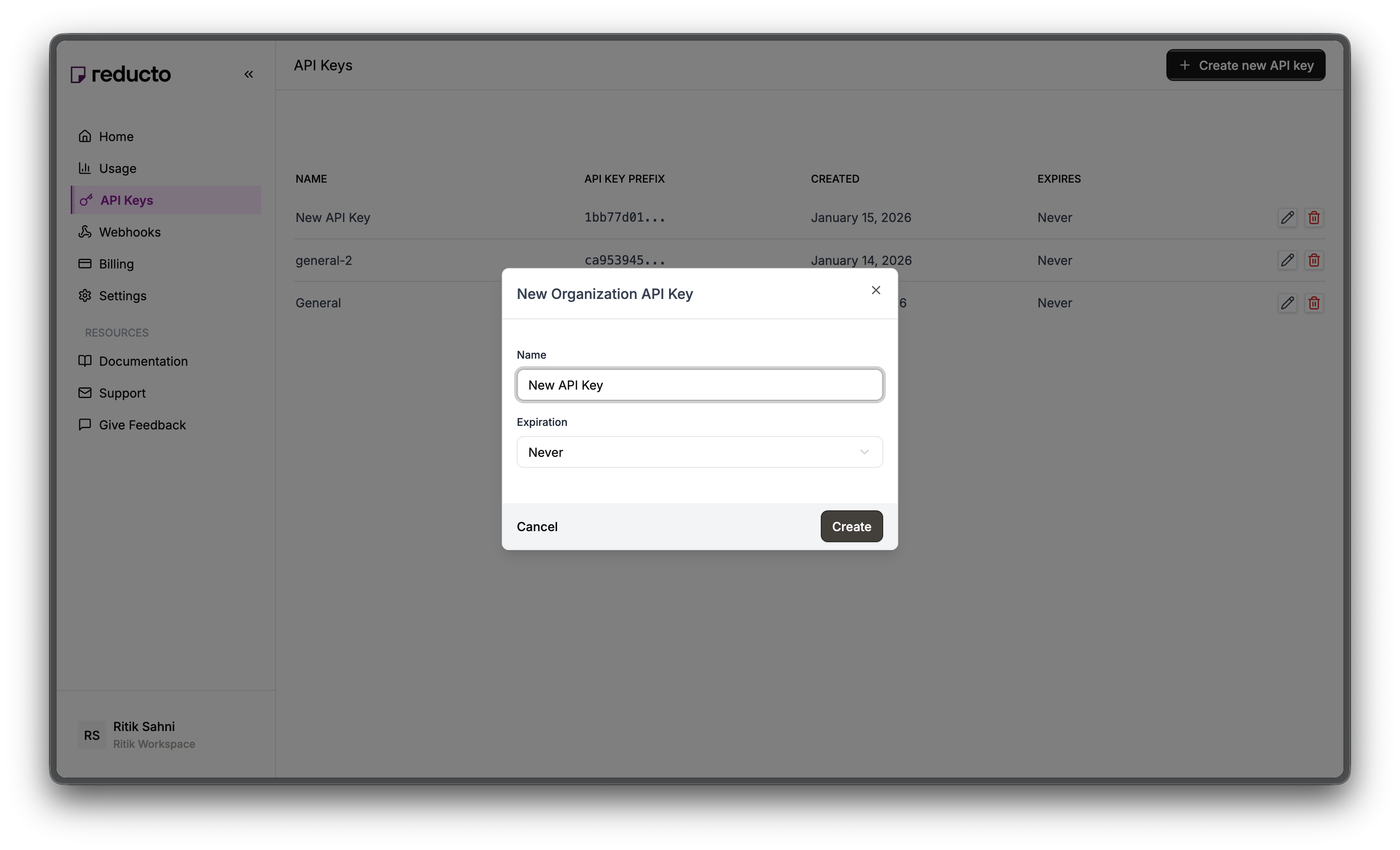
In the modal, enter a name for your key and set an expiration policy (or select “Never” for no expiration). Click Create.
New API Key modal with name and expiration fields
4

Copy Your Key

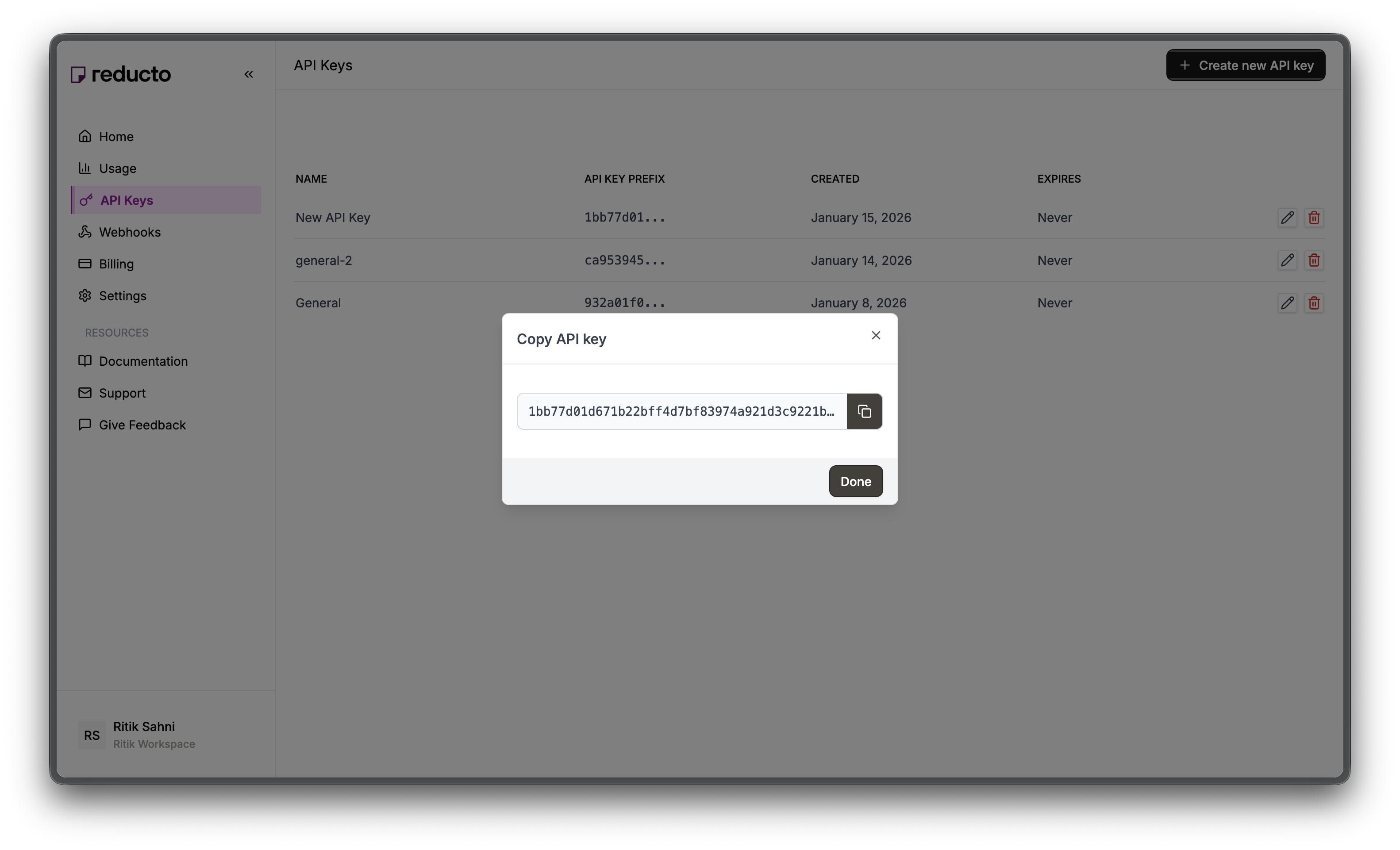
Copy your new API key and store it securely. You won’t be able to see it again after closing this dialog.
Copy API key dialog
Set the key as an environment variable:
export REDUCTO_API_KEY="your-api-key-here"

Part 1: Extract from Declarations Page

The declarations page contains all the policy details needed to fill an ACORD 25: insured name, policy number, effective/expiration dates, and coverage limits.

Studio Walkthrough

1

Upload Declarations PDF

Go to studio.reducto.ai and create an Extract pipeline. Upload the declarations page PDF.Extract reads the document and lets you define a schema to pull specific fields as structured JSON.
2

Build the Schema

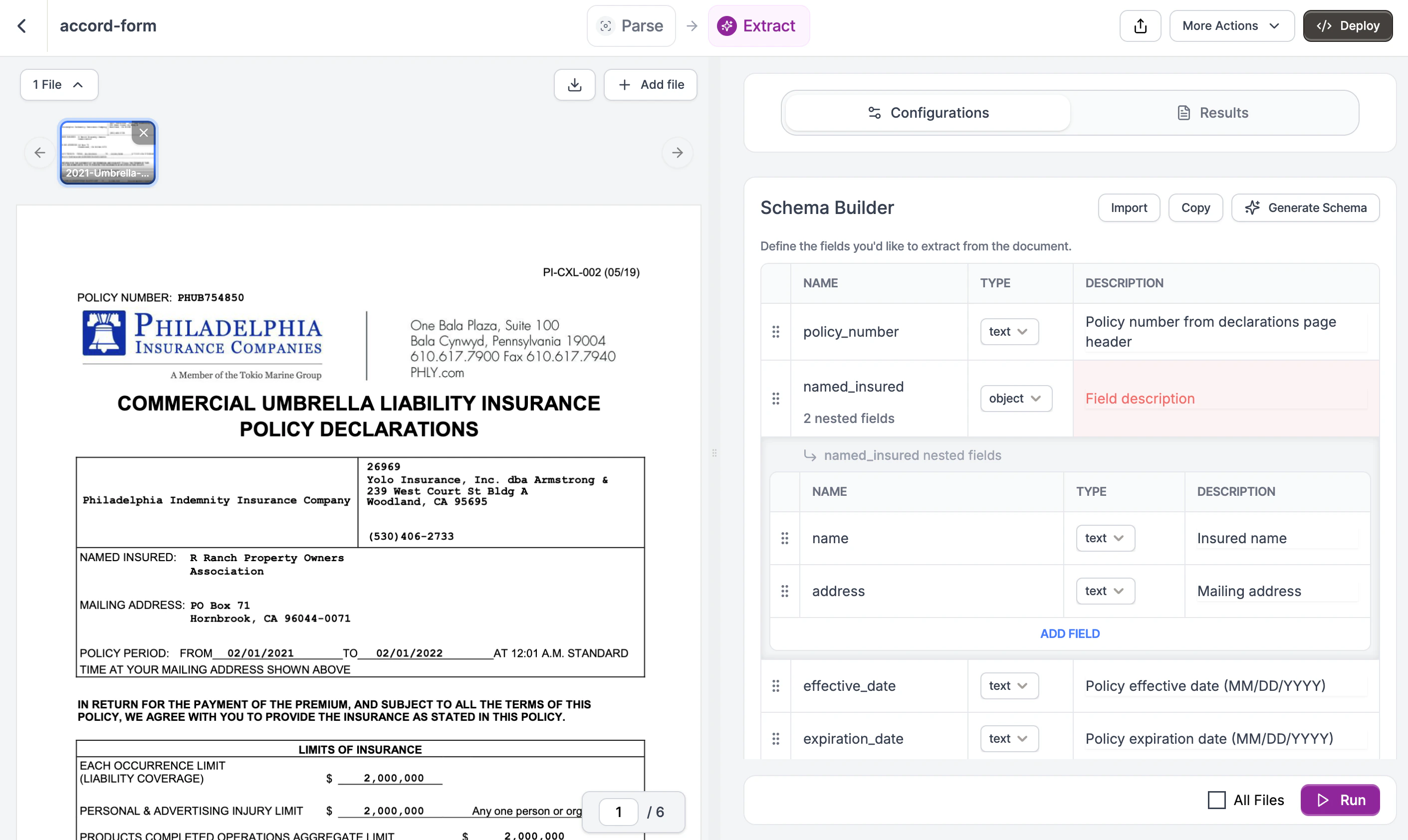
In the Schema Builder, define fields matching the declarations page structure. Click Add Field for each:
  • policy_number (text) - “Policy number from the declarations page”
  • named_insured (object) - “Policyholder information”
    • name (text) - “Insured name”
    • address (text) - “Mailing address”
  • effective_date (text) - “Policy effective date”
  • expiration_date (text) - “Policy expiration date”
  • insurer_name (text) - “Insurance company name”
  • umbrella_occurrence_limit (number) - “Each occurrence limit”
  • umbrella_aggregate_limit (number) - “Aggregate limit”
Schema Builder showing policy fields

Schema Builder with declarations page fields defined

Field descriptions help the LLM locate the right values. Be specific about where each field appears. See the Complete Schema below for a copy-paste version.
3

Run Extraction

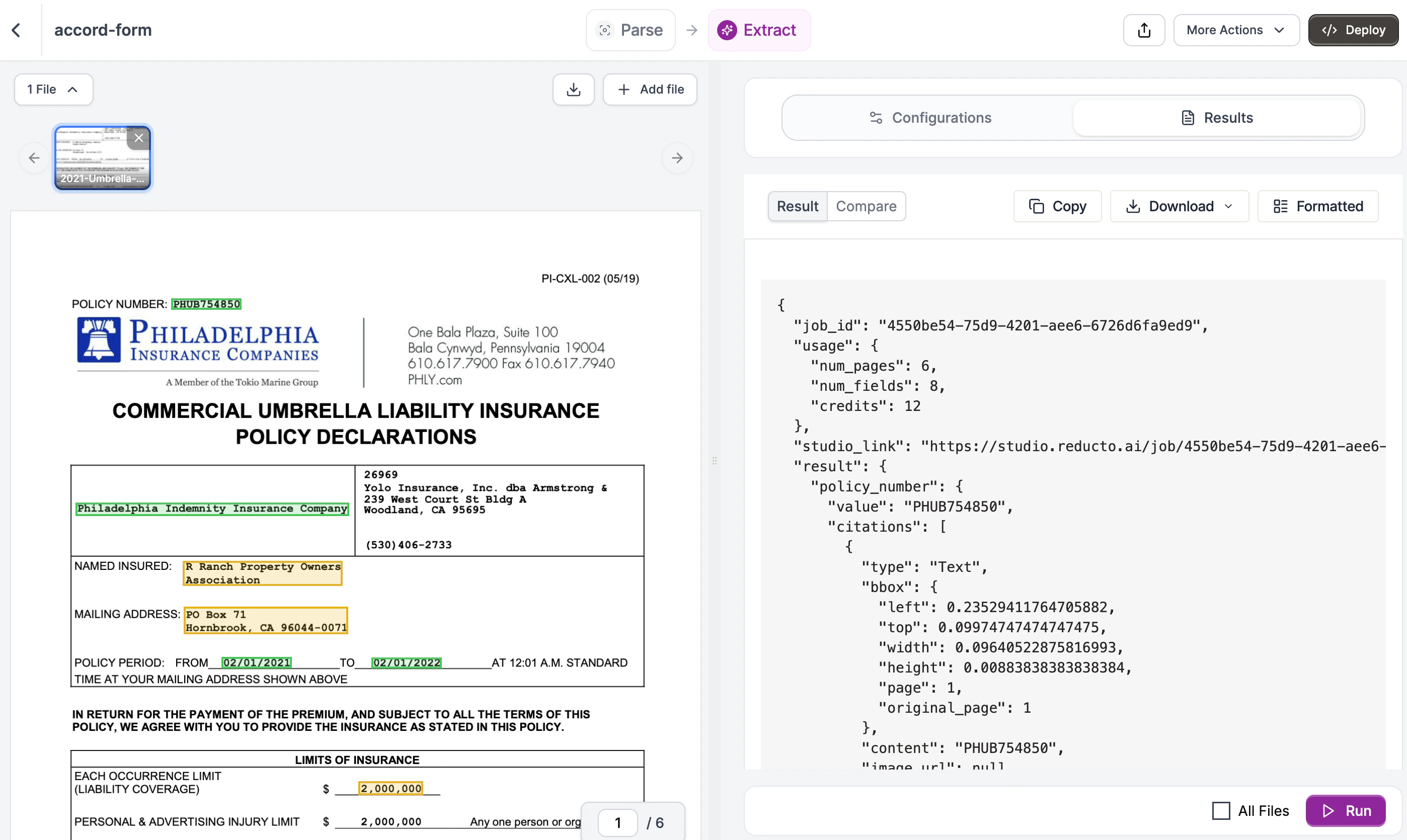
Click Run. The Results tab shows extracted data as JSON:
Extraction results showing policy data

Extraction results from the declarations page

{
  "policy_number": "PHUB754850",
  "named_insured": {
    "name": "R Ranch Property Owners Association",
    "address": "PO Box 71, Hornbrook, CA 96044-0071"
  },
  "effective_date": "02/01/2021",
  "expiration_date": "02/01/2022",
  "insurer_name": "Philadelphia Indemnity Insurance Company",
  "umbrella_occurrence_limit": 2000000,
  "umbrella_aggregate_limit": 2000000
}

Using the API

Let’s walk through extracting policy data step by step.

Step 1: Initialize the client

Start by importing Reducto and creating a client. The client reads your API key from the REDUCTO_API_KEY environment variable automatically.
from reducto import Reducto

client = Reducto()

Step 2: Upload your document

Upload the declarations page PDF. This returns a file_id that you’ll use for extraction. Reducto stores the file temporarily so you can process it without re-uploading.
with open("declarations.pdf", "rb") as f:
    upload = client.upload(file=f)

print(f"Uploaded: {upload.file_id}")

Step 3: Define the schema structure

The schema tells Reducto what fields to extract. Start with the basic structure:
declarations_schema = {
    "type": "object",
    "properties": {
        # We'll add fields here
    }
}
Every extraction schema is an object with properties. Each property becomes a key in your JSON output.

Step 4: Add simple fields

Add the basic policy fields. Each field needs a type and a description. The description is important because it tells the LLM where to find the value.
declarations_schema = {
    "type": "object",
    "properties": {
        "policy_number": {
            "type": "string",
            "description": "Policy number from declarations page header"
        },
        "effective_date": {
            "type": "string",
            "description": "Policy effective date (MM/DD/YYYY)"
        },
        "expiration_date": {
            "type": "string",
            "description": "Policy expiration date (MM/DD/YYYY)"
        },
        "insurer_name": {
            "type": "string",
            "description": "Insurance company name"
        }
    }
}
Why descriptions matter: “Policy number” alone is ambiguous if the page has multiple numbers. Adding “from declarations page header” helps the LLM find the right one.

Step 5: Add nested objects

For grouped information like the insured’s details, use a nested object:
"named_insured": {
    "type": "object",
    "properties": {
        "name": {
            "type": "string",
            "description": "Insured name"
        },
        "address": {
            "type": "string",
            "description": "Mailing address"
        }
    }
}
Nested objects keep related fields together in your output, making it easier to work with the data.

Step 6: Add coverage limits

For numeric values like coverage limits, use type: "number". Reducto will return these as integers or floats, not strings.
"umbrella_occurrence_limit": {
    "type": "number",
    "description": "Each occurrence limit in dollars"
},
"umbrella_aggregate_limit": {
    "type": "number",
    "description": "Aggregate limit in dollars"
}

Complete Schema

Here’s the complete schema you can copy and paste:
{
  "type": "object",
  "properties": {
    "policy_number": {
      "type": "string",
      "description": "Policy number from declarations page header"
    },
    "named_insured": {
      "type": "object",
      "properties": {
        "name": {
          "type": "string",
          "description": "Insured name"
        },
        "address": {
          "type": "string",
          "description": "Mailing address"
        }
      }
    },
    "effective_date": {
      "type": "string",
      "description": "Policy effective date (MM/DD/YYYY)"
    },
    "expiration_date": {
      "type": "string",
      "description": "Policy expiration date (MM/DD/YYYY)"
    },
    "insurer_name": {
      "type": "string",
      "description": "Insurance company name"
    },
    "umbrella_occurrence_limit": {
      "type": "number",
      "description": "Each occurrence limit in dollars"
    },
    "umbrella_aggregate_limit": {
      "type": "number",
      "description": "Aggregate limit in dollars"
    }
  }
}

Step 7: Run the extraction

Pass your schema to the Extract API using the instructions parameter:
result = client.extract.run(
    input=upload.file_id,
    instructions={"schema": declarations_schema}
)
The instructions parameter wraps your schema. This structure allows for additional options like system prompts.

Step 8: Access the results

The extracted data is in result.result[0] (the API returns an array for multi-document support). Each field from your schema becomes a key in the response:
policy_data = result.result[0]

print(f"Policy: {policy_data['policy_number']}")
print(f"Insured: {policy_data['named_insured']['name']}")
print(f"Coverage: ${policy_data['umbrella_occurrence_limit']:,}")
Output:
Policy: PHUB754850
Insured: R Ranch Property Owners Association
Coverage: $2,000,000

Part 2: Fill ACORD 25 Certificate

Use the extracted policy data to fill a blank ACORD 25 certificate. The Edit API detects form fields and fills them based on natural language instructions.

Studio Walkthrough

1

Upload Blank ACORD 25

Create an Edit pipeline in Studio. Upload a blank ACORD 25 PDF.Edit detects all fillable fields in the form: text boxes, checkboxes, and dropdowns.
2

Write Fill Instructions

In the Edit Instructions panel, describe what values to fill. Reference the data you extracted:
Fill this ACORD 25 Certificate with:

INSURED:
- Name: R Ranch Property Owners Association
- Address: PO Box 71, Hornbrook, CA 96044-0071

INSURER A:
- Company: Philadelphia Indemnity Insurance Company

UMBRELLA LIABILITY:
- Policy Number: PHUB754850
- Effective: 02/01/2021
- Expiration: 02/01/2022
- Each Occurrence: $2,000,000
- Aggregate: $2,000,000
- Check "Occurrence" for policy type
Be explicit about field locations when the form has similar fields (e.g., multiple policy number boxes).
3

Run and Download

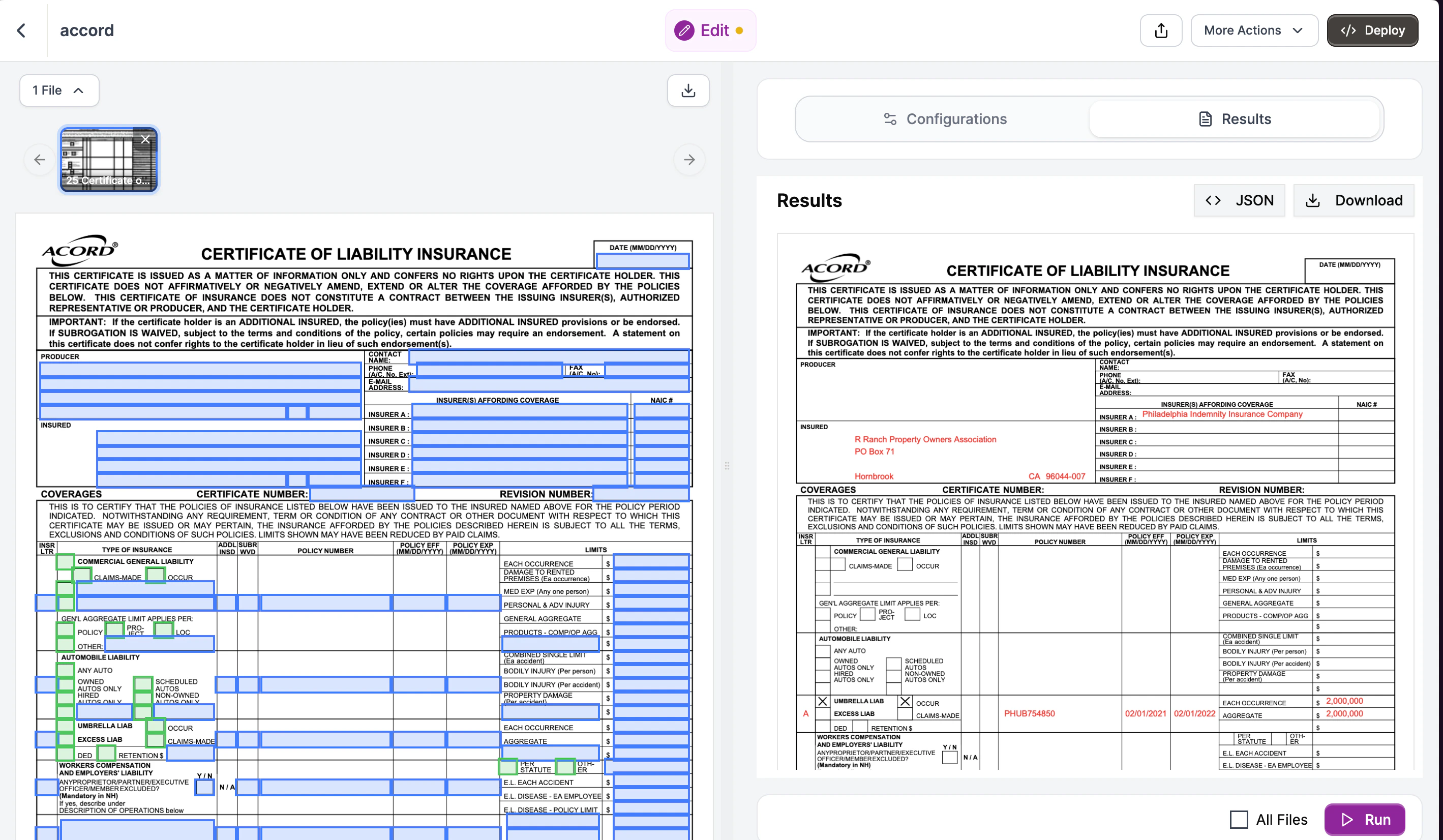
Click Run. Edit fills the form and returns a download link. The filled PDF has all your values in the correct fields.
Edit results showing filled ACORD 25 form

Filled ACORD 25 certificate ready for download

Using the API

Now let’s fill the ACORD 25 with the extracted data.

Step 1: Upload the blank form

Upload the blank ACORD 25 PDF. Edit uses the same upload mechanism as Extract.
with open("acord-25-blank.pdf", "rb") as f:
    upload = client.upload(file=f)
Edit uses document_url instead of input. This is because Edit modifies documents rather than reading them.

Step 2: Write fill instructions

Edit uses natural language instructions instead of a schema. Describe what values should go where. Reference the section names on the form to help Edit find the right fields.
instructions = f"""
Fill this ACORD 25 Certificate of Liability Insurance with:

INSURED:
- Name: {policy_data['named_insured']['name']}
- Address: {policy_data['named_insured']['address']}

INSURER A:
- Company: {policy_data['insurer_name']}

UMBRELLA LIABILITY SECTION:
- Policy Number: {policy_data['policy_number']}
- Effective Date: {policy_data['effective_date']}
- Expiration Date: {policy_data['expiration_date']}
- Each Occurrence limit: ${policy_data['umbrella_occurrence_limit']:,}
- Aggregate limit: ${policy_data['umbrella_aggregate_limit']:,}
- Check the "Occurrence" checkbox for umbrella policy type
"""
Why natural language? ACORD forms have cryptic field names like topmostSubform[0].Page1[0].f1_1[0]. Edit uses AI to understand context, so “Insured Name” works even if the PDF field is named something obscure.

Step 3: Run the Edit API

Pass your instructions to the Edit API:
result = client.edit.run(
    document_url=upload.file_id,
    edit_instructions=instructions
)
Edit:
  1. Detects all fillable fields in the PDF
  2. Reads surrounding context (labels, headers) to understand each field
  3. Maps your instructions to the appropriate fields
  4. Fills the values and returns the modified document

Step 4: Download the result

The response includes a URL to download the filled form:
print(f"Filled certificate: {result.document_url}")
This URL is a presigned link valid for 24 hours. Download or share it with the certificate recipient.

Complete Workflow

The full pipeline extracts data from a declarations page and fills an ACORD 25:
Declarations PDF → Extract → policy_data → Edit → Filled ACORD 25
from reducto import Reducto

client = Reducto()

# Schema for declarations extraction
declarations_schema = {
    "type": "object",
    "properties": {
        "policy_number": {"type": "string", "description": "Policy number"},
        "named_insured": {
            "type": "object",
            "properties": {
                "name": {"type": "string"},
                "address": {"type": "string"}
            }
        },
        "effective_date": {"type": "string"},
        "expiration_date": {"type": "string"},
        "insurer_name": {"type": "string"},
        "umbrella_occurrence_limit": {"type": "number"},
        "umbrella_aggregate_limit": {"type": "number"}
    }
}

# 1. Extract from declarations
with open("declarations.pdf", "rb") as f:
    dec_upload = client.upload(file=f)

extraction = client.extract.run(
    input=dec_upload.file_id,
    instructions={"schema": declarations_schema}
)
policy = extraction.result[0]

# 2. Fill ACORD 25
with open("acord-25-blank.pdf", "rb") as f:
    acord_upload = client.upload(file=f)

filled = client.edit.run(
    document_url=acord_upload.file_id,
    edit_instructions=f"""
    Fill this ACORD 25 Certificate of Liability Insurance:

    INSURED:
    - Name: {policy['named_insured']['name']}
    - Address: {policy['named_insured']['address']}

    INSURER A: {policy['insurer_name']}

    UMBRELLA LIABILITY:
    - Policy Number: {policy['policy_number']}
    - Effective: {policy['effective_date']}
    - Expiration: {policy['expiration_date']}
    - Each Occurrence: ${policy['umbrella_occurrence_limit']:,}
    - Aggregate: ${policy['umbrella_aggregate_limit']:,}
    - Check "Occurrence" for policy type
    """
)

# 3. Get the result
print(f"Certificate ready: {filled.document_url}")

Tips

Handling checkboxes

ACORD 25 has multiple checkbox fields (policy types, coverage indicators). Be explicit in your instructions:
edit_instructions = """
Check the "Occurrence" checkbox in the Umbrella Liability section.
Check "Any Auto" in the Auto Liability section.
Leave all other checkboxes unchecked.
"""

Form schema for production

For high-volume certificate generation, save the form_schema from your first Edit response. This skips field detection on subsequent calls.
# First call - Edit detects fields and returns schema
result = client.edit.run(document_url=upload.file_id, edit_instructions="...")
saved_schema = result.form_schema  # Save this

# Subsequent calls - use saved schema (faster)
result = client.edit.run(
    document_url=upload.file_id,
    edit_instructions="...",
    form_schema=saved_schema
)
See Form Schema for details.

Next Steps