Process documents in 60+ languages with automatic language detection. No configuration required.

Sample Document

Download the sample: un-document-spanish.pdf

Supported Languages

Reducto automatically detects and processes these languages:
RegionLanguages
EuropeanEnglish, German, French, Spanish, Portuguese, Italian, Dutch, Polish, Romanian, Czech, Greek, Hungarian, Swedish, Danish, Finnish, Norwegian, Bulgarian, Croatian, Slovak, Slovenian, Lithuanian, Latvian, Estonian, Albanian, Icelandic, Catalan, Serbian, Macedonian, Belarusian, Ukrainian
AsianChinese, Japanese, Korean, Hindi, Bengali, Tamil, Telugu, Marathi, Gujarati, Kannada, Malayalam, Punjabi, Thai, Vietnamese, Indonesian, Malay, Filipino/Tagalog, Khmer, Lao, Nepali
Middle EasternArabic, Hebrew, Persian, Turkish
OtherRussian, Armenian, Yiddish, Afrikaans
The standard OCR handles mixed-language documents automatically. A single document can contain text in multiple languages without any special configuration.

Create API Key

1

Open Studio

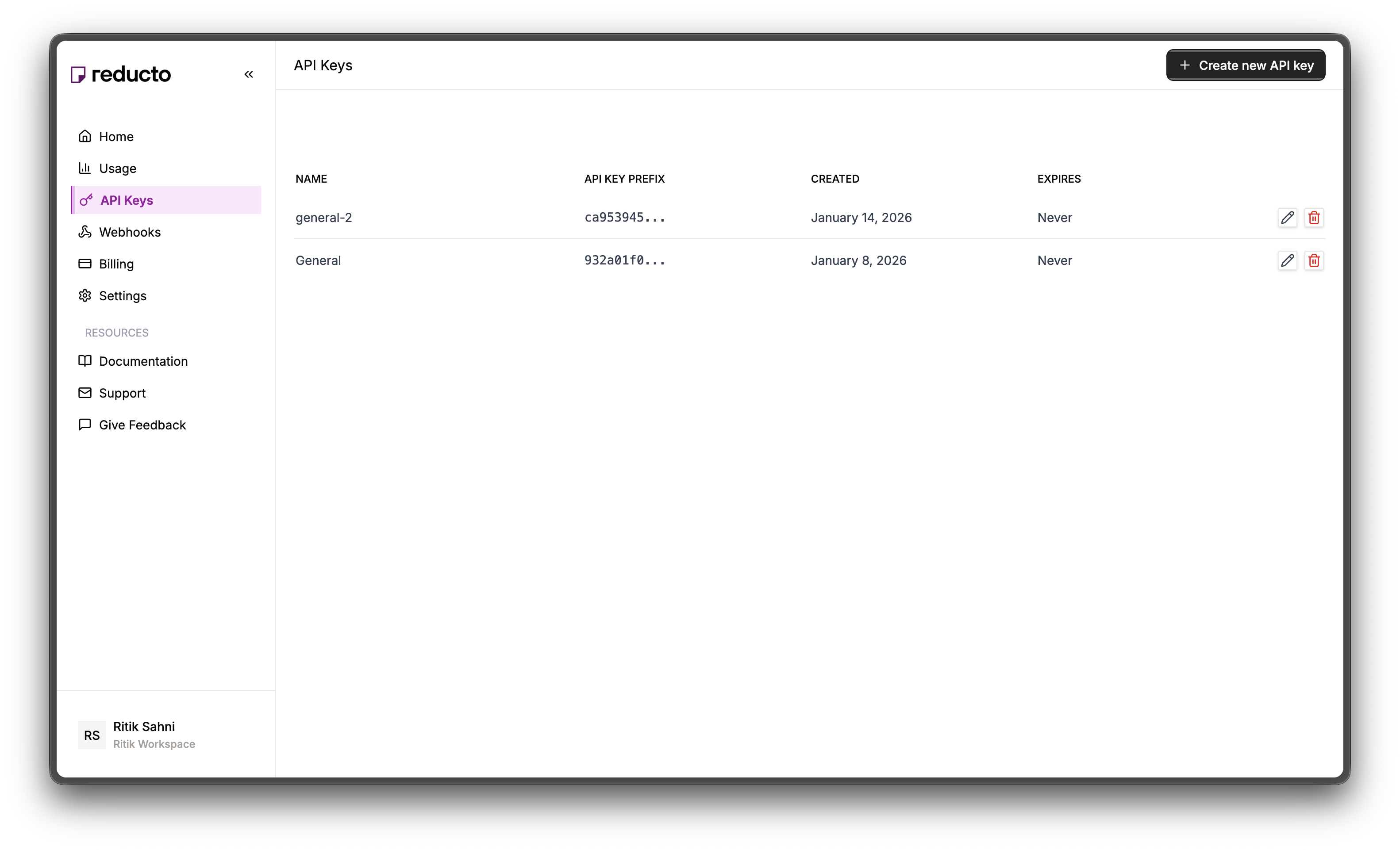
Go to studio.reducto.ai and sign in. From the home page, click API Keys in the left sidebar.
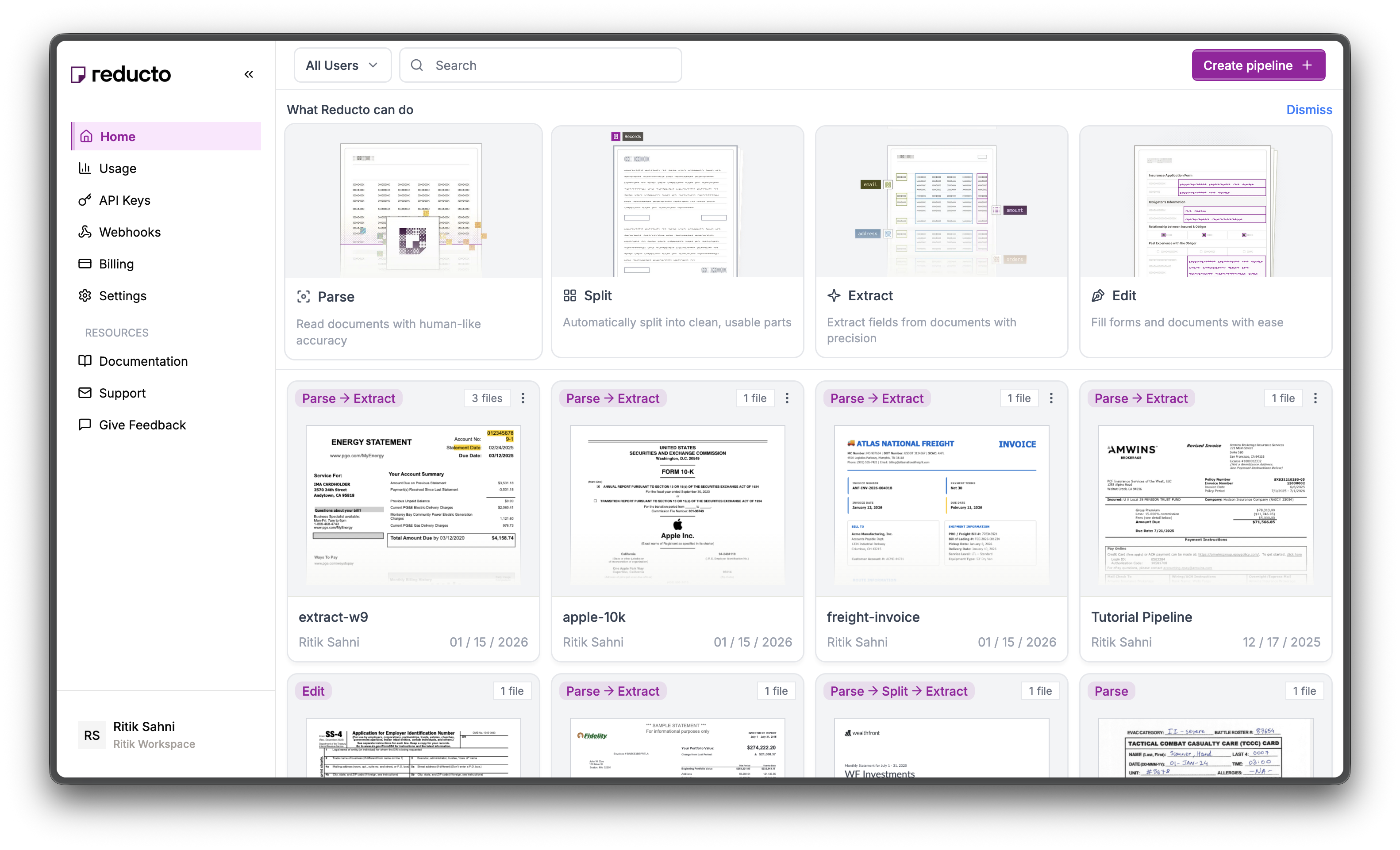
Studio home page with API Keys in sidebar
2

View API Keys

The API Keys page shows your existing keys. Click + Create new API key in the top right corner.
API Keys page with Create button
3

Configure Key

In the modal, enter a name for your key and set an expiration policy (or select “Never” for no expiration). Click Create.
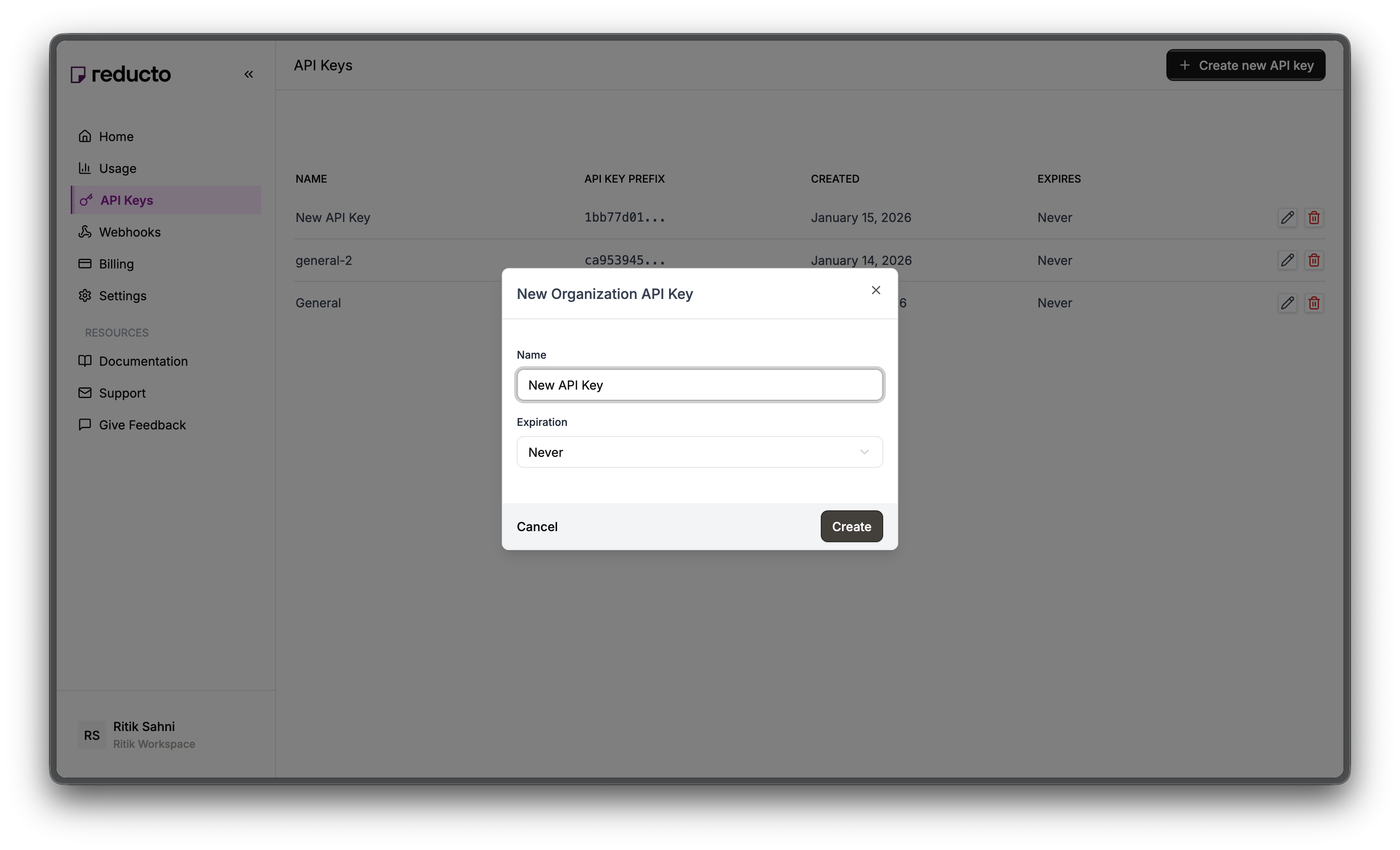
New API Key modal with name and expiration fields
4

Copy Your Key

Copy your new API key and store it securely. You won’t be able to see it again after closing this dialog.
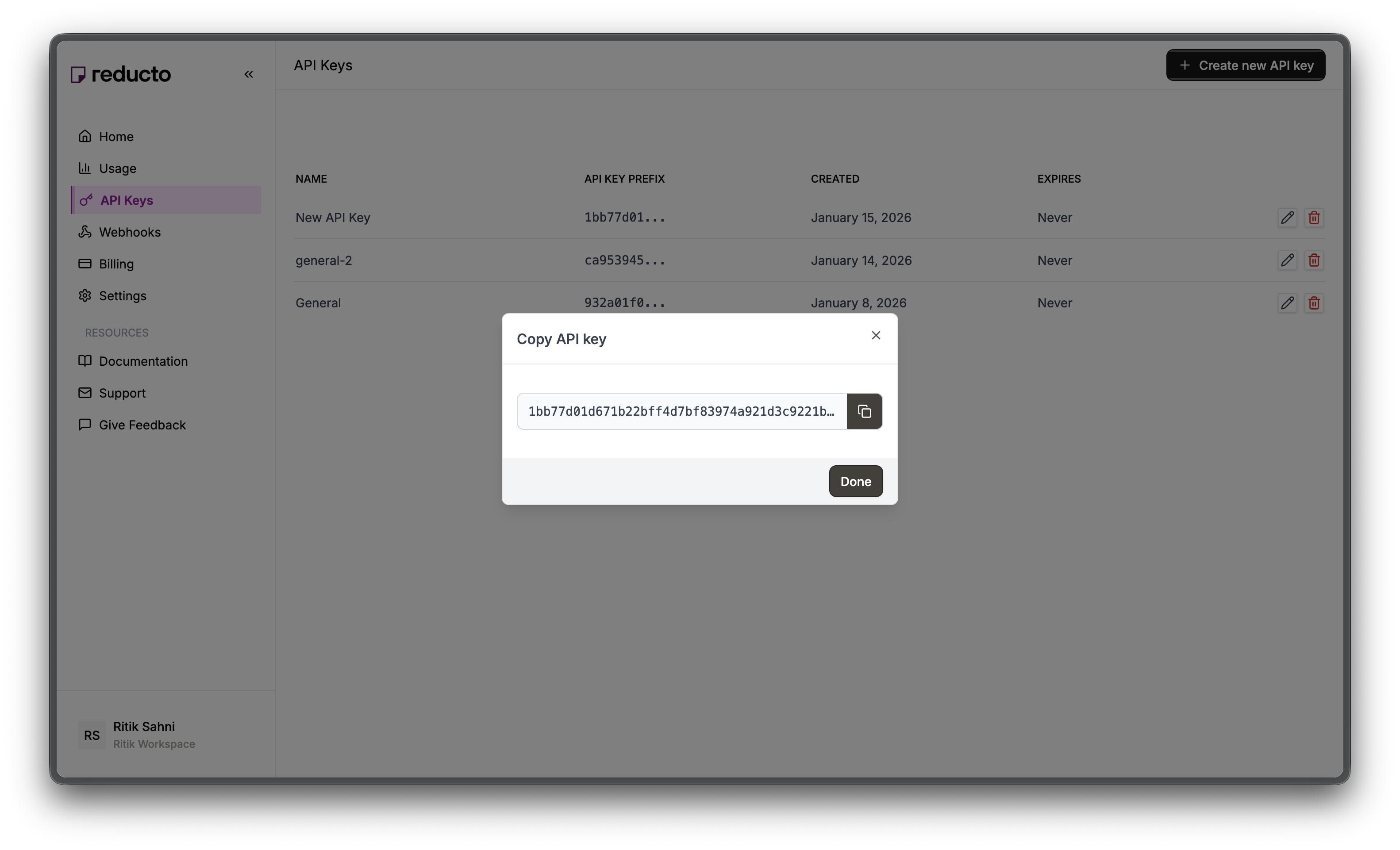
Copy API key dialog
Set the key as an environment variable:
export REDUCTO_API_KEY="your-api-key-here"

Studio Walkthrough

1

Upload and Configure OCR

Upload your multilingual document to studio.reducto.ai. In the Parse view, open the Configurations tab to see OCR settings.
Parse view with Spanish UN document showing OCR settings
Key settings:
  • Extraction Mode: Use ocr for scanned documents where text is embedded as images. Use hybrid (default) for mixed documents where some pages are native text and others are scans.
  • OCR System: Keep standard (default) for 60+ language support. The legacy system only supports Germanic languages.
2

View Extracted Text

Click Run and switch to the Results tab. Reducto extracts text in the original language with proper character encoding.
Parse results showing extracted Spanish text from UN document
Notice how the Spanish text is extracted accurately, including accented characters (á, é, í, ó, ú, ñ) and proper formatting.

Processing Non-English Documents

Basic Usage

No special configuration needed - just parse as usual:
from reducto import Reducto

client = Reducto()

# Upload Spanish document
with open("documento_español.pdf", "rb") as f:
    upload = client.upload(file=f)

# Parse - language is detected automatically
result = client.parse.run(input=upload.file_id)

# Access extracted text
for chunk in result.result.chunks:
    print(chunk.content)

Output Example

From a Spanish UN Security Council document:
Naciones Unidas
S/2025/856

Consejo de Seguridad

Distr. general
30 de diciembre de 2025
Español
Original: inglés

Carta de fecha 29 de diciembre de 2025 dirigida a la
Presidencia del Consejo de Seguridad por el Secretario General

Tengo el honor de referirme a la resolución 2719 (2023) del Consejo de
Seguridad, por la que el Consejo estableció el marco para financiar las
operaciones de paz...

OCR Configuration Options

Extraction Modes

Choose the right mode for your document type:
# For scanned documents (images, old PDFs)
result = client.parse.run(
    input=upload.file_id,
    settings={
        "extraction_mode": "ocr"  # Force OCR, ignore embedded text
    }
)

# For native PDFs with embedded text
result = client.parse.run(
    input=upload.file_id,
    settings={
        "extraction_mode": "metadata"  # Use embedded text only
    }
)

# For mixed documents (default)
result = client.parse.run(
    input=upload.file_id,
    settings={
        "extraction_mode": "hybrid"  # Use metadata first, OCR as fallback
    }
)
ModeBest ForSpeedAccuracy
hybridMixed document setsFastHigh
ocrScanned documentsSlowerHigh
metadataNative PDFsFastestDepends on PDF quality

OCR System Selection

Always use standard for multilingual support:
result = client.parse.run(
    input=upload.file_id,
    settings={
        "ocr_system": "standard"  # 60+ languages (default)
    }
)
The legacy OCR system only supports Germanic languages (English, German, Dutch, etc.). Always use standard for non-Germanic languages.

Mixed-Language Documents

Documents containing multiple languages are handled automatically:
# A document with English headers and Spanish content
result = client.parse.run(input=upload.file_id)

# Both languages are extracted correctly
# No configuration needed

Example: Bilingual Contract

AGREEMENT / ACUERDO

This agreement ("Agreement") is entered into between...
Este acuerdo ("Acuerdo") se celebra entre...

TERMS AND CONDITIONS / TÉRMINOS Y CONDICIONES
1. Definitions / Definiciones
   The following terms shall have the meanings set forth below...
   Los siguientes términos tendrán los significados establecidos a continuación...
Reducto extracts both English and Spanish text accurately.

Agentic Mode for Difficult Text

Standard OCR works well for clean, printed documents. For challenging documents like handwriting, faded text, or unusual fonts, agentic mode uses a vision language model to verify and correct OCR output.
result = client.parse.run(
    input=upload.file_id,
    enhance={
        "agentic": [{"scope": "text"}]
    }
)
Use agentic mode when:
  • Text is handwritten or uses decorative fonts
  • Document is faded, stained, or low quality
  • OCR produces garbled output on first pass
Agentic mode costs approximately 2x credits. Use it selectively for documents where standard OCR struggles.

Extracting Structured Data

Extract structured data from non-English documents using schemas with descriptive field hints:
# Schema for Spanish invoice
spanish_invoice_schema = {
    "type": "object",
    "properties": {
        "numero_factura": {
            "type": "string",
            "description": "Número de factura / Invoice number"
        },
        "fecha": {
            "type": "string",
            "description": "Fecha de la factura / Invoice date"
        },
        "proveedor": {
            "type": "object",
            "description": "Información del proveedor / Vendor information",
            "properties": {
                "nombre": {"type": "string"},
                "direccion": {"type": "string"},
                "nif": {"type": "string", "description": "NIF/CIF fiscal ID"}
            }
        },
        "cliente": {
            "type": "object",
            "description": "Información del cliente / Customer information",
            "properties": {
                "nombre": {"type": "string"},
                "direccion": {"type": "string"}
            }
        },
        "lineas": {
            "type": "array",
            "description": "Líneas de factura / Line items",
            "items": {
                "type": "object",
                "properties": {
                    "descripcion": {"type": "string"},
                    "cantidad": {"type": "number"},
                    "precio_unitario": {"type": "number"},
                    "importe": {"type": "number"}
                }
            }
        },
        "subtotal": {"type": "number"},
        "iva": {"type": "number", "description": "IVA / VAT amount"},
        "total": {"type": "number"}
    }
}

result = client.extract.run(
    input=upload.file_id,
    instructions={"schema": spanish_invoice_schema}
)

print(f"Factura: {result.result['numero_factura']}")
print(f"Total: €{result.result['total']}")
Include field descriptions in both the source language and English to improve extraction accuracy.

Tips

For best results with non-English documents:
  1. Use high-quality scans (300 DPI minimum) for better OCR accuracy
  2. Enable agentic mode for handwritten or degraded text
  3. Provide bilingual field descriptions in extraction schemas to improve accuracy
  4. Use extraction_mode: "ocr" for scanned documents instead of relying on embedded text

Next Steps