> ## Documentation Index
> Fetch the complete documentation index at: https://docs.reducto.ai/llms.txt
> Use this file to discover all available pages before exploring further.
# Pipeline Basics
> Compose Reducto capabilities into reusable, single-call workflows
A pipeline composes multiple Reducto steps into a single workflow. Design it visually in [Studio](/studio-quickstart), deploy it to get a `pipeline_id`, then call it from your code with one API request. The pipeline orchestrates Classify, Parse, Extract, Split, and Edit steps behind the scenes, giving you a complete document workflow in a single call.
 ## Why pipelines?
Without pipelines, building a multi-step document workflow means writing separate API calls for each step. You call Parse, wait for the result, feed that into Extract, handle errors at each stage, and manage all the configuration in your application code. This works, but it couples your code tightly to Reducto's API structure and makes configuration changes require code deployments.
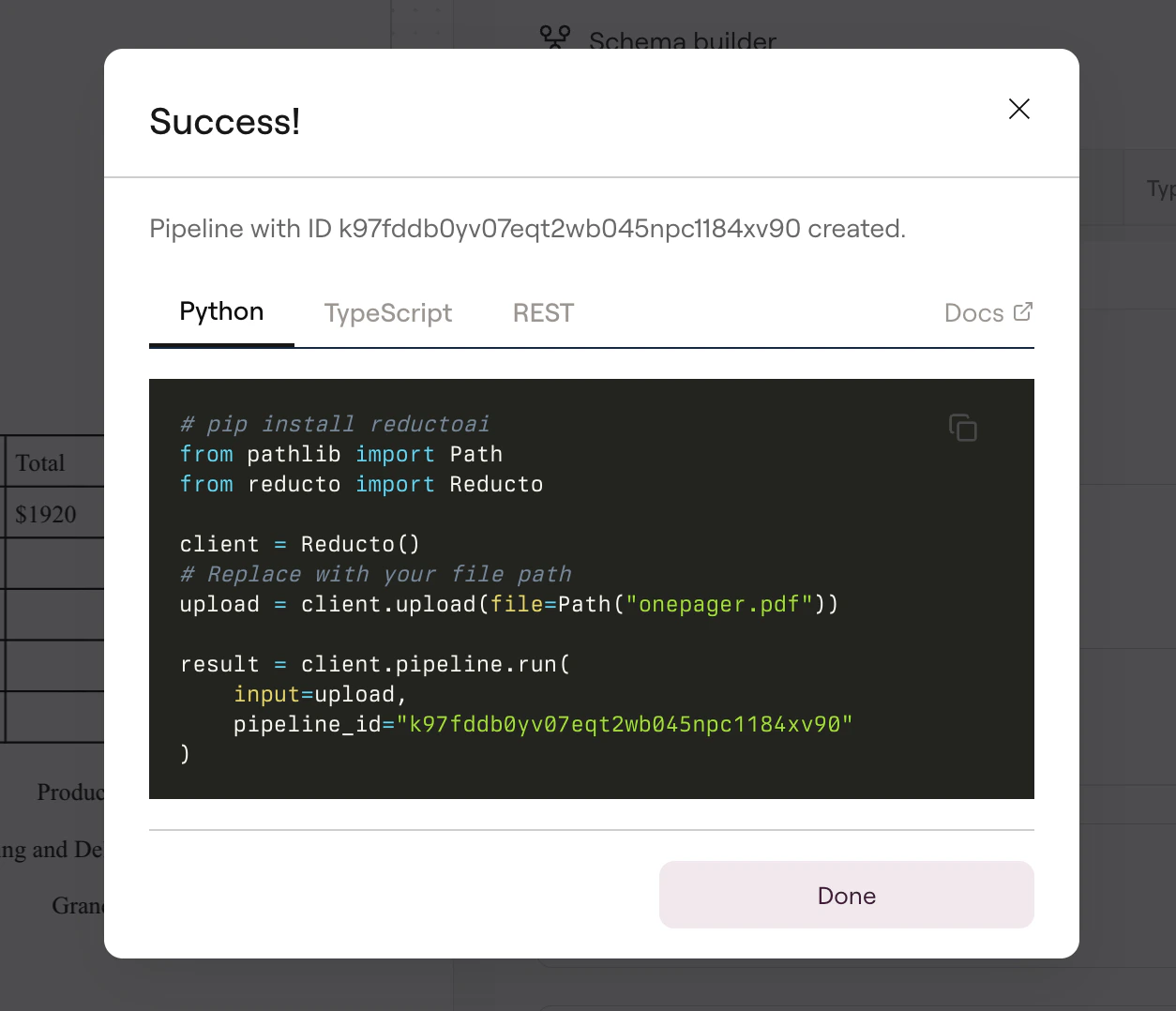
Pipelines solve this by moving the workflow definition out of your code and into Studio. You configure the steps visually, test with real documents, and deploy. Your code then reduces to a single call:
```python theme={null}
result = client.pipeline.run(
input=upload,
pipeline_id="k9798h9mwt0wmq5qz5e45qxbfx7yj4bq"
)
```
When you need to adjust extraction logic or add a processing step, you update the pipeline in Studio and redeploy. Your application code stays unchanged.
## Creating a pipeline in Studio
Build your pipeline in [Studio](/studio-quickstart) by adding steps and configuring each one. The Studio guides cover each step type in detail:
* [Parse](/studio-parse) for document conversion
* [Extract](/studio-extract) for structured data extraction
* [Split](/studio-split) for document sectioning
* [Edit](/studio-edit) for form filling
Once you're satisfied with the results, click **Deploy** in the top right. Select **Pipeline** as the deployment type and optionally provide a version name to track your changes.
## Why pipelines?
Without pipelines, building a multi-step document workflow means writing separate API calls for each step. You call Parse, wait for the result, feed that into Extract, handle errors at each stage, and manage all the configuration in your application code. This works, but it couples your code tightly to Reducto's API structure and makes configuration changes require code deployments.
Pipelines solve this by moving the workflow definition out of your code and into Studio. You configure the steps visually, test with real documents, and deploy. Your code then reduces to a single call:
```python theme={null}
result = client.pipeline.run(
input=upload,
pipeline_id="k9798h9mwt0wmq5qz5e45qxbfx7yj4bq"
)
```
When you need to adjust extraction logic or add a processing step, you update the pipeline in Studio and redeploy. Your application code stays unchanged.
## Creating a pipeline in Studio
Build your pipeline in [Studio](/studio-quickstart) by adding steps and configuring each one. The Studio guides cover each step type in detail:
* [Parse](/studio-parse) for document conversion
* [Extract](/studio-extract) for structured data extraction
* [Split](/studio-split) for document sectioning
* [Edit](/studio-edit) for form filling
Once you're satisfied with the results, click **Deploy** in the top right. Select **Pipeline** as the deployment type and optionally provide a version name to track your changes.
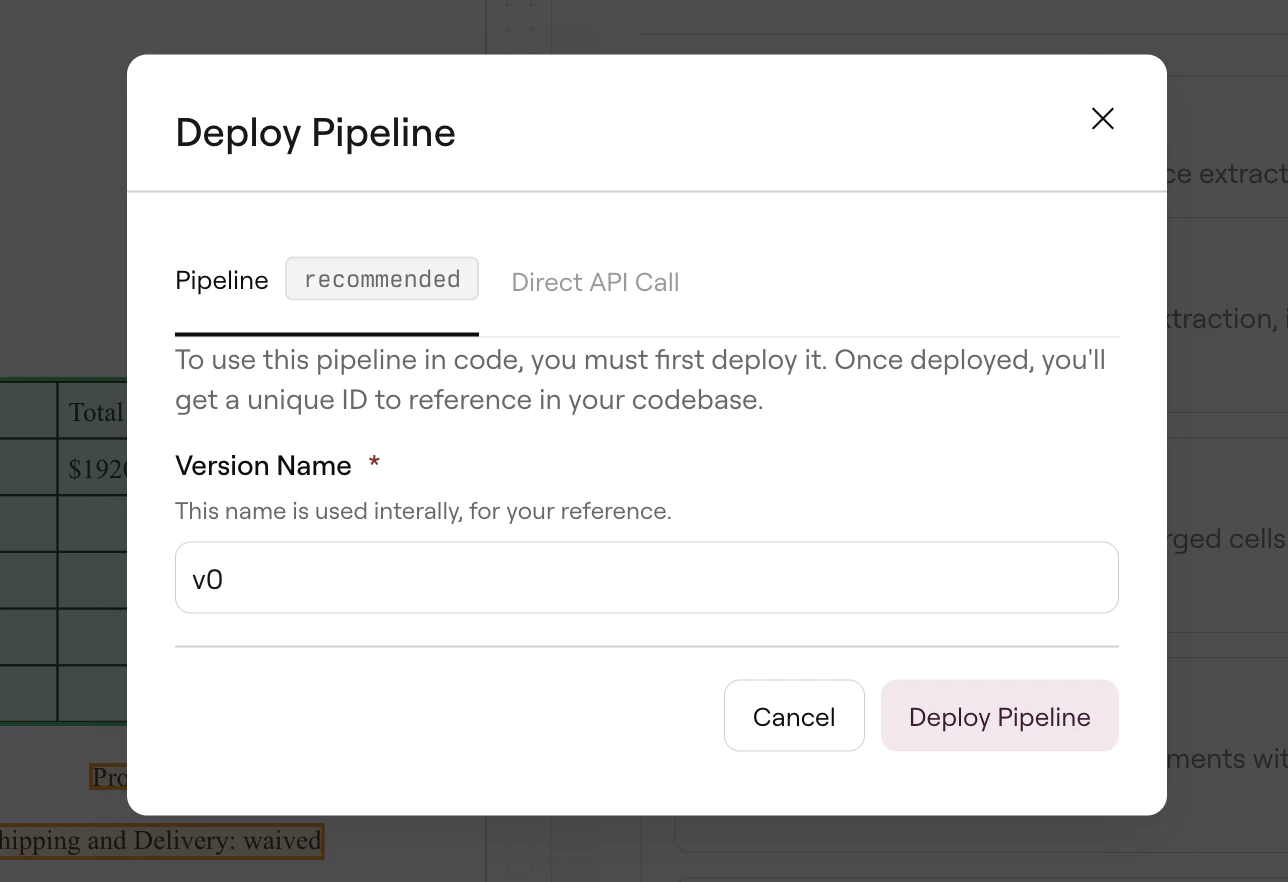 Studio generates a `pipeline_id` that you can copy directly into your code. This ID points to your exact configuration, so API calls always match what you tested in Studio.
Changes made in Studio don't affect production until you deploy. This lets you iterate and test without impacting live systems.
## Updating a pipeline
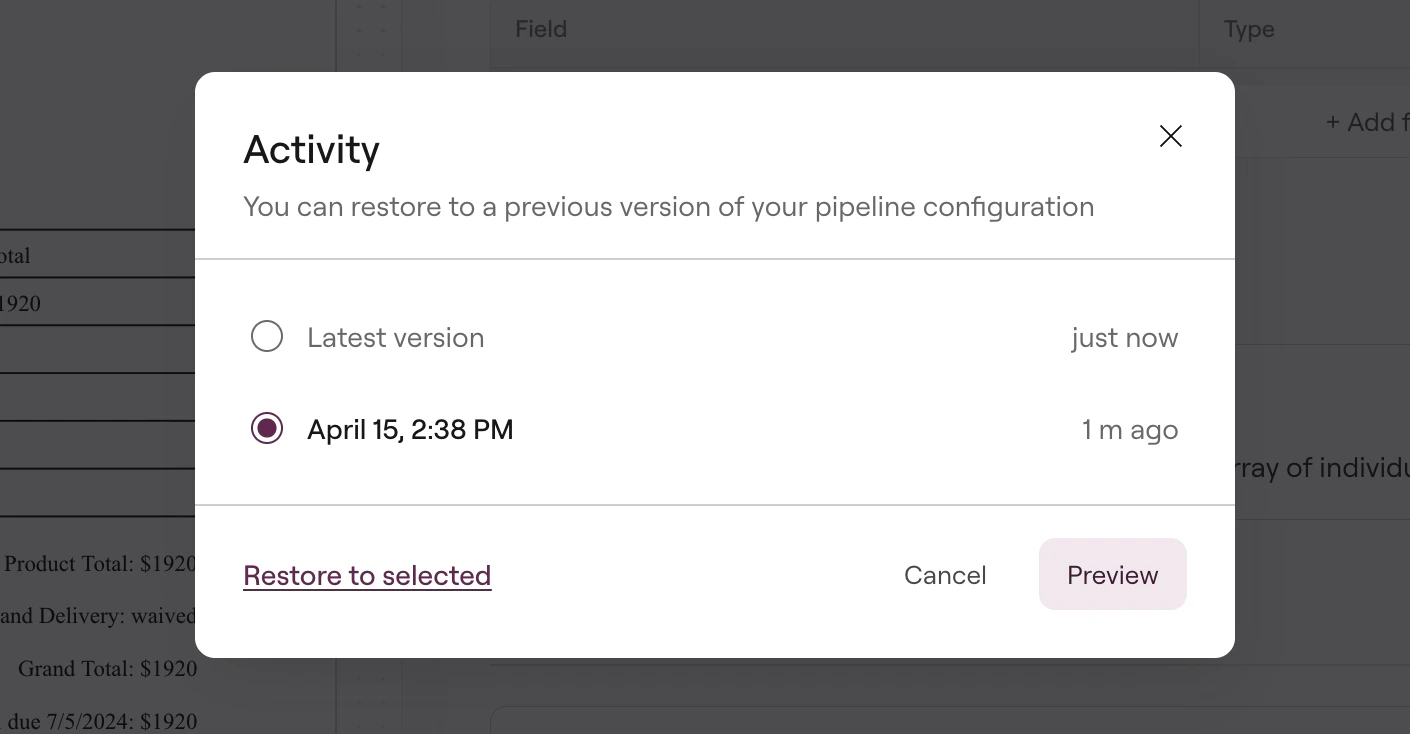
When you need to modify a deployed pipeline, make your changes in Studio and test with sample documents. Then click **Deploy**, select **Pipeline**, update the version name, and click **Redeploy**. The update takes effect immediately, and all API calls using that `pipeline_id` will use the new configuration.
The **Activity** option shows all previous versions of your pipeline, letting you track what changed and when:
Studio generates a `pipeline_id` that you can copy directly into your code. This ID points to your exact configuration, so API calls always match what you tested in Studio.
Changes made in Studio don't affect production until you deploy. This lets you iterate and test without impacting live systems.
## Updating a pipeline
When you need to modify a deployed pipeline, make your changes in Studio and test with sample documents. Then click **Deploy**, select **Pipeline**, update the version name, and click **Redeploy**. The update takes effect immediately, and all API calls using that `pipeline_id` will use the new configuration.
The **Activity** option shows all previous versions of your pipeline, letting you track what changed and when:
 The **Execution** **Logs** tab shows logs for when an API call hits your pipeline ID.
For more details on pipeline management, see [Deploy to Production](/studio-deploy-pipeline).
## Pipeline types
Studio determines the pipeline type based on which steps you add:
| Type | Steps | Use case |
| --------------------------- | -------------------------- | -------------------------------------------- |
| **Parse** | Parse only | Convert documents to markdown, chunk for RAG |
| **Parse → Extract** | Parse + Extract | Pull specific fields as JSON |
| **Parse → Split → Extract** | Parse + Split + Extract(s) | Different schemas per document section |
| **Edit** | Edit only | Fill forms, modify documents |
## Basic usage
```python Python theme={null}
from pathlib import Path
from reducto import Reducto
client = Reducto()
# Upload and run pipeline in one flow
upload = client.upload(file=Path("document.pdf"))
result = client.pipeline.run(
input=upload.file_id,
pipeline_id="your_pipeline_id"
)
# Access results based on pipeline type
if result.result.extract:
# For Parse→Split→Extract pipelines, extract is a list
if isinstance(result.result.extract, list):
for section in result.result.extract:
print(f"{section.split_name}: {section.result}")
else:
# For Parse→Extract pipelines, extract is an object
print(result.result.extract.result)
elif result.result.parse:
for chunk in result.result.parse.result.chunks:
print(chunk.content)
```
```typescript TypeScript theme={null}
import Reducto from "reductoai";
import fs from "fs";
const client = new Reducto();
const upload = await client.upload({
file: fs.createReadStream("document.pdf")
});
const result = await client.pipeline.run({
input: upload.file_id,
pipeline_id: "your_pipeline_id"
});
if (result.result.extract) {
// For Parse→Split→Extract pipelines, extract is an array
if (Array.isArray(result.result.extract)) {
result.result.extract.forEach(section => {
console.log(`${section.split_name}: ${JSON.stringify(section.result)}`);
});
} else {
// For Parse→Extract pipelines, extract is an object
console.log(result.result.extract.result);
}
} else if (result.result.parse) {
result.result.parse.result.chunks.forEach(chunk => {
console.log(chunk.content);
});
}
```
```bash cURL theme={null}
curl -X POST "https://platform.reducto.ai/pipeline" \
-H "Authorization: Bearer $REDUCTO_API_KEY" \
-H "Content-Type: application/json" \
-d '{
"input": "reducto://your-uploaded-file.pdf",
"pipeline_id": "your_pipeline_id"
}'
```
```go Go theme={null}
package main
import (
"bytes"
"encoding/json"
"fmt"
"io"
"net/http"
"os"
)
func main() {
// Go SDK does not yet support pipelines; use HTTP directly
payload := map[string]string{
"input": "reducto://your-uploaded-file.pdf",
"pipeline_id": "your_pipeline_id",
}
body, _ := json.Marshal(payload)
req, _ := http.NewRequest("POST", "https://platform.reducto.ai/pipeline", bytes.NewReader(body))
req.Header.Set("Authorization", "Bearer "+os.Getenv("REDUCTO_API_KEY"))
req.Header.Set("Content-Type", "application/json")
resp, err := http.DefaultClient.Do(req)
if err != nil {
fmt.Printf("Error: %v\n", err)
return
}
defer resp.Body.Close()
result, _ := io.ReadAll(resp.Body)
fmt.Println(string(result))
}
```
The Go SDK does not yet support the Pipeline endpoint. Use the HTTP example above or the cURL snippet as a reference for Go implementations.
## Response structure
Every pipeline returns a `PipelineResponse` with the same shape. Which fields are populated depends on the pipeline type you configured in Studio.
```json theme={null}
{
"job_id": "pipeline-abc123",
"usage": {"num_pages": 3, "credits": 6.0},
"result": {
"parse": {...},
"extract": {...},
"split": {...},
"edit": {...}
}
}
```
The `parse` field is present for Parse, Parse→Extract, and Parse→Split→Extract pipelines. The `extract` field appears as an object for Parse→Extract pipelines, or as an array for Parse→Split→Extract pipelines where each entry corresponds to a section. The `split` field only appears when Split is configured. The `edit` field only appears for Edit pipelines.
```json theme={null}
{
"job_id": "abc123",
"usage": {"num_pages": 3, "credits": 4.0},
"result": {
"parse": {
"job_id": "parse-456",
"result": {
"chunks": [
{"content": "# Title\n\nParagraph text...", "blocks": [...]}
]
},
"usage": {"num_pages": 3, "credits": 4.0}
},
"extract": null,
"split": null
}
}
```
```json theme={null}
{
"job_id": "abc123",
"usage": {"num_pages": 3, "credits": 6.0},
"result": {
"parse": {"job_id": "parse-456", "result": {...}, "usage": {...}},
"extract": {
"job_id": "extract-789",
"result": {
"invoiceNumber": {"value": "INV-001", "citations": [...]},
"totalAmount": {"value": "$1,500.00", "citations": [...]}
},
"usage": {"credits": 2.0}
},
"split": null
}
}
```
When Split is involved, `extract` becomes an array with one entry per section:
```json theme={null}
{
"job_id": "abc123",
"usage": {"num_pages": 10, "credits": 12.0},
"result": {
"parse": {...},
"split": {
"result": {
"splits": [
{"name": "Summary", "pages": [1, 2]},
{"name": "Details", "pages": [3, 4, 5]}
]
}
},
"extract": [
{
"split_name": "Summary",
"page_range": [1, 2],
"result": {"totalValue": {"value": "$274,222", "citations": [...]}}
},
{
"split_name": "Details",
"page_range": [3, 4, 5],
"result": {"holdings": [...]}
}
]
}
}
```
Edit pipelines return a URL to the modified document. Note that for edit pipelines, the `input` parameter contains the edit instructions rather than a document URL. The document to edit is configured in Studio as part of the pipeline.
```json theme={null}
{
"job_id": "abc123",
"usage": {"num_pages": 0, "credits": null},
"result": {
"parse": null,
"extract": null,
"split": null,
"edit": {
"job_id": "edit-999",
"result": {"file_url": "https://storage.reducto.ai/edited-doc.pdf"}
}
}
}
```
## Next steps
Build and deploy your first pipeline in Studio.
Process multiple documents in a single call.
Manage pipeline versions and view execution logs.
Run pipelines asynchronously with webhooks.
The **Execution** **Logs** tab shows logs for when an API call hits your pipeline ID.
For more details on pipeline management, see [Deploy to Production](/studio-deploy-pipeline).
## Pipeline types
Studio determines the pipeline type based on which steps you add:
| Type | Steps | Use case |
| --------------------------- | -------------------------- | -------------------------------------------- |
| **Parse** | Parse only | Convert documents to markdown, chunk for RAG |
| **Parse → Extract** | Parse + Extract | Pull specific fields as JSON |
| **Parse → Split → Extract** | Parse + Split + Extract(s) | Different schemas per document section |
| **Edit** | Edit only | Fill forms, modify documents |
## Basic usage
```python Python theme={null}
from pathlib import Path
from reducto import Reducto
client = Reducto()
# Upload and run pipeline in one flow
upload = client.upload(file=Path("document.pdf"))
result = client.pipeline.run(
input=upload.file_id,
pipeline_id="your_pipeline_id"
)
# Access results based on pipeline type
if result.result.extract:
# For Parse→Split→Extract pipelines, extract is a list
if isinstance(result.result.extract, list):
for section in result.result.extract:
print(f"{section.split_name}: {section.result}")
else:
# For Parse→Extract pipelines, extract is an object
print(result.result.extract.result)
elif result.result.parse:
for chunk in result.result.parse.result.chunks:
print(chunk.content)
```
```typescript TypeScript theme={null}
import Reducto from "reductoai";
import fs from "fs";
const client = new Reducto();
const upload = await client.upload({
file: fs.createReadStream("document.pdf")
});
const result = await client.pipeline.run({
input: upload.file_id,
pipeline_id: "your_pipeline_id"
});
if (result.result.extract) {
// For Parse→Split→Extract pipelines, extract is an array
if (Array.isArray(result.result.extract)) {
result.result.extract.forEach(section => {
console.log(`${section.split_name}: ${JSON.stringify(section.result)}`);
});
} else {
// For Parse→Extract pipelines, extract is an object
console.log(result.result.extract.result);
}
} else if (result.result.parse) {
result.result.parse.result.chunks.forEach(chunk => {
console.log(chunk.content);
});
}
```
```bash cURL theme={null}
curl -X POST "https://platform.reducto.ai/pipeline" \
-H "Authorization: Bearer $REDUCTO_API_KEY" \
-H "Content-Type: application/json" \
-d '{
"input": "reducto://your-uploaded-file.pdf",
"pipeline_id": "your_pipeline_id"
}'
```
```go Go theme={null}
package main
import (
"bytes"
"encoding/json"
"fmt"
"io"
"net/http"
"os"
)
func main() {
// Go SDK does not yet support pipelines; use HTTP directly
payload := map[string]string{
"input": "reducto://your-uploaded-file.pdf",
"pipeline_id": "your_pipeline_id",
}
body, _ := json.Marshal(payload)
req, _ := http.NewRequest("POST", "https://platform.reducto.ai/pipeline", bytes.NewReader(body))
req.Header.Set("Authorization", "Bearer "+os.Getenv("REDUCTO_API_KEY"))
req.Header.Set("Content-Type", "application/json")
resp, err := http.DefaultClient.Do(req)
if err != nil {
fmt.Printf("Error: %v\n", err)
return
}
defer resp.Body.Close()
result, _ := io.ReadAll(resp.Body)
fmt.Println(string(result))
}
```
The Go SDK does not yet support the Pipeline endpoint. Use the HTTP example above or the cURL snippet as a reference for Go implementations.
## Response structure
Every pipeline returns a `PipelineResponse` with the same shape. Which fields are populated depends on the pipeline type you configured in Studio.
```json theme={null}
{
"job_id": "pipeline-abc123",
"usage": {"num_pages": 3, "credits": 6.0},
"result": {
"parse": {...},
"extract": {...},
"split": {...},
"edit": {...}
}
}
```
The `parse` field is present for Parse, Parse→Extract, and Parse→Split→Extract pipelines. The `extract` field appears as an object for Parse→Extract pipelines, or as an array for Parse→Split→Extract pipelines where each entry corresponds to a section. The `split` field only appears when Split is configured. The `edit` field only appears for Edit pipelines.
```json theme={null}
{
"job_id": "abc123",
"usage": {"num_pages": 3, "credits": 4.0},
"result": {
"parse": {
"job_id": "parse-456",
"result": {
"chunks": [
{"content": "# Title\n\nParagraph text...", "blocks": [...]}
]
},
"usage": {"num_pages": 3, "credits": 4.0}
},
"extract": null,
"split": null
}
}
```
```json theme={null}
{
"job_id": "abc123",
"usage": {"num_pages": 3, "credits": 6.0},
"result": {
"parse": {"job_id": "parse-456", "result": {...}, "usage": {...}},
"extract": {
"job_id": "extract-789",
"result": {
"invoiceNumber": {"value": "INV-001", "citations": [...]},
"totalAmount": {"value": "$1,500.00", "citations": [...]}
},
"usage": {"credits": 2.0}
},
"split": null
}
}
```
When Split is involved, `extract` becomes an array with one entry per section:
```json theme={null}
{
"job_id": "abc123",
"usage": {"num_pages": 10, "credits": 12.0},
"result": {
"parse": {...},
"split": {
"result": {
"splits": [
{"name": "Summary", "pages": [1, 2]},
{"name": "Details", "pages": [3, 4, 5]}
]
}
},
"extract": [
{
"split_name": "Summary",
"page_range": [1, 2],
"result": {"totalValue": {"value": "$274,222", "citations": [...]}}
},
{
"split_name": "Details",
"page_range": [3, 4, 5],
"result": {"holdings": [...]}
}
]
}
}
```
Edit pipelines return a URL to the modified document. Note that for edit pipelines, the `input` parameter contains the edit instructions rather than a document URL. The document to edit is configured in Studio as part of the pipeline.
```json theme={null}
{
"job_id": "abc123",
"usage": {"num_pages": 0, "credits": null},
"result": {
"parse": null,
"extract": null,
"split": null,
"edit": {
"job_id": "edit-999",
"result": {"file_url": "https://storage.reducto.ai/edited-doc.pdf"}
}
}
}
```
## Next steps
Build and deploy your first pipeline in Studio.
Process multiple documents in a single call.
Manage pipeline versions and view execution logs.
Run pipelines asynchronously with webhooks.