> ## Documentation Index
> Fetch the complete documentation index at: https://docs.reducto.ai/llms.txt
> Use this file to discover all available pages before exploring further.
# Split Pipeline
> Divide documents into sections for targeted workflows in Studio
Split divides a document into named sections based on descriptions you provide. It runs Parse under the hood first, then uses the parsed content to identify which pages belong to each section based on your definitions. Studio then lets you chain Extract steps that target specific sections—so you can apply different schemas to different parts of the same document.
## How Split works in Studio
When you add a Split step to a pipeline, Studio shows two configuration areas:
1. **Instructions** — Rules for how pages should be classified (the default allows overlap only at section boundaries)
2. **Sections & Partitions** — The sections you want to identify, each with a Title and Description
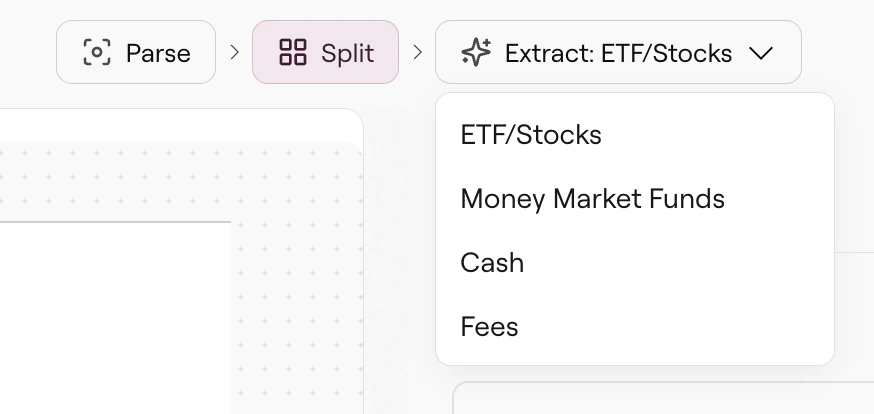
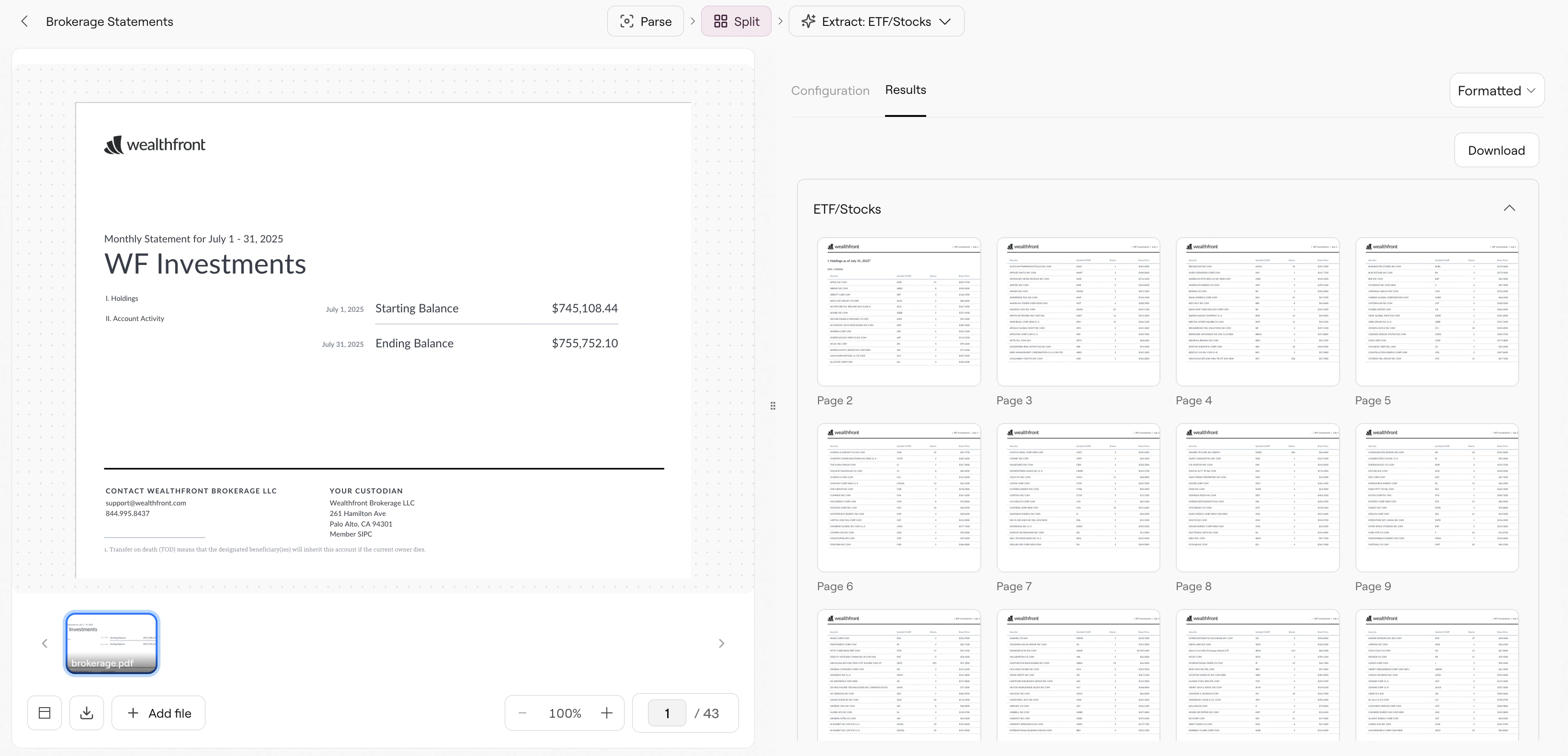 After running Split, Studio automatically enables an Extract step with a **section dropdown**. This dropdown shows all the sections you defined, letting you choose which section to extract from. You can add multiple Extract steps, each targeting a different section with its own schema.
 ***
## Partitions
For sections that repeat with different identifiers (like multiple accounts in one statement), use partitions. Click **ADD PARTITION** under any section to specify a partition key.
For example, if a statement contains holdings for accounts A, B, and C:
* **Section**: "Account Holdings"
* **Partition key**: "account number"
Split returns separate results for each account, and the Extract dropdown shows each partition as a separate option.
***
## Instructions
The Instructions text area controls how Split handles page classification:
```text theme={null}
Split the document into the applicable sections. Sections may only
overlap at their first and last page if at all.
```
This default means a page can belong to multiple sections only at boundaries. Customize for your use case:
| Goal | Instructions |
| -------------------------- | ----------------------------------------------------------------------------------------------- |
| Allow full overlap | "Pages can belong to multiple sections if they contain content matching multiple descriptions." |
| Force exclusive assignment | "Each page must belong to exactly one section. Assign to the most specific matching section." |
***
## Troubleshooting
Check your description. If you said "Account Summary" but the document header says "Portfolio Overview", Split won't match. Use terms that appear in the actual document.
Try broadening the description first, then narrow down once you confirm Split can find the section.
Add more distinguishing details to your descriptions. If pages look similar, mention specific text, headers, or visual elements: "The page with the pie chart showing asset allocation" is more specific than "holdings breakdown".
The partition key must appear as identifiable text in the document. If you're partitioning by "account number" but the document doesn't have visible account numbers (only account names), use "account name" as the partition key instead.
Yes. After Split, you can add multiple Extract steps. Each Extract step has its own section dropdown, schema, and settings. Use the **Add** button in the pipeline header to add additional steps.
***
## Related
Complete API documentation for programmatic Split calls.
Define extraction schemas for your Split sections.
Split runs Parse internally—understand what it sees.
Deploy your Split + Extract pipeline for API access.
***
## Partitions
For sections that repeat with different identifiers (like multiple accounts in one statement), use partitions. Click **ADD PARTITION** under any section to specify a partition key.
For example, if a statement contains holdings for accounts A, B, and C:
* **Section**: "Account Holdings"
* **Partition key**: "account number"
Split returns separate results for each account, and the Extract dropdown shows each partition as a separate option.
***
## Instructions
The Instructions text area controls how Split handles page classification:
```text theme={null}
Split the document into the applicable sections. Sections may only
overlap at their first and last page if at all.
```
This default means a page can belong to multiple sections only at boundaries. Customize for your use case:
| Goal | Instructions |
| -------------------------- | ----------------------------------------------------------------------------------------------- |
| Allow full overlap | "Pages can belong to multiple sections if they contain content matching multiple descriptions." |
| Force exclusive assignment | "Each page must belong to exactly one section. Assign to the most specific matching section." |
***
## Troubleshooting
Check your description. If you said "Account Summary" but the document header says "Portfolio Overview", Split won't match. Use terms that appear in the actual document.
Try broadening the description first, then narrow down once you confirm Split can find the section.
Add more distinguishing details to your descriptions. If pages look similar, mention specific text, headers, or visual elements: "The page with the pie chart showing asset allocation" is more specific than "holdings breakdown".
The partition key must appear as identifiable text in the document. If you're partitioning by "account number" but the document doesn't have visible account numbers (only account names), use "account name" as the partition key instead.
Yes. After Split, you can add multiple Extract steps. Each Extract step has its own section dropdown, schema, and settings. Use the **Add** button in the pipeline header to add additional steps.
***
## Related
Complete API documentation for programmatic Split calls.
Define extraction schemas for your Split sections.
Split runs Parse internally—understand what it sees.
Deploy your Split + Extract pipeline for API access.