> ## Documentation Index
> Fetch the complete documentation index at: https://docs.reducto.ai/llms.txt
> Use this file to discover all available pages before exploring further.
# Extract Pipeline
> Pull specific fields from documents as structured JSON in Reducto Studio
Extract answers the question "What is the value of X?" You define the fields you need, and Extract returns those specific values as structured JSON. Unlike Parse, which returns all content, Extract returns only what you ask for.
Under the hood, Extract runs [Parse](/parse/overview) first—handling OCR, layout detection, and table parsing—then uses an LLM to locate and extract the fields you specified. This means **Extract can only return what Parse sees**.
If a value doesn't appear in the Parse output, prioritize iterating on Parse configurations.
## Start with a document
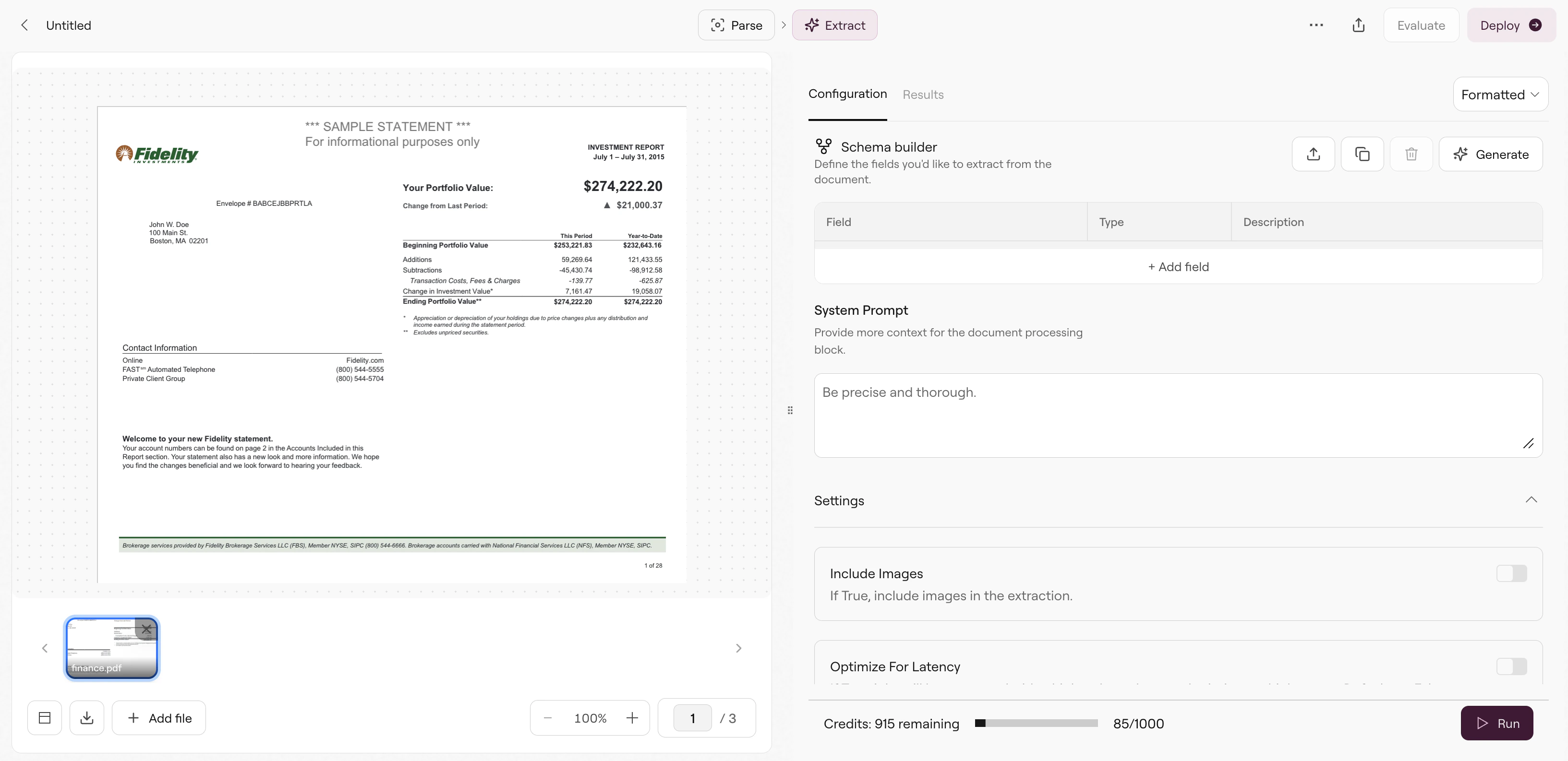
Let's walk through extracting data from this [Fidelity investment statement](https://studio.reducto.ai/share/md726aw3w7mfs46659ttkqry0s7se3pd). We want to pull out specific values—portfolio value, holdings, and account details—not the entire document content.
Create an Extract pipeline in Studio and upload the document. The Configurations tab shows three panels: **Build System Prompt** for document-level context, **Schema Builder** for defining fields, and **Settings** for extraction options.
 ## Define your schema
The Schema Builder is where you specify what to extract. You have two options:
### Option 1: Generate with natural language
Click **Generate** to describe what you need in plain English. For example:
```text theme={null}
Extract the total portfolio value and a list of all holdings with their names,
quantities, and current values.
```
Studio generates a schema from your description. Review the fields, adjust types or descriptions as needed, then run.
### Option 2: Build manually
Click **Add Field** to define each field yourself. Each field needs:
* **Name** — The key in your JSON output (e.g., `portfolioValue`)
* **Type** — The data type (text, number, date, array, object, etc.)
* **Description** — Instructions for the LLM on where to find this value
## Define your schema
The Schema Builder is where you specify what to extract. You have two options:
### Option 1: Generate with natural language
Click **Generate** to describe what you need in plain English. For example:
```text theme={null}
Extract the total portfolio value and a list of all holdings with their names,
quantities, and current values.
```
Studio generates a schema from your description. Review the fields, adjust types or descriptions as needed, then run.
### Option 2: Build manually
Click **Add Field** to define each field yourself. Each field needs:
* **Name** — The key in your JSON output (e.g., `portfolioValue`)
* **Type** — The data type (text, number, date, array, object, etc.)
* **Description** — Instructions for the LLM on where to find this value
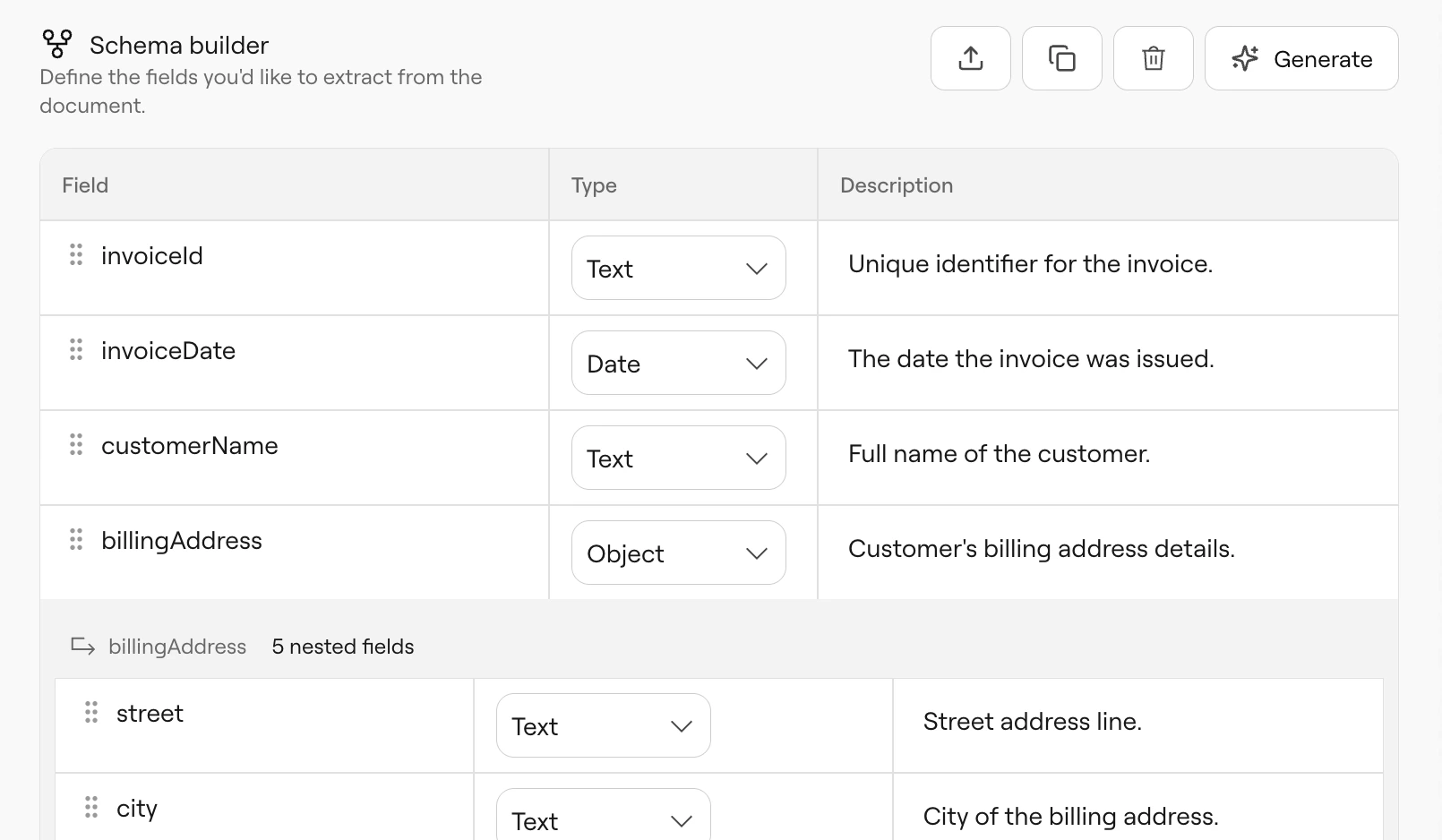 In this example, we define:
* `portfolioValue` (text) — "Total portfolio value"
* `holdings` (array) — "list of all my holdings"
The `holdings` array expands to show nested fields. Click on an array or object field to add nested structure—each holding could have `name`, `quantity`, `currentValue`, etc.
### Field types
| Type | Use for | Example |
| --------- | --------------------- | ---------------------------------- |
| `text` | Names, IDs, addresses | Account number, customer name |
| `number` | Amounts, quantities | Total due, item count |
| `boolean` | Yes/no values | Is paid, has signature |
| `date` | Dates in any format | Invoice date, due date |
| `enum` | Fixed set of options | Status (pending/approved/rejected) |
| `array` | Lists of items | Holdings, transactions, line items |
| `object` | Grouped fields | Address (street, city, zip) |
### Writing good descriptions
Field descriptions directly influence extraction accuracy. The LLM uses them to locate values.
**Specific descriptions work better:**
* ✓ "Total portfolio value in USD, displayed prominently at the top right of page 1"
* ✓ "Account holder's full name as shown in the mailing address"
* ✗ "The total"
* ✗ "Name"
Include location hints when the document has multiple similar values. See [Schema Best Practices](/extraction/best-practices-extract) for more guidance.
### Build System Prompt
Use the Build System Prompt panel to provide document-level context:
```text theme={null}
This is a Fidelity investment statement. Extract values from the portfolio summary
on page 1. Amounts are in USD. Account numbers follow the format XXX-XXXXXX.
```
Field-specific guidance belongs in schema descriptions. The system prompt sets overall context that applies to all fields.
## Settings
The Settings section (below Schema Builder) controls extraction behavior. Configure these before running:
In this example, we define:
* `portfolioValue` (text) — "Total portfolio value"
* `holdings` (array) — "list of all my holdings"
The `holdings` array expands to show nested fields. Click on an array or object field to add nested structure—each holding could have `name`, `quantity`, `currentValue`, etc.
### Field types
| Type | Use for | Example |
| --------- | --------------------- | ---------------------------------- |
| `text` | Names, IDs, addresses | Account number, customer name |
| `number` | Amounts, quantities | Total due, item count |
| `boolean` | Yes/no values | Is paid, has signature |
| `date` | Dates in any format | Invoice date, due date |
| `enum` | Fixed set of options | Status (pending/approved/rejected) |
| `array` | Lists of items | Holdings, transactions, line items |
| `object` | Grouped fields | Address (street, city, zip) |
### Writing good descriptions
Field descriptions directly influence extraction accuracy. The LLM uses them to locate values.
**Specific descriptions work better:**
* ✓ "Total portfolio value in USD, displayed prominently at the top right of page 1"
* ✓ "Account holder's full name as shown in the mailing address"
* ✗ "The total"
* ✗ "Name"
Include location hints when the document has multiple similar values. See [Schema Best Practices](/extraction/best-practices-extract) for more guidance.
### Build System Prompt
Use the Build System Prompt panel to provide document-level context:
```text theme={null}
This is a Fidelity investment statement. Extract values from the portfolio summary
on page 1. Amounts are in USD. Account numbers follow the format XXX-XXXXXX.
```
Field-specific guidance belongs in schema descriptions. The system prompt sets overall context that applies to all fields.
## Settings
The Settings section (below Schema Builder) controls extraction behavior. Configure these before running:
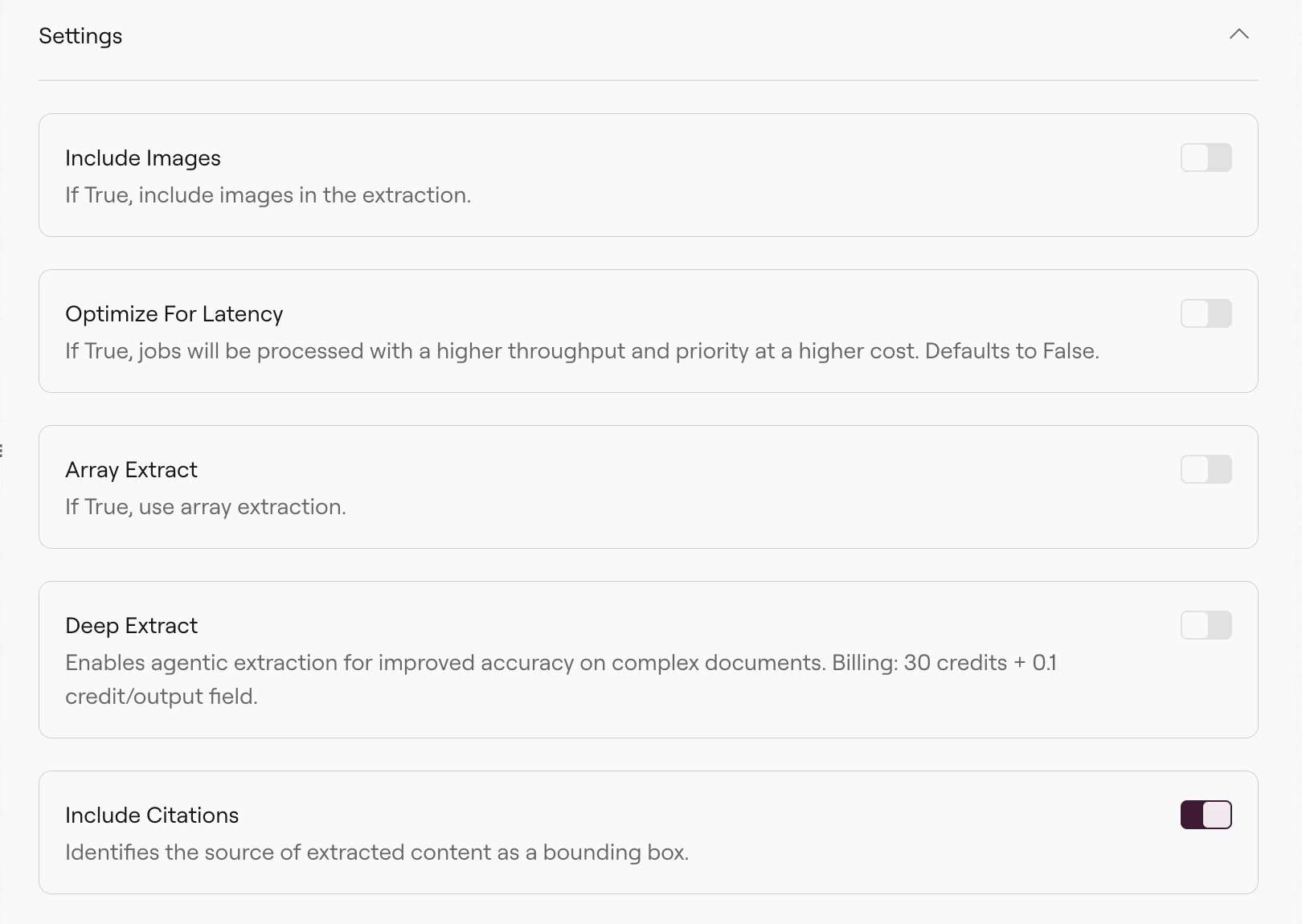 **Array extraction** — Enable for documents with long lists (hundreds of transactions, extensive line items). Without this, items toward the end may be missed due to LLM context limits. See [Array Extraction](/configs/extract/array-extraction) for details.
**Citations** — Returns page number, bounding box, and source text for each value. Useful for verification or showing users where values came from. See [Citations](/configs/extract/citations) for working with this data.
**Include images** — Sends page images to the LLM alongside text. Helps with visually complex documents but increases cost.
## Run and view results
Click **Run** to execute the extraction. The Results tab shows your extracted data:
Each field from your schema appears with its extracted value. For arrays like `holdings`, you see each item expanded with its nested fields.
The toolbar provides:
* **Copy** — Copy JSON to clipboard
* **Download** — Save as file
* **JSON** — Toggle raw API response view
## Troubleshooting
First, check if the value appears in the Parse output. Create a Parse pipeline with the same document—if the value isn't there, Extract can't find it either. Fix the parsing first (enable agentic mode, adjust OCR settings, or change table format to HTML).
If the value is in Parse output, refine your schema. Make the description more specific, add location hints like "found in the header on page 1", or try a different field name.
For long documents with many items (hundreds of transactions, extensive line items), enable [Deep Extract](https://docs.reducto.ai/configs/extract/deep-extract). It helps with extremely long and complex extractions.
LLM outputs are non-deterministic. Small variations are normal. If you need consistent results, use ground truth comparison to track accuracy over time and catch regressions.
Extract runs Parse first, then the extraction LLM. Large documents take longer. If you enabled "Include images", that adds processing time and cost. Disable it unless you need visual context for extraction.
***
## Related
API reference with all parameters.
Detailed guidance on schema design.
Handle long documents with repeating data.
Trace values back to source locations.
**Array extraction** — Enable for documents with long lists (hundreds of transactions, extensive line items). Without this, items toward the end may be missed due to LLM context limits. See [Array Extraction](/configs/extract/array-extraction) for details.
**Citations** — Returns page number, bounding box, and source text for each value. Useful for verification or showing users where values came from. See [Citations](/configs/extract/citations) for working with this data.
**Include images** — Sends page images to the LLM alongside text. Helps with visually complex documents but increases cost.
## Run and view results
Click **Run** to execute the extraction. The Results tab shows your extracted data:
Each field from your schema appears with its extracted value. For arrays like `holdings`, you see each item expanded with its nested fields.
The toolbar provides:
* **Copy** — Copy JSON to clipboard
* **Download** — Save as file
* **JSON** — Toggle raw API response view
## Troubleshooting
First, check if the value appears in the Parse output. Create a Parse pipeline with the same document—if the value isn't there, Extract can't find it either. Fix the parsing first (enable agentic mode, adjust OCR settings, or change table format to HTML).
If the value is in Parse output, refine your schema. Make the description more specific, add location hints like "found in the header on page 1", or try a different field name.
For long documents with many items (hundreds of transactions, extensive line items), enable [Deep Extract](https://docs.reducto.ai/configs/extract/deep-extract). It helps with extremely long and complex extractions.
LLM outputs are non-deterministic. Small variations are normal. If you need consistent results, use ground truth comparison to track accuracy over time and catch regressions.
Extract runs Parse first, then the extraction LLM. Large documents take longer. If you enabled "Include images", that adds processing time and cost. Disable it unless you need visual context for extraction.
***
## Related
API reference with all parameters.
Detailed guidance on schema design.
Handle long documents with repeating data.
Trace values back to source locations.