> ## Documentation Index
> Fetch the complete documentation index at: https://docs.reducto.ai/llms.txt
> Use this file to discover all available pages before exploring further.
# Account & Settings
> Manage API keys, usage, billing, and organization settings in Reducto Studio
Your Reducto account is managed through [Studio](https://studio.reducto.ai). The sidebar provides access to Usage, API Keys, Webhooks, Billing, and Settings. This page covers common account management tasks.
***
## API Keys
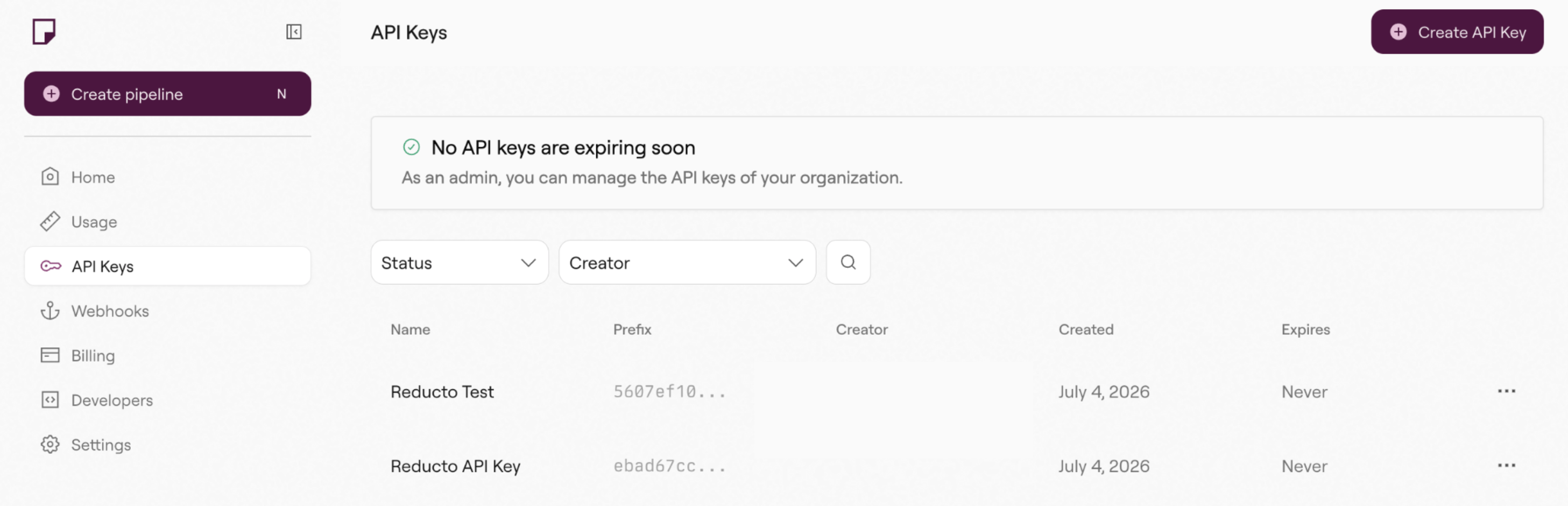 API keys authenticate your requests to Reducto. Navigate to **API Keys** in the sidebar to manage them.
All roles can create API keys. Only **Owners** and **Admins** can edit or delete keys. See [Roles & Permissions](/studio-roles-permissions) for details.
To create a new API key:
1. Click **Create API Key**
2. Give it a descriptive name (e.g., "production", "staging", "local-dev")
3. Copy the key immediately, you won't be able to see it again
The table shows each key's name, prefix, creator, creation date, and expiration. Deleting a key immediately revokes access, and any requests using that key will fail.
Organization Owners and Admins are notified by email a week and a day before an API key expires. Rotate keys ahead of their expiration to avoid service disruptions.
For security, create separate API keys for different environments (development, staging, production). If a key is compromised, you can revoke it without affecting other environments.
***
## Usage
The Usage page tracks your Reducto consumption. Navigate to **Usage** in the sidebar to view your dashboard.
API keys authenticate your requests to Reducto. Navigate to **API Keys** in the sidebar to manage them.
All roles can create API keys. Only **Owners** and **Admins** can edit or delete keys. See [Roles & Permissions](/studio-roles-permissions) for details.
To create a new API key:
1. Click **Create API Key**
2. Give it a descriptive name (e.g., "production", "staging", "local-dev")
3. Copy the key immediately, you won't be able to see it again
The table shows each key's name, prefix, creator, creation date, and expiration. Deleting a key immediately revokes access, and any requests using that key will fail.
Organization Owners and Admins are notified by email a week and a day before an API key expires. Rotate keys ahead of their expiration to avoid service disruptions.
For security, create separate API keys for different environments (development, staging, production). If a key is compromised, you can revoke it without affecting other environments.
***
## Usage
The Usage page tracks your Reducto consumption. Navigate to **Usage** in the sidebar to view your dashboard.
 ### Usage chart
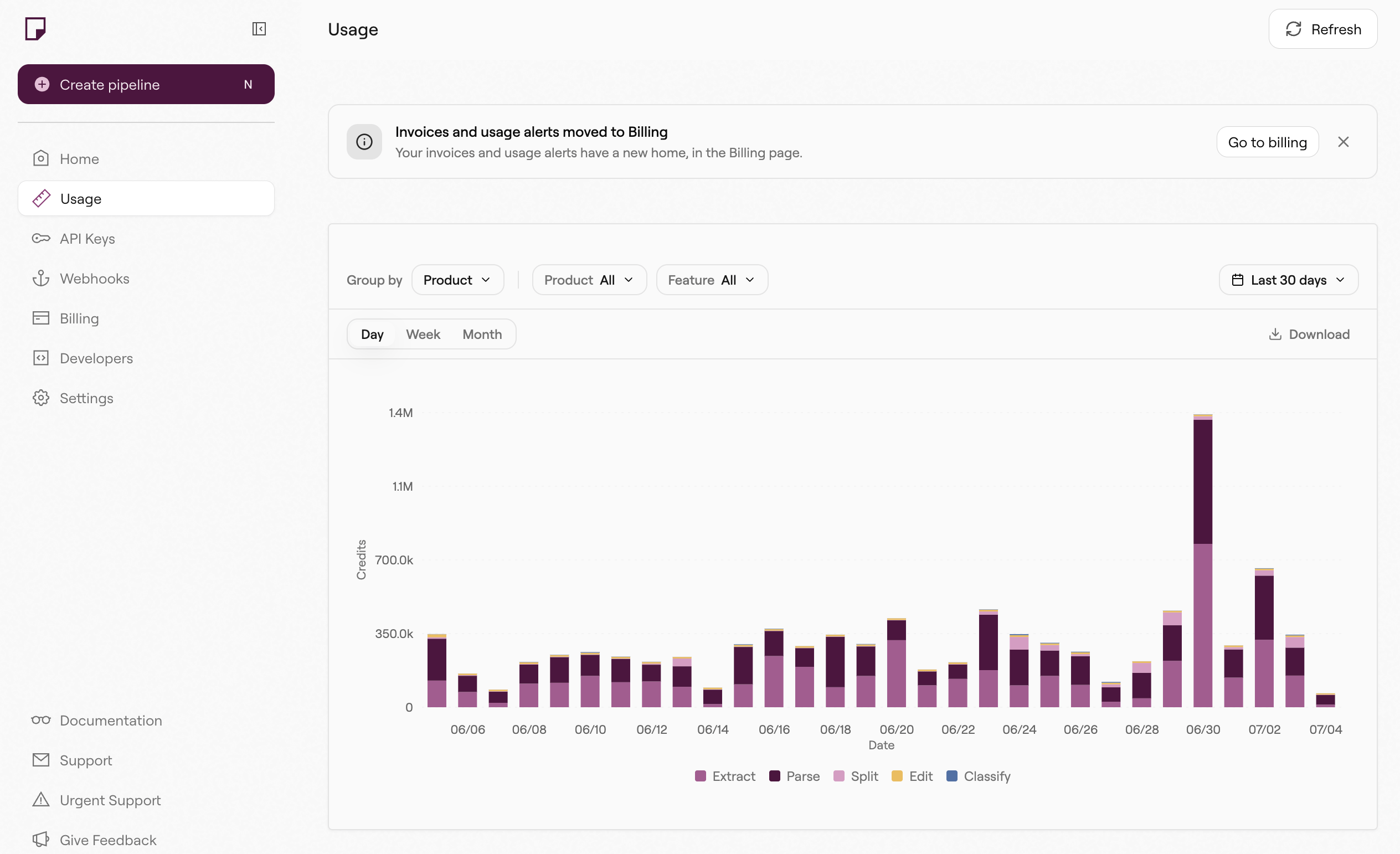
The chart shows credit consumption over time, broken down by product (Parse, Extract, Split, Edit, Classify).
Use the filters to:
* **Group by**: Switch between Product and Feature breakdowns
* **Product / Feature**: Filter to specific products or features
* **Time range**: View the last 7, 14, or 30 days
* **Granularity**: Toggle between Day, Week, and Month views
Click **Download** to export your usage data. You can also export usage data programmatically via the [Usage Export API](/reference/usage-export-api).
### Request logs
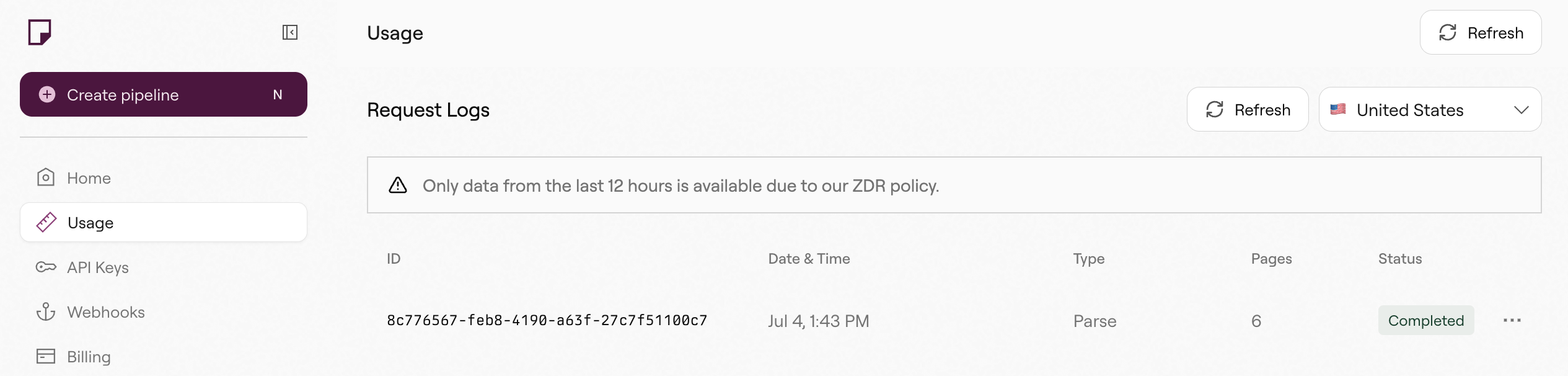
Below the chart, the Request Logs table shows individual API requests. Each entry includes:
* Job ID
* Date and time
* Type (Parse, Extract, Split, Edit, Classify)
* Page count processed
* Status
Click **Refresh** to load the latest entries. Use the region dropdown to filter by data center (US, EU, etc.).
Click the **...** menu on any request to see the full job details, including the exact configuration used. Click **Preview** to recreate that pipeline in a new Studio instance.
### Usage chart
The chart shows credit consumption over time, broken down by product (Parse, Extract, Split, Edit, Classify).
Use the filters to:
* **Group by**: Switch between Product and Feature breakdowns
* **Product / Feature**: Filter to specific products or features
* **Time range**: View the last 7, 14, or 30 days
* **Granularity**: Toggle between Day, Week, and Month views
Click **Download** to export your usage data. You can also export usage data programmatically via the [Usage Export API](/reference/usage-export-api).
### Request logs
Below the chart, the Request Logs table shows individual API requests. Each entry includes:
* Job ID
* Date and time
* Type (Parse, Extract, Split, Edit, Classify)
* Page count processed
* Status
Click **Refresh** to load the latest entries. Use the region dropdown to filter by data center (US, EU, etc.).
Click the **...** menu on any request to see the full job details, including the exact configuration used. Click **Preview** to recreate that pipeline in a new Studio instance.
 ***
## Billing
The **Billing** link opens the Stripe customer portal where you manage your subscription and payment methods.
The billing page is only visible for account owners and organizations on a subscription plan.
In the billing portal you can:
* **View invoices**: See past and upcoming charges
* **Update payment methods**: Add, remove, or change credit cards
* **Manage subscription**: Upgrade, downgrade, or cancel your plan
* **Download receipts**: Export invoices for accounting
### Subscription changes
Monthly and yearly plans are available. To change your plan, use the billing portal or contact [support@reducto.ai](mailto:support@reducto.ai).
### Usage alerts
Configure usage alerts from the Billing tab to get an email when your current invoice crosses a threshold you set. Click **Create alert** to open the dialog.
***
## Billing
The **Billing** link opens the Stripe customer portal where you manage your subscription and payment methods.
The billing page is only visible for account owners and organizations on a subscription plan.
In the billing portal you can:
* **View invoices**: See past and upcoming charges
* **Update payment methods**: Add, remove, or change credit cards
* **Manage subscription**: Upgrade, downgrade, or cancel your plan
* **Download receipts**: Export invoices for accounting
### Subscription changes
Monthly and yearly plans are available. To change your plan, use the billing portal or contact [support@reducto.ai](mailto:support@reducto.ai).
### Usage alerts
Configure usage alerts from the Billing tab to get an email when your current invoice crosses a threshold you set. Click **Create alert** to open the dialog.
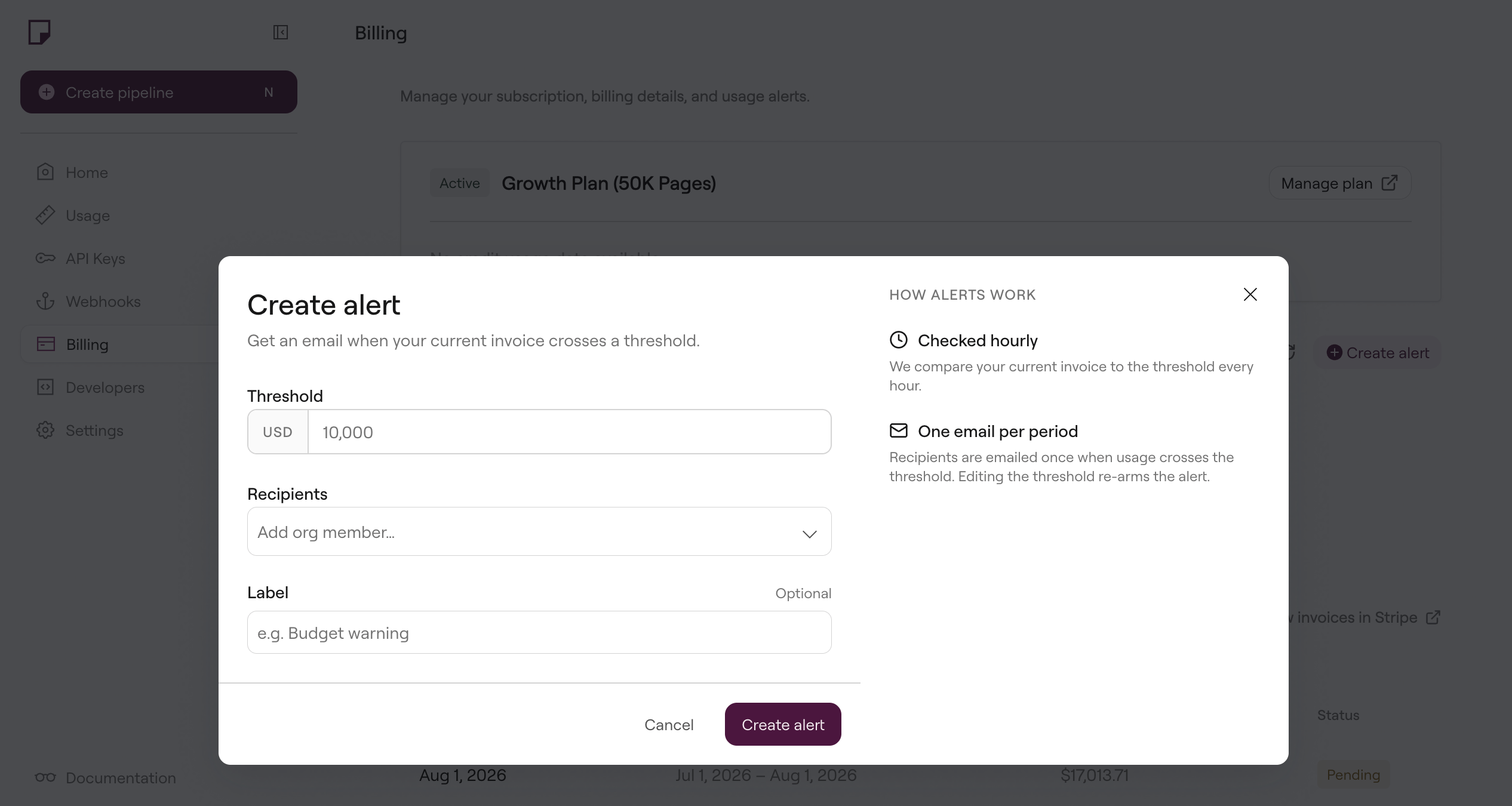 Each alert has:
* **Threshold**: The invoice amount (in USD) that triggers the alert
* **Recipients**: The organization members who receive the email
* **Label**: An optional name for the alert (e.g., "Budget warning")
Reducto compares your current invoice to the threshold every hour. Recipients are emailed once per period when usage crosses the threshold. Editing the threshold re-arms the alert.
***
## Organization Settings
The **Settings** page lets you manage your profile and organization.
### Account settings
On the **Account** tab, you can:
* Edit your name and email
* Change your profile picture
* Set a password or enable two-factor authentication (2FA)
* Choose a theme (Light or Dark)
* Manage cookie preferences
### Organization management
If you're an organization Owner or Admin, you can:
* Invite team members
* Manage member roles and permissions
See [Roles & Permissions](/studio-roles-permissions) for a full breakdown of what each role can do.
***
## Webhooks
Configure webhooks to receive notifications when jobs complete. Navigate to **Webhooks** in the sidebar.
Webhooks let you:
* Get notified when async jobs finish
* Trigger downstream workflows automatically
* Avoid polling the API for job status
See [Webhook Configuration](/recipes/svix-webhooks) for setup details.
***
## Related
Set up your API key and make your first request.
How credits are calculated and billed.
Configure webhooks for async job notifications.
Data handling, retention, and compliance information.
Each alert has:
* **Threshold**: The invoice amount (in USD) that triggers the alert
* **Recipients**: The organization members who receive the email
* **Label**: An optional name for the alert (e.g., "Budget warning")
Reducto compares your current invoice to the threshold every hour. Recipients are emailed once per period when usage crosses the threshold. Editing the threshold re-arms the alert.
***
## Organization Settings
The **Settings** page lets you manage your profile and organization.
### Account settings
On the **Account** tab, you can:
* Edit your name and email
* Change your profile picture
* Set a password or enable two-factor authentication (2FA)
* Choose a theme (Light or Dark)
* Manage cookie preferences
### Organization management
If you're an organization Owner or Admin, you can:
* Invite team members
* Manage member roles and permissions
See [Roles & Permissions](/studio-roles-permissions) for a full breakdown of what each role can do.
***
## Webhooks
Configure webhooks to receive notifications when jobs complete. Navigate to **Webhooks** in the sidebar.
Webhooks let you:
* Get notified when async jobs finish
* Trigger downstream workflows automatically
* Avoid polling the API for job status
See [Webhook Configuration](/recipes/svix-webhooks) for setup details.
***
## Related
Set up your API key and make your first request.
How credits are calculated and billed.
Configure webhooks for async job notifications.
Data handling, retention, and compliance information.