> ## Documentation Index
> Fetch the complete documentation index at: https://docs.reducto.ai/llms.txt
> Use this file to discover all available pages before exploring further.

# API Quickstart

> Extract text, tables, and figures from documents using the Reducto API.

This guide walks you through using the Reducto API for parsing your first document within 5 mins to extract structured JSON data that can be passed to LLMs or processed further.

***

## What we're going to parse

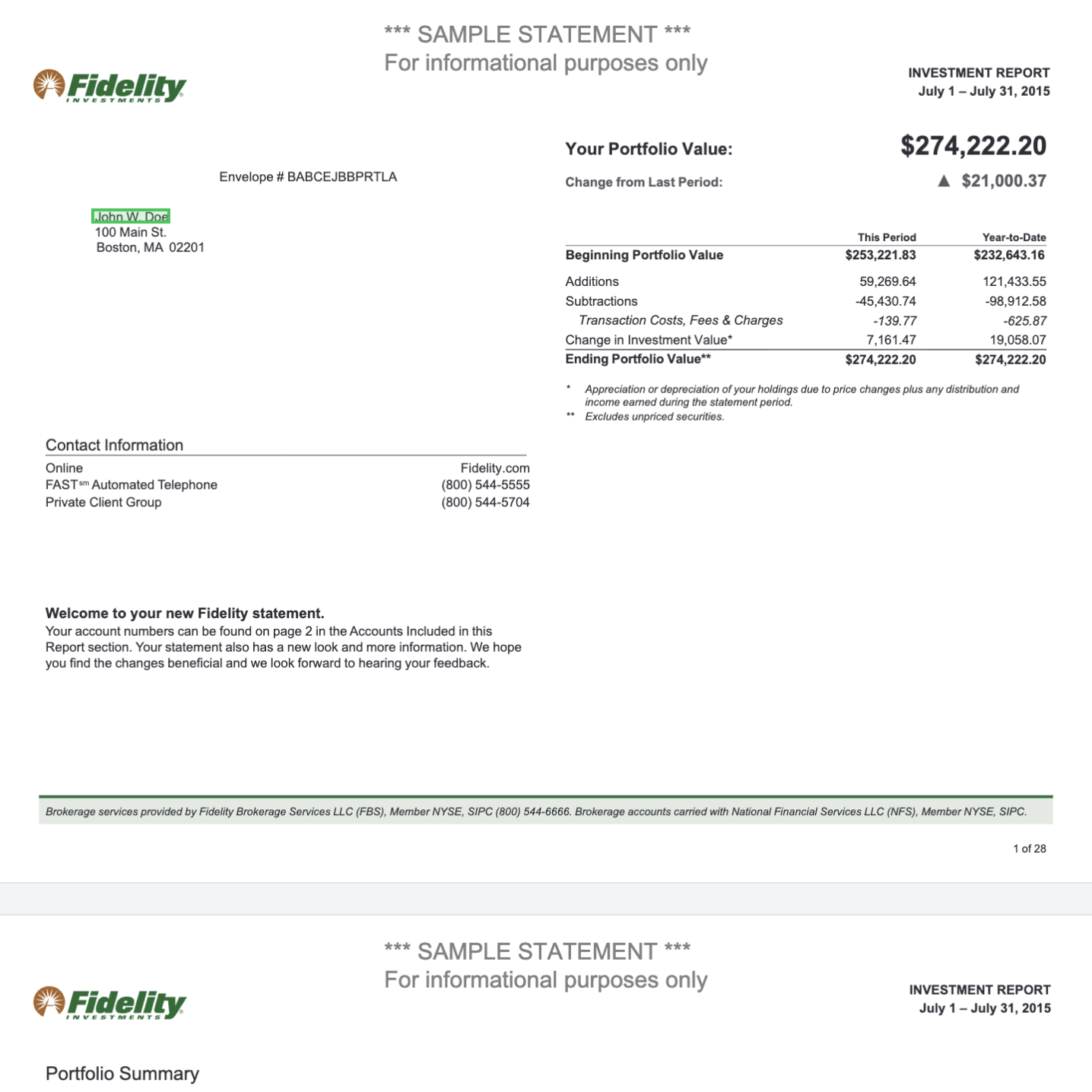
We'll use a financial statement PDF that contains multiple tables, headers, account summaries, and formatted text. This is the kind of complex document that's difficult to process manually but straightforward with Reducto.

<img src="https://mintcdn.com/reducto/VmlAHm6-E3eI_let/images/finance-statement.png?fit=max&auto=format&n=VmlAHm6-E3eI_let&q=85&s=8dcb72304454123172977d5b2556e0cf" alt="Finance Statement" style={{ width:"81%" }} width="1436" height="1436" data-path="images/finance-statement.png" />

[View the sample PDF in Studio](https://studio.reducto.ai/share/md726aw3w7mfs46659ttkqry0s7se3pd?processor=kh7c9e30evkfb5a4h80dq4xke17sfwck\&fileId=js7e4hrtnh2tsyjqdbz114ceyn7sf1v1) or [download it directly](https://cdn.reducto.ai/samples/fidelity-example.pdf) to follow along.

**What we want to extract:**

* The portfolio value table with beginning and ending values
* Account information including account numbers and types
* Income summary broken down by tax category
* Top holdings with values and percentages

By the end of this guide, you'll have all of this data in structured JSON that you can use in your application. For structured field extraction (e.g., extracting specific account numbers or values into typed fields), see the [/extract endpoint](/extract/overview) after completing this quickstart.

***

## Prerequisites

<Steps>
  <Step title="Create a Reducto account">
    Go to [studio.reducto.ai](https://studio.reducto.ai/) and sign up for a free account.
  </Step>

  <Step title="Get your API key">
    In the Studio sidebar, click **API Keys**, then **Create new API key**. Give it a name and copy the key.

    <Frame caption="Click API Keys in the sidebar to create a new key">
      <img src="https://mintcdn.com/reducto/vUQcNFcmHeM_6yJU/images/reducto-studio.png?fit=max&auto=format&n=vUQcNFcmHeM_6yJU&q=85&s=471a1b1b99b5c46239a2b259640ead6c" alt="Reducto Studio sidebar showing API Keys option" width="245" height="318" data-path="images/reducto-studio.png" />
    </Frame>
  </Step>

  <Step title="Set your API key as an environment variable">
    This allows the SDK to authenticate automatically without hardcoding the key in your code.

    <Tabs>
      <Tab title="macOS / Linux">
        ```bash theme={null}
        export REDUCTO_API_KEY="your_api_key_here"
        ```
      </Tab>

      <Tab title="Windows (PowerShell)">
        ```powershell theme={null}
        $env:REDUCTO_API_KEY="your_api_key_here"
        ```
      </Tab>
    </Tabs>
  </Step>
</Steps>

***

## Install the SDK

Choose your language and install the Reducto SDK:

<Tabs>
  <Tab title="Python">
    ```bash theme={null}
    pip install reductoai
    ```

    Requires Python 3.8+.
  </Tab>

  <Tab title="Node.js">
    ```bash theme={null}
    npm install reductoai
    ```
  </Tab>

  <Tab title="Go">
    ```bash theme={null}
    go get github.com/reductoai/reducto-go-sdk
    ```
  </Tab>
</Tabs>

***

## Parse the document

Now let's write the code to parse our financial statement. We'll go through each part step by step.

<Tabs>
  <Tab title="Python">
    <Steps>
      <Step title="Import the SDK and initialize the client">
        First, we import the Reducto client. When you create a `Reducto()` client without passing an API key, it automatically reads from the `REDUCTO_API_KEY` environment variable you set earlier.

        ```python theme={null}
        from reducto import Reducto

        # The client reads REDUCTO_API_KEY from your environment
        client = Reducto()
        ```
      </Step>

      <Step title="Upload your document">
        Before parsing, you need to upload the document to Reducto's servers. The `upload()` method accepts a file path (as a string) and returns a reference that you'll use in the next step.

        You can download the sample PDF from [here](https://cdn.reducto.ai/samples/fidelity-example.pdf).

        ```python theme={null}
        from pathlib import Path

        # Upload the PDF file to Reducto
        upload = client.upload(file=Path("fidelity-example.pdf"))
        print(f"Uploaded: {upload}")
        ```

        <Tip>
          You can also pass a URL directly to the parse method if your document is already hosted somewhere accessible, like an S3 bucket:

          ```python theme={null}
          result = client.parse.run(input="https://cdn.reducto.ai/samples/fidelity-example.pdf")
          ```
        </Tip>
      </Step>

      <Step title="Parse the document">
        Now we call the `parse.run()` method with the uploaded file reference. This sends the document through Reducto's processing pipeline, which runs OCR, detects layout, extracts tables, and structures everything into chunks.

        ```python theme={null}
        # Parse the uploaded document
        result = client.parse.run(input=upload)

        # Check what we got back
        print(f"Job ID: {result.job_id}")
        print(f"Pages processed: {result.usage.num_pages}")
        print(f"Credits used: {result.usage.credits}")
        print(f"Number of chunks: {len(result.result.chunks)}")
        ```
      </Step>

      <Step title="Access the extracted content">
        The response contains `chunks`, which are logical sections of the document. Each chunk has a `content` field with the full text and a `blocks` field with individual elements like tables, headers, and paragraphs.

        ```python theme={null}
        # Loop through each chunk
        for i, chunk in enumerate(result.result.chunks):
            print(f"\n=== Chunk {i + 1} ===")
            print(chunk.content[:500])  # First 500 characters
            
            # Look at individual blocks within this chunk
            for block in chunk.blocks:
                print(f"  [{block.type}] on page {block.bbox.page}")
                
                # Tables are returned as HTML by default
                if block.type == "Table":
                    print(f"  Table content: {block.content[:200]}...")
        ```

        Each block has a `type` that tells you what kind of content it is: `Title`, `Section Header`, `Text`, `Table`, `Figure`, `Key Value`, and others. The `bbox` field contains the bounding box coordinates so you know exactly where on the page this content came from.
      </Step>
    </Steps>

    **Complete code:**

    ```python theme={null}
    from pathlib import Path
    from reducto import Reducto

    client = Reducto()
    upload = client.upload(file=Path("fidelity-example.pdf"))
    result = client.parse.run(input=upload)

    print(f"Processed {result.usage.num_pages} pages")

    for chunk in result.result.chunks:
        print(chunk.content)
        for block in chunk.blocks:
            if block.type == "Table":
                print(f"Found table on page {block.bbox.page}")
    ```
  </Tab>

  <Tab title="Node.js">
    <Note>
      All Node.js examples use `await` and must be run inside an `async` function, or in a file with top-level await enabled (ES modules with Node.js 14.8+).
    </Note>

    <Steps>
      <Step title="Import the SDK and initialize the client">
        Import the Reducto client and the `fs` module for reading files. The client automatically uses the `REDUCTO_API_KEY` environment variable for authentication.

        ```javascript theme={null}
        import Reducto from 'reductoai';
        import fs from 'fs';

        // The client reads REDUCTO_API_KEY from your environment
        const client = new Reducto();
        ```
      </Step>

      <Step title="Upload your document">
        Use `createReadStream` to upload the file to Reducto. This returns a reference you'll use when calling the parse endpoint.

        You can download the sample PDF from [here](https://cdn.reducto.ai/samples/fidelity-example.pdf).

        ```javascript theme={null}
        // Upload the PDF file to Reducto
        const upload = await client.upload({ 
          file: fs.createReadStream("fidelity-example.pdf") 
        });
        console.log(`Uploaded: ${upload}`);
        ```
      </Step>

      <Step title="Parse the document">
        Call `parse.run()` with the uploaded file reference. Reducto processes the document and returns structured content.

        ```javascript theme={null}
        // Parse the uploaded document
        const result = await client.parse.run({ input: upload });

        console.log(`Job ID: ${result.job_id}`);
        console.log(`Pages processed: ${result.usage.num_pages}`);
        console.log(`Credits used: ${result.usage.credits}`);
        console.log(`Number of chunks: ${result.result.chunks.length}`);
        ```
      </Step>

      <Step title="Access the extracted content">
        Loop through the chunks and blocks to access the extracted text, tables, and other elements.

        ```javascript theme={null}
        // Loop through each chunk
        for (let i = 0; i < result.result.chunks.length; i++) {
          const chunk = result.result.chunks[i];
          console.log(`\n=== Chunk ${i + 1} ===`);
          console.log(chunk.content.substring(0, 500));
          
          // Look at individual blocks within this chunk
          for (const block of chunk.blocks) {
            console.log(`  [${block.type}] on page ${block.bbox.page}`);
            
            if (block.type === "Table") {
              console.log(`  Table content: ${block.content.substring(0, 200)}...`);
            }
          }
        }
        ```
      </Step>
    </Steps>

    **Complete code:**

    ```javascript theme={null}
    import Reducto from 'reductoai';
    import fs from 'fs';

    const client = new Reducto();

    async function main() {
      const upload = await client.upload({ 
        file: fs.createReadStream("fidelity-example.pdf") 
      });
      const result = await client.parse.run({ input: upload });
      
      console.log(`Processed ${result.usage.num_pages} pages`);
      
      for (const chunk of result.result.chunks) {
        console.log(chunk.content);
        for (const block of chunk.blocks) {
          if (block.type === "Table") {
            console.log(`Found table on page ${block.bbox.page}`);
          }
        }
      }
    }

    main();
    ```
  </Tab>

  <Tab title="Go">
    <Note>
      The Go SDK is currently in alpha (`v0.1.0-alpha.1`). The API may change in future releases.
    </Note>

    <Steps>
      <Step title="Import the SDK and initialize the client">
        Import the Reducto client and the option package for configuration. The Go SDK requires you to pass the API key explicitly using `option.WithAPIKey()`.

        ```go theme={null}
        package main

        import (
            "context"
            "fmt"
            "io"
            "os"

            reducto "github.com/reductoai/reducto-go-sdk"
            "github.com/reductoai/reducto-go-sdk/option"
            "github.com/reductoai/reducto-go-sdk/shared"
        )

        func main() {
            // Initialize client with API key from environment
            client := reducto.NewClient(option.WithAPIKey(os.Getenv("REDUCTO_API_KEY")))
        }
        ```
      </Step>

      <Step title="Upload your document">
        Open the file and upload it to Reducto. The upload returns a file ID that you'll use for parsing.

        You can download the sample PDF from [here](https://cdn.reducto.ai/samples/fidelity-example.pdf).

        ```go theme={null}
        file, err := os.Open("fidelity-example.pdf")
        if err != nil {
            fmt.Printf("Error opening file: %v\n", err)
            return
        }
        defer file.Close()

        upload, err := client.Upload(context.Background(), reducto.UploadParams{
            File: reducto.F[io.Reader](file),
        })
        if err != nil {
            fmt.Printf("Upload error: %v\n", err)
            return
        }
        fmt.Printf("Uploaded: %s\n", upload.FileID)
        ```
      </Step>

      <Step title="Parse the document">
        Call `Parse.Run()` with the file ID. The Go SDK requires you to wrap the file ID with `shared.UnionString()` and then with `reducto.F[...]()` because the SDK uses strongly-typed union parameters.

        ```go theme={null}
        result, err := client.Parse.Run(context.Background(), reducto.ParseRunParams{
            ParseConfig: reducto.ParseConfigParam{
                // The file ID must be wrapped in shared.UnionString() and reducto.F[...]()
                DocumentURL: reducto.F[reducto.ParseConfigDocumentURLUnionParam](
                    shared.UnionString(upload.FileID),
                ),
            },
        })
        if err != nil {
            fmt.Printf("Parse error: %v\n", err)
            return
        }

        fmt.Printf("Job ID: %s\n", result.JobID)
        fmt.Printf("Pages: %d\n", result.Usage.NumPages)
        // Note: To view in Studio, construct the URL: https://studio.reducto.ai/job/{job_id}
        ```
      </Step>

      <Step title="Access the extracted content">
        The result contains chunks with extracted content. The `Chunks` field is typed as `interface{}`, so you need to type assert it to `[]shared.ParseResponseResultFullResultChunk` before you can iterate over it. When checking block types, use the SDK constants instead of string comparisons.

        ```go theme={null}
        if result.Result.Type == shared.ParseResponseResultTypeFull {
            // Type assert Chunks from interface{} to the actual type
            chunks, ok := result.Result.Chunks.([]shared.ParseResponseResultFullResultChunk)
            if ok {
                for _, chunk := range chunks {
                    fmt.Println(chunk.Content)
                    
                    for _, block := range chunk.Blocks {
                        // Use SDK constants for block type comparisons
                        if block.Type == shared.ParseResponseResultFullResultChunksBlocksTypeTable {
                            fmt.Printf("Found table on page %d\n", block.Bbox.Page)
                        }
                    }
                }
            }
        }
        ```
      </Step>
    </Steps>

    **Complete code:**

    ```go theme={null}
    package main

    import (
        "context"
        "fmt"
        "io"
        "os"

        reducto "github.com/reductoai/reducto-go-sdk"
        "github.com/reductoai/reducto-go-sdk/option"
        "github.com/reductoai/reducto-go-sdk/shared"
    )

    func main() {
        client := reducto.NewClient(option.WithAPIKey(os.Getenv("REDUCTO_API_KEY")))

        file, _ := os.Open("fidelity-example.pdf")
        defer file.Close()

        upload, _ := client.Upload(context.Background(), reducto.UploadParams{
            File: reducto.F[io.Reader](file),
        })

        result, _ := client.Parse.Run(context.Background(), reducto.ParseRunParams{
            ParseConfig: reducto.ParseConfigParam{
                DocumentURL: reducto.F[reducto.ParseConfigDocumentURLUnionParam](
                    shared.UnionString(upload.FileID),
                ),
            },
        })

        fmt.Printf("Processed %d pages\n", result.Usage.NumPages)

        if result.Result.Type == shared.ParseResponseResultTypeFull {
            chunks, _ := result.Result.Chunks.([]shared.ParseResponseResultFullResultChunk)
            for _, chunk := range chunks {
                fmt.Println(chunk.Content)
            }
        }
    }
    ```
  </Tab>

  <Tab title="cURL">
    If you prefer not to use an SDK, you can call the API directly with cURL or any HTTP client.

    <Steps>
      <Step title="Upload your document">
        First, upload the file to get a file reference:

        ```bash theme={null}
        curl -X POST "https://platform.reducto.ai/upload" \
          -H "Authorization: Bearer $REDUCTO_API_KEY" \
          -F "file=@fidelity-example.pdf"
        ```

        This returns a JSON response with a `file_id`:

        ```json theme={null}
        {"file_id": "reducto://abc123def456.pdf"}
        ```
      </Step>

      <Step title="Parse the document">
        Use the `file_id` from the previous step as the `input` parameter:

        ```bash theme={null}
        curl -X POST "https://platform.reducto.ai/parse" \
          -H "Authorization: Bearer $REDUCTO_API_KEY" \
          -H "Content-Type: application/json" \
          -d '{"input": "reducto://abc123def456.pdf"}'
        ```

        You can also skip the upload step if your document is already hosted at a public URL:

        ```bash theme={null}
        curl -X POST "https://platform.reducto.ai/parse" \
          -H "Authorization: Bearer $REDUCTO_API_KEY" \
          -H "Content-Type: application/json" \
          -d '{"input": "https://cdn.reducto.ai/samples/fidelity-example.pdf"}'
        ```
      </Step>
    </Steps>
  </Tab>
</Tabs>

***

## Understanding the response

Here's what we got back from parsing our financial statement:

```json theme={null}
{
  "job_id": "5df31070-8d98-4caa-9a5b-c5c511a03f71",
  "duration": 11.35,
  "usage": {
    "num_pages": 3,
    "credits": 4.0
  },
  "result": {
    "chunks": [
      {
        "content": "# *** SAMPLE STATEMENT ***\nFor informational purposes only\n\nFidelity\nINVESTMENTS\n\n## Your Portfolio Value:\n\n$274,222.20\n\n|                                   | This Period   | Year-to-Date   |\n|-|-|-|\n| Beginning Portfolio Value         | $253,221.83   | $232,643.16    |\n| Additions                         | 59,269.64     | 121,433.55     |...",
        "blocks": [
          {
            "type": "Title",
            "content": "*** SAMPLE STATEMENT ***\nFor informational purposes only",
            "bbox": {"page": 1, "left": 0.351, "top": 0.029, "width": 0.296, "height": 0.057},
            "confidence": "high"
          },
          {
            "type": "Section Header",
            "content": "Your Portfolio Value:",
            "bbox": {"page": 1, "left": 0.517, "top": 0.163, "width": 0.153, "height": 0.015},
            "confidence": "high"
          },
          {
            "type": "Table",
            "content": "|                                   | This Period   | Year-to-Date   |\n|-|-|-|\n| Beginning Portfolio Value         | $253,221.83   | $232,643.16    |\n| Additions                         | 59,269.64     | 121,433.55     |\n| Subtractions                      | -45,430.74    | -98,912.58     |\n| Transaction Costs, Fees & Charges | -139.77       | -625.87        |\n| Change in Investment Value*       | 7,161.47      | 19,058.07      |\n| Ending Portfolio Value**          | $274,222.20   | $274,222.20    |",
            "bbox": {"page": 1, "left": 0.516, "top": 0.261, "width": 0.444, "height": 0.158},
            "confidence": "high"
          }
        ]
      }
    ]
  },
  "studio_link": "https://studio.reducto.ai/job/5df31070-8d98-4caa-9a5b-c5c511a03f71"
}
```

**Key fields:**

| Field              | What it contains                                                                               |
| ------------------ | ---------------------------------------------------------------------------------------------- |
| `job_id`           | Unique identifier for this job. Use it to retrieve results later or debug in Studio.           |
| `usage.num_pages`  | Number of pages that were processed.                                                           |
| `usage.credits`    | Credits consumed by this request.                                                              |
| `chunks`           | Logical sections of the document, optimized for feeding into LLMs.                             |
| `chunks[].content` | The full text content of this chunk.                                                           |
| `chunks[].blocks`  | Individual elements (tables, headers, text) with their types and positions.                    |
| `blocks[].type`    | What kind of element this is: `Title`, `Table`, `Section Header`, `Text`, `Figure`, etc.       |
| `blocks[].bbox`    | Bounding box with normalized coordinates (0-1) showing where this element appears on the page. |
| `studio_link`      | Direct link to view this job in Reducto Studio for visual debugging.                           |

***

## Customizing the output

The default settings work well for most documents, but you can customize the parsing behavior for specific use cases.

<Tabs>
  <Tab title="Python">
    You can pass configuration options as `TypedDict` imports from `reducto.types` or as plain dictionaries:

    ```python theme={null}
    from reducto.types import EnhanceParam, FormattingParam, SettingsParam

    result = client.parse.run(
        input=upload,
        enhance=EnhanceParam(
            # Use AI to clean up OCR errors in scanned documents
            agentic=[{"scope": "text"}],
            # Generate descriptions for charts and images
            summarize_figures=True
        ),
        formatting=FormattingParam(
            # Get tables as HTML, md, json, or csv
            table_output_format="md"
        ),
        settings=SettingsParam(
            # Only process pages 1-5
            page_range={"start": 1, "end": 5}
        )
    )
    ```

    <Tip>
      You can also pass plain dictionaries instead of `TypedDict` imports. Both work identically.
    </Tip>
  </Tab>

  <Tab title="Node.js">
    ```javascript theme={null}
    const result = await client.parse.run({
      input: upload,
      enhance: {
        agentic: [{scope: "text"}],
        summarize_figures: true
      },
      formatting: {
        table_output_format: "md"
      },
      settings: {
        page_range: {start: 1, end: 5}
      }
    });
    ```
  </Tab>

  <Tab title="Go">
    ```go theme={null}
    result, err := client.Parse.Run(context.Background(), reducto.ParseRunParams{
        ParseConfig: reducto.ParseConfigParam{
            DocumentURL: reducto.F[reducto.ParseConfigDocumentURLUnionParam](
                shared.UnionString(upload.FileID),
            ),
            // Output formatting - use SDK constants for table format
            AdvancedOptions: reducto.F(shared.AdvancedProcessingOptionsParam{
                TableOutputFormat: reducto.F(shared.AdvancedProcessingOptionsTableOutputFormatMd),
            }),
            // Chunking options
            Options: reducto.F(shared.BaseProcessingOptionsParam{
                Chunking: reducto.F(shared.BaseProcessingOptionsChunkingParam{
                    ChunkMode: reducto.F(shared.BaseProcessingOptionsChunkingChunkModeVariable),
                }),
            }),
        },
    })
    ```

    The Go SDK uses different parameter names than Python and Node.js:

    | Python/Node.js                   | Go SDK                              |
    | -------------------------------- | ----------------------------------- |
    | `formatting.table_output_format` | `AdvancedOptions.TableOutputFormat` |
    | `settings.page_range`            | `AdvancedOptions.PageRange`         |
    | `retrieval.chunking.chunk_mode`  | `Options.Chunking.ChunkMode`        |

    Use SDK constants like `AdvancedProcessingOptionsTableOutputFormatMd` instead of strings, and wrap values with `reducto.F()`.
  </Tab>

  <Tab title="cURL">
    ```bash theme={null}
    curl -X POST "https://platform.reducto.ai/parse" \
      -H "Authorization: Bearer $REDUCTO_API_KEY" \
      -H "Content-Type: application/json" \
      -d '{
        "input": "reducto://abc123def456.pdf",
        "enhance": {
          "agentic": [{"scope": "text"}],
          "summarize_figures": true
        },
        "formatting": {
          "table_output_format": "md"
        },
        "settings": {
          "page_range": {"start": 1, "end": 5}
        }
      }'
    ```
  </Tab>
</Tabs>

**What these options do:**

* **`enhance.agentic`**: Runs AI-powered cleanup on the specified scope. Use `"text"` for OCR correction on scanned documents, or `"table"` to improve table structure detection.
* **`enhance.summarize_figures`**: Generates natural language descriptions of charts, graphs, and images. Useful for RAG pipelines where you need to search figure content.
* **`formatting.table_output_format`**: Controls how tables are returned. Options are `html`, `md` (markdown), `json`, `csv`, `dynamic` (default, returns markdown for simple tables and HTML for complex ones), or `jsonbbox`.
* **`settings.page_range`**: Limits processing to specific pages. Useful for large documents where you only need certain sections.

For the full list of options, see the [Parse configuration reference](/configs/overview).

***

## What's next

Now that you can parse documents, explore the other Reducto endpoints:

<CardGroup cols={2}>
  <Card title="/extract" icon="brackets-curly" href="/api-reference/extract">
    Define a JSON schema and extract specific fields from your documents.
  </Card>

  <Card title="/split" icon="scissors" href="/api-reference/split">
    Divide long documents into sections based on content type.
  </Card>

  <Card title="/edit" icon="pen-to-square" href="/api-reference/edit">
    Fill PDF forms and modify DOCX documents programmatically.
  </Card>

  <Card title="/parse (async)" icon="clock" href="/api-reference/async-parse">
    Process documents asynchronously with webhooks for high-volume workloads.
  </Card>
</CardGroup>

***

## Troubleshooting

<AccordionGroup>
  <Accordion title="401 Unauthorized error">
    This means your API key is missing or invalid. Check that the `REDUCTO_API_KEY` environment variable is set correctly and that the key hasn't expired in Studio.
  </Accordion>

  <Accordion title="Tables aren't structured correctly">
    Some complex tables need extra help. Enable `enhance.agentic` with `[{"scope": "table"}]` for AI-powered table reconstruction, or try `formatting.table_output_format` set to `"html"` or `"json"` for more structured output.
  </Accordion>

  <Accordion title="Content is missing or garbled">
    For scanned documents or low-quality PDFs, enable the agentic text enhancement: `enhance.agentic: [{"scope": "text"}]`. If the document is password-protected, pass the password in `settings.document_password`. This may also be due to bad metadata polluting the output, in which case, reach out to Reducto support.
  </Accordion>
</AccordionGroup>

<Tip>
  Every response includes a `studio_link` that opens the job in Reducto Studio. Use it to visually inspect what was extracted and debug any issues.
</Tip>
