> ## Documentation Index
> Fetch the complete documentation index at: https://docs.reducto.ai/llms.txt
> Use this file to discover all available pages before exploring further.
# Multimodal RAG with Image Results
> Build a RAG system that retrieves and reasons over both text and images from documents
Standard RAG extracts text and misses charts, figures, and tables. Multimodal RAG indexes both text and images, then passes relevant visuals to a vision LLM at query time.
```
PDF → Reducto Parse → S3 (images) → Pinecone (embeddings) → Vision LLM
```
This cookbook builds a pipeline that answers questions using both text context and document images.
***
## Create Reducto API Key
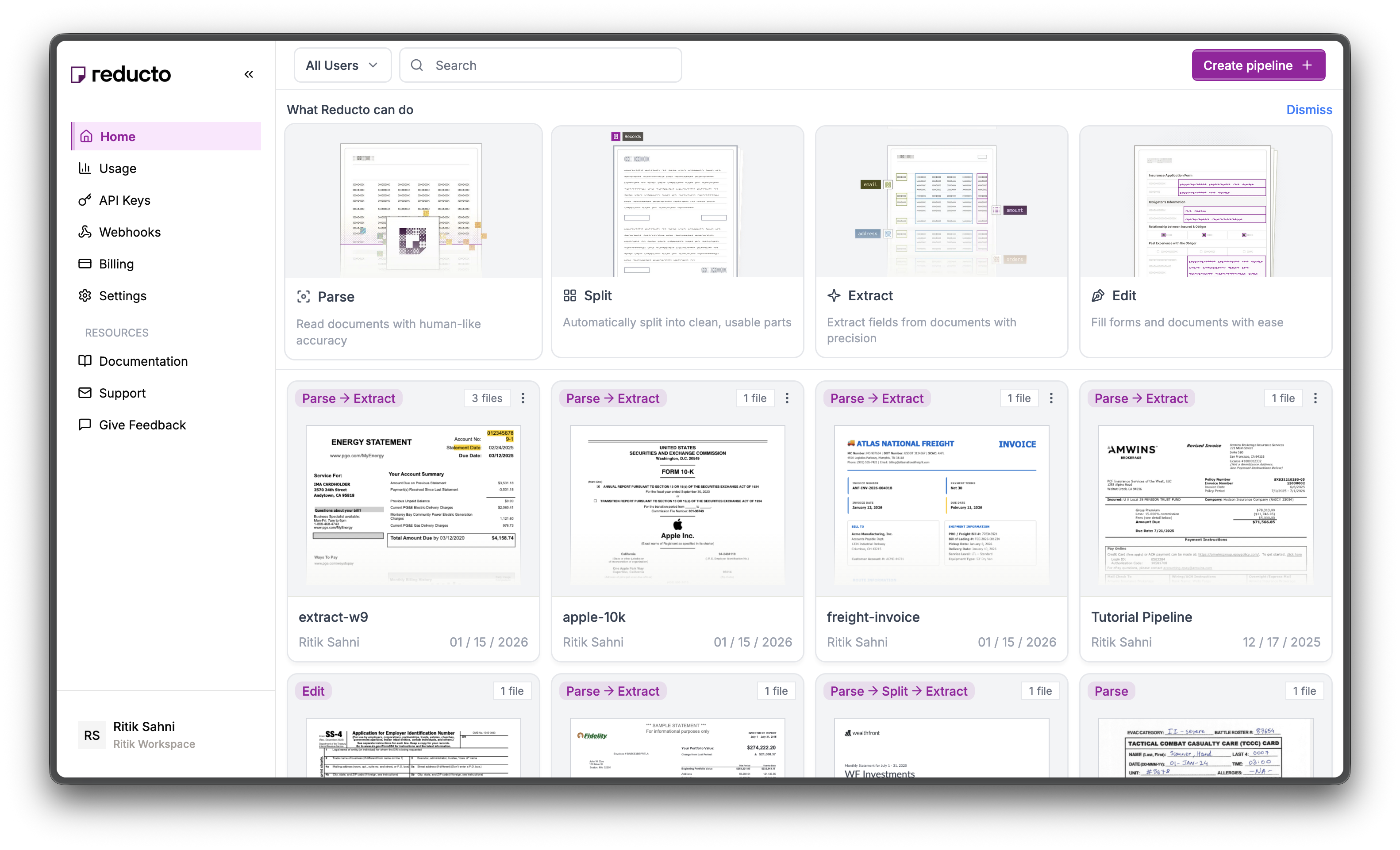
Go to [studio.reducto.ai](https://studio.reducto.ai) and sign in. From the home page, click **API Keys** in the left sidebar.
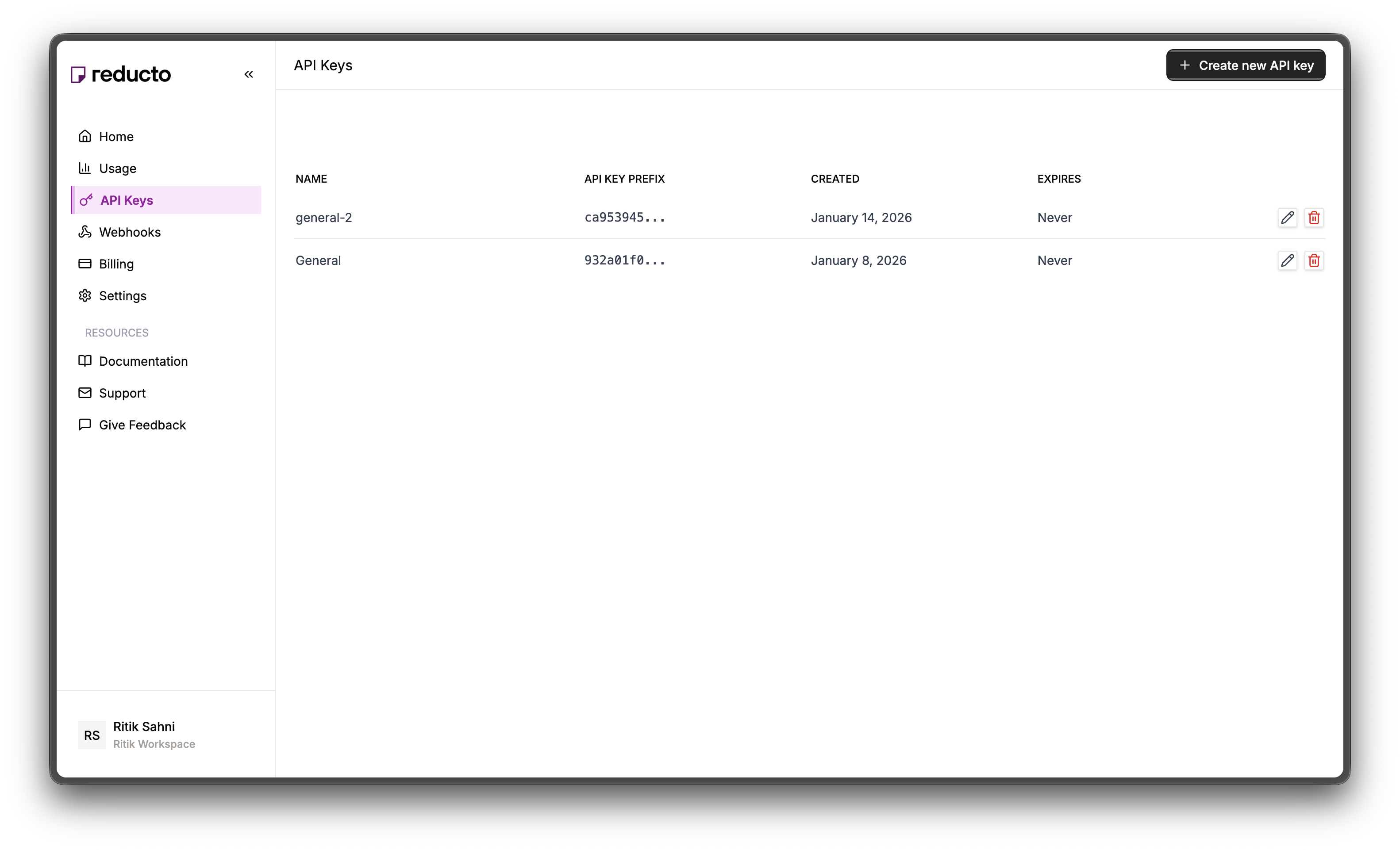
 The API Keys page shows your existing keys. Click **+ Create new API key** in the top right corner.
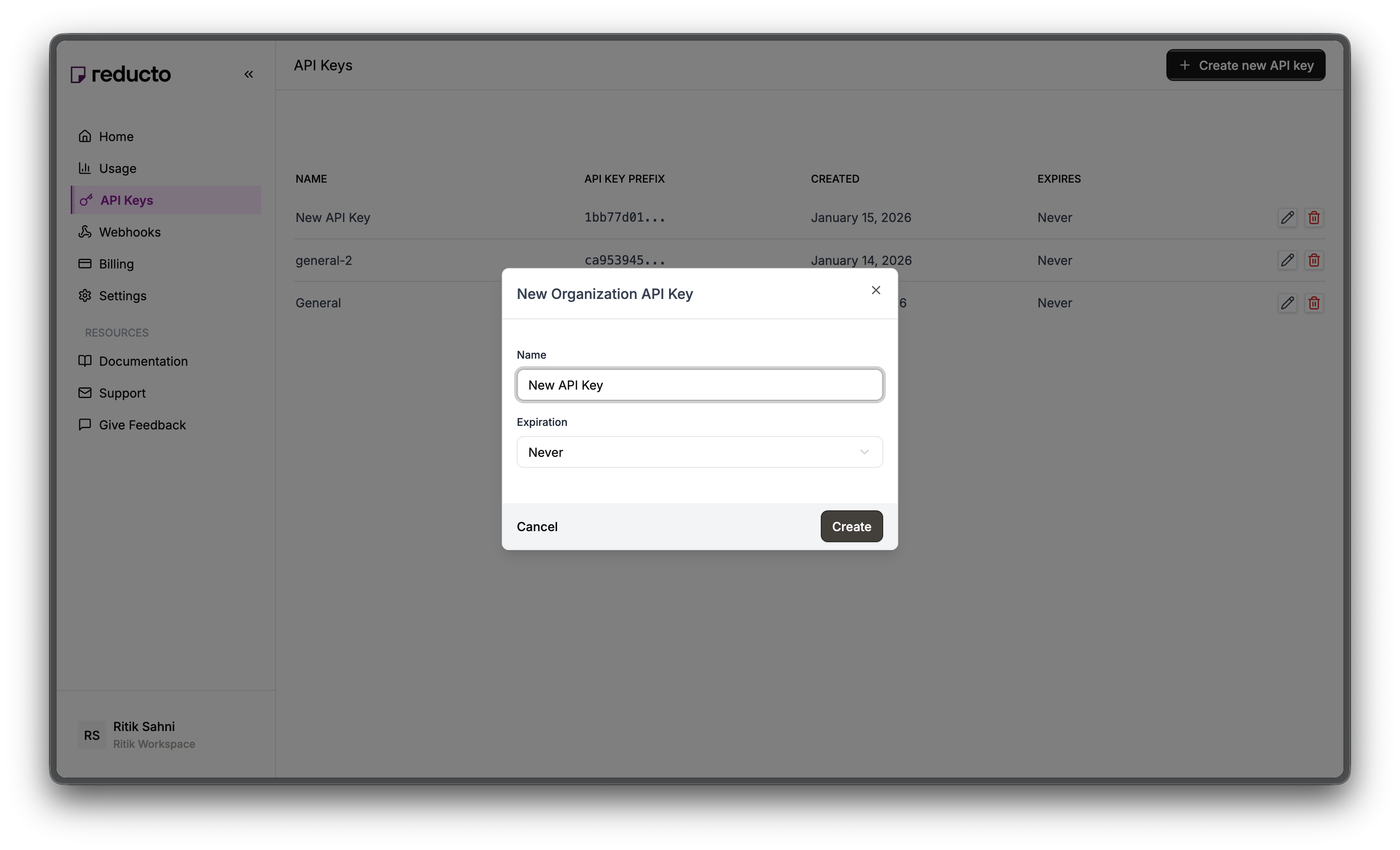
 In the modal, enter a name for your key and set an expiration policy (or select "Never" for no expiration). Click **Create**.
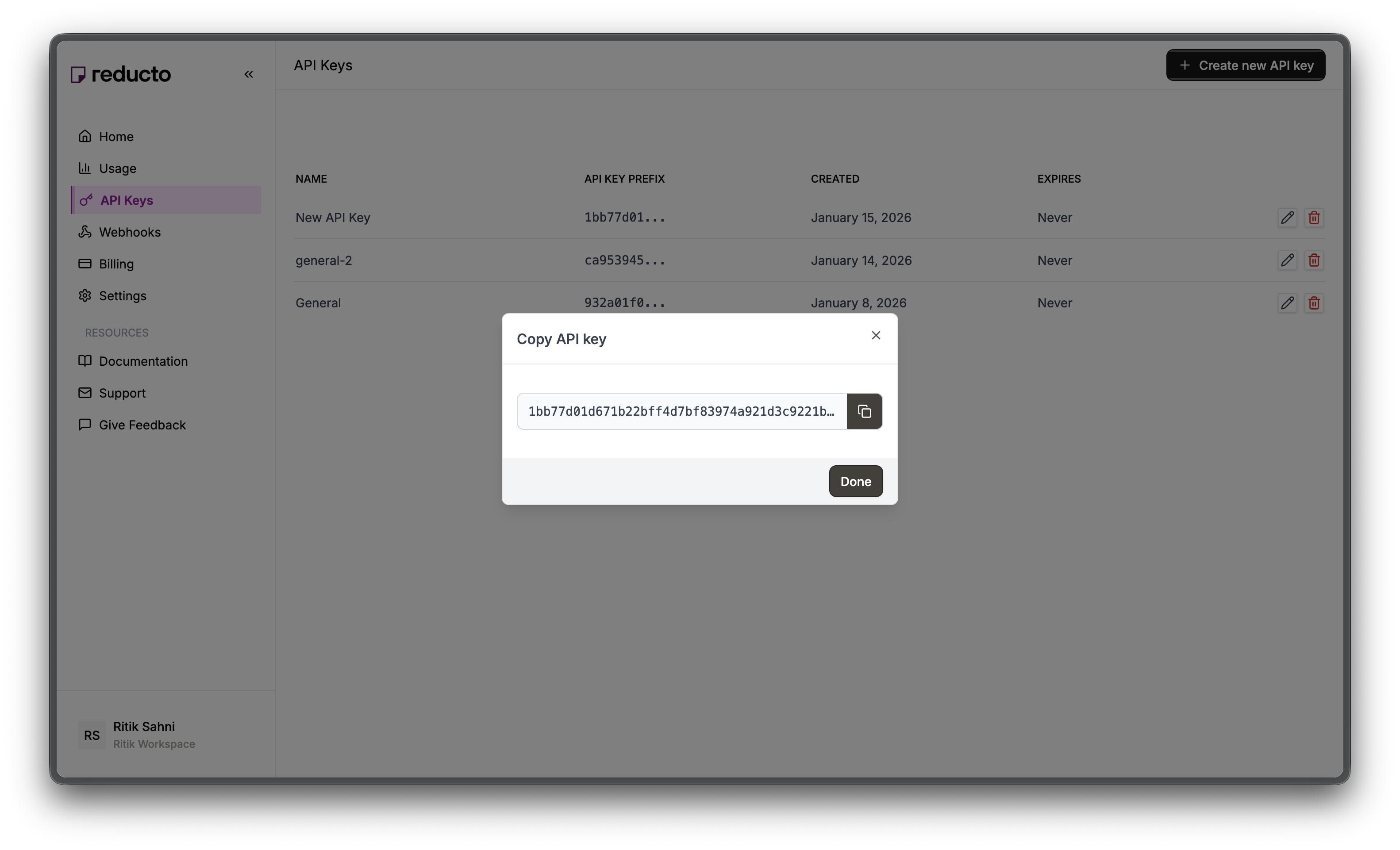
 Copy your new API key and store it securely. You won't be able to see it again after closing this dialog.
 Set the key as an environment variable:
```bash theme={null}
export REDUCTO_API_KEY="your-api-key-here"
```
***
## Prerequisites
You'll also need accounts and API keys from these services:
| Service | Purpose | Sign up |
| -------- | ----------------------------------- | ---------------------------------------- |
| AWS S3 | Permanent image storage | [aws.amazon.com](https://aws.amazon.com) |
| Pinecone | Vector database for semantic search | [pinecone.io](https://www.pinecone.io) |
| VoyageAI | Text embeddings | [voyageai.com](https://www.voyageai.com) |
VoyageAI's free tier has a rate limit of 3 requests per minute. For production use, add delays between embedding calls or upgrade to a paid plan.
You'll also need a vision-capable LLM (Claude, GPT-4V, Gemini, etc.) for the final generation step.
Install the required packages:
```bash Python theme={null}
pip install reductoai pinecone voyageai requests boto3
```
```bash JavaScript theme={null}
npm install reductoai @aws-sdk/client-s3 @pinecone-database/pinecone voyageai
```
***
## Setup: AWS S3 bucket
We need an S3 bucket to store extracted images permanently. Reducto's image URLs expire after 1 hour for security reasons. If we stored those URLs directly in our vector database, they'd be broken by the time someone queries the system tomorrow.
S3 gives us permanent, publicly-accessible URLs that work indefinitely.
Never use your AWS root account for applications. Instead, create a dedicated IAM user with limited permissions.
Go to [IAM Console](https://console.aws.amazon.com/iam) → **Users** → **Create user**.
Set the key as an environment variable:
```bash theme={null}
export REDUCTO_API_KEY="your-api-key-here"
```
***
## Prerequisites
You'll also need accounts and API keys from these services:
| Service | Purpose | Sign up |
| -------- | ----------------------------------- | ---------------------------------------- |
| AWS S3 | Permanent image storage | [aws.amazon.com](https://aws.amazon.com) |
| Pinecone | Vector database for semantic search | [pinecone.io](https://www.pinecone.io) |
| VoyageAI | Text embeddings | [voyageai.com](https://www.voyageai.com) |
VoyageAI's free tier has a rate limit of 3 requests per minute. For production use, add delays between embedding calls or upgrade to a paid plan.
You'll also need a vision-capable LLM (Claude, GPT-4V, Gemini, etc.) for the final generation step.
Install the required packages:
```bash Python theme={null}
pip install reductoai pinecone voyageai requests boto3
```
```bash JavaScript theme={null}
npm install reductoai @aws-sdk/client-s3 @pinecone-database/pinecone voyageai
```
***
## Setup: AWS S3 bucket
We need an S3 bucket to store extracted images permanently. Reducto's image URLs expire after 1 hour for security reasons. If we stored those URLs directly in our vector database, they'd be broken by the time someone queries the system tomorrow.
S3 gives us permanent, publicly-accessible URLs that work indefinitely.
Never use your AWS root account for applications. Instead, create a dedicated IAM user with limited permissions.
Go to [IAM Console](https://console.aws.amazon.com/iam) → **Users** → **Create user**.
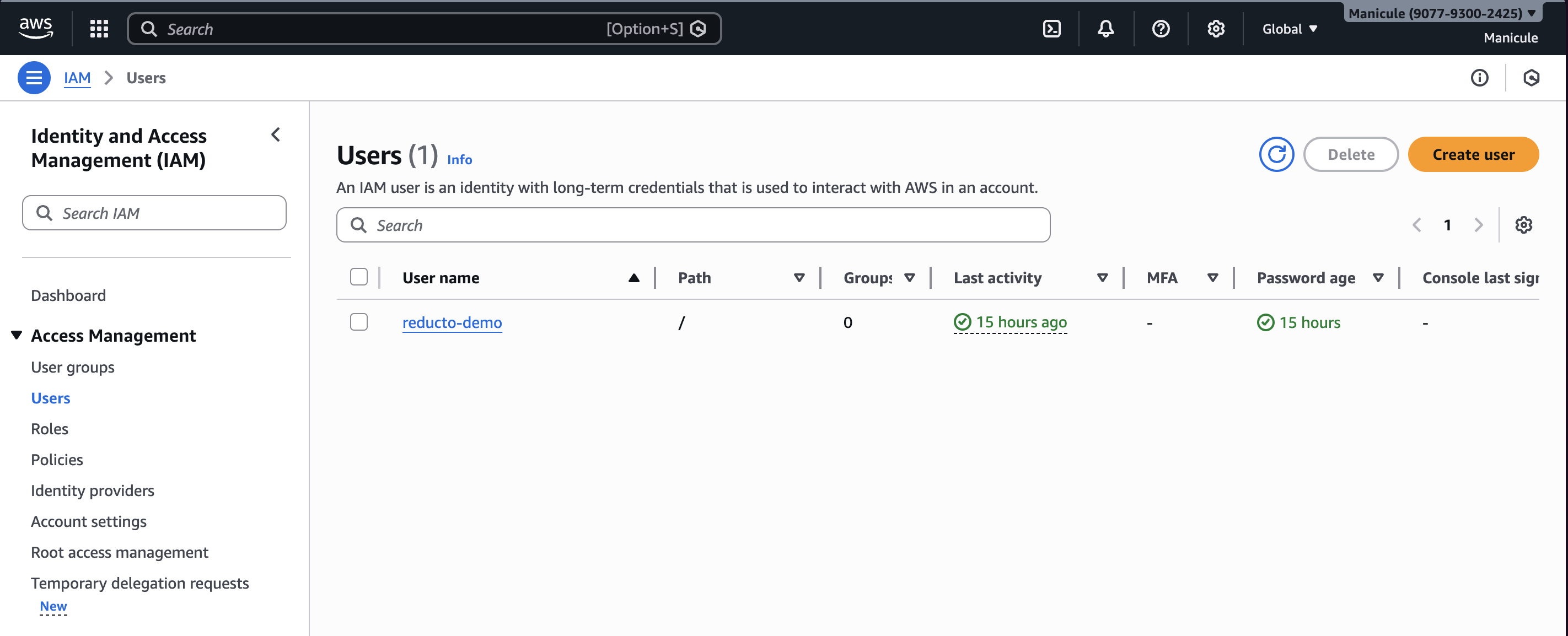 Select **Attach policies directly**, search for `AmazonS3FullAccess`, check it, and click **Create user**.
This gives the user permission to read and write to S3 buckets, but nothing else in your AWS account.
Click on your new user → **Security credentials** → **Create access key**.
Select "Command Line Interface (CLI)", confirm, and create.
**Save both keys now** - you won't see the secret again. You'll need these for the `AWS_ACCESS_KEY_ID` and `AWS_SECRET_ACCESS_KEY` environment variables.
Go to [S3 Console](https://s3.console.aws.amazon.com) → **Create bucket**.
Select **Attach policies directly**, search for `AmazonS3FullAccess`, check it, and click **Create user**.
This gives the user permission to read and write to S3 buckets, but nothing else in your AWS account.
Click on your new user → **Security credentials** → **Create access key**.
Select "Command Line Interface (CLI)", confirm, and create.
**Save both keys now** - you won't see the secret again. You'll need these for the `AWS_ACCESS_KEY_ID` and `AWS_SECRET_ACCESS_KEY` environment variables.
Go to [S3 Console](https://s3.console.aws.amazon.com) → **Create bucket**.
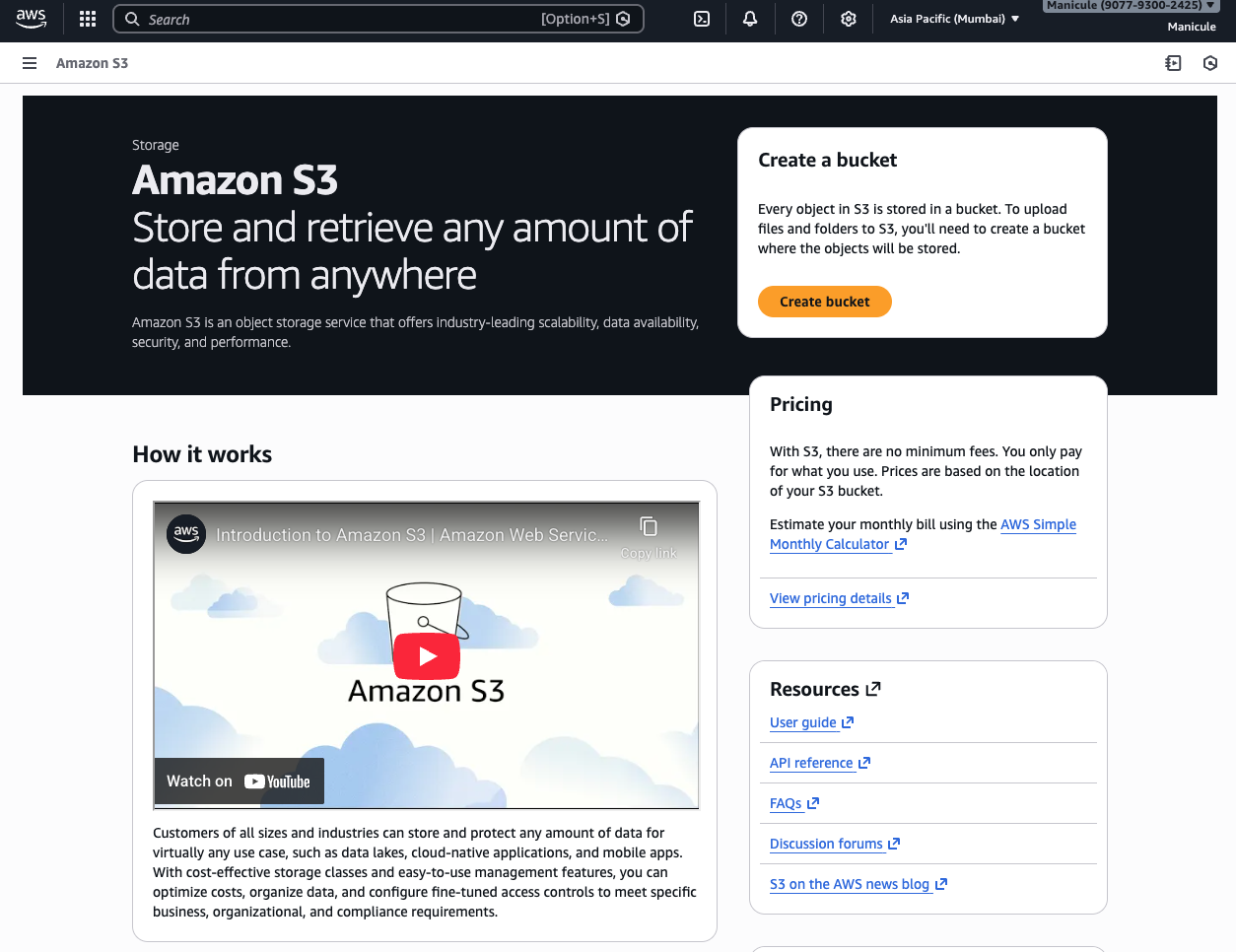 Choose a unique name (e.g., `my-multimodal-rag-images`) and select a region close to you for lower latency.
By default, S3 buckets are private. We need to make objects publicly readable so your application can fetch images at query time.
In your bucket → **Permissions** tab:
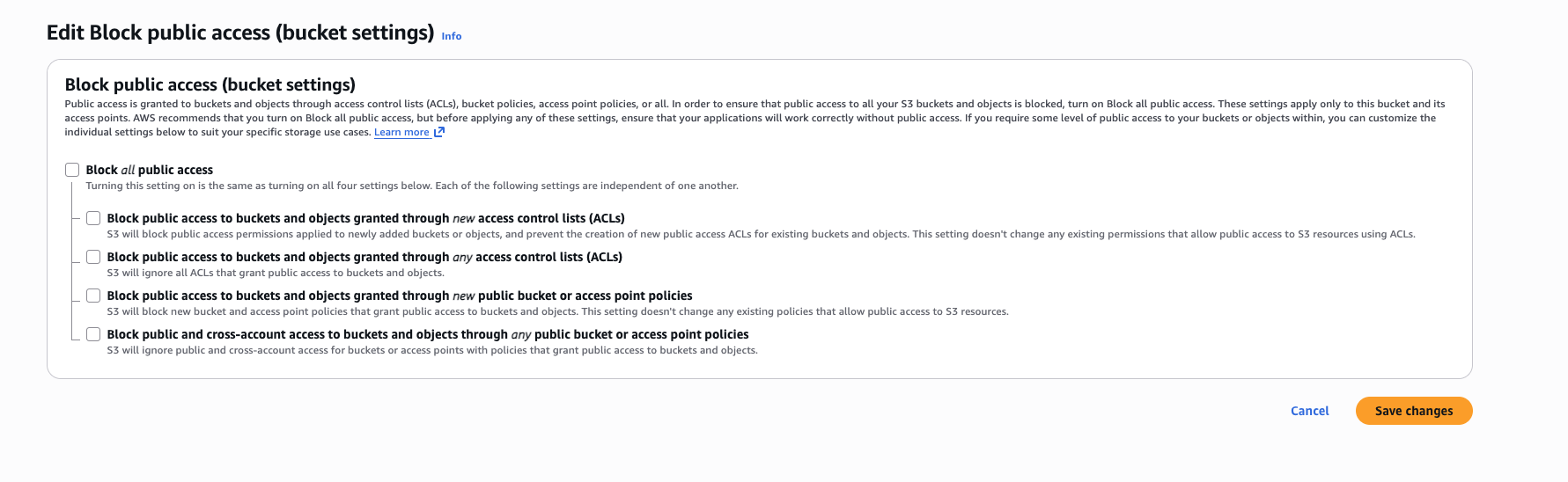
**First**, disable the block public access settings:
* Click **Block public access** → Edit → Uncheck all 4 boxes → Save
Choose a unique name (e.g., `my-multimodal-rag-images`) and select a region close to you for lower latency.
By default, S3 buckets are private. We need to make objects publicly readable so your application can fetch images at query time.
In your bucket → **Permissions** tab:
**First**, disable the block public access settings:
* Click **Block public access** → Edit → Uncheck all 4 boxes → Save
 **Then**, add a bucket policy that allows anyone to read objects:
* Click **Bucket policy** → Edit → Paste this policy:
```json theme={null}
{
"Version": "2012-10-17",
"Statement": [{
"Effect": "Allow",
"Principal": "*",
"Action": "s3:GetObject",
"Resource": "arn:aws:s3:::YOUR-BUCKET-NAME/*"
}]
}
```
Replace `YOUR-BUCKET-NAME` with your actual bucket name.
***
## Setup: Pinecone index
We need a vector index to store text embeddings. Each vector will also include metadata with the S3 URL, so we can fetch the corresponding image at query time.
**Then**, add a bucket policy that allows anyone to read objects:
* Click **Bucket policy** → Edit → Paste this policy:
```json theme={null}
{
"Version": "2012-10-17",
"Statement": [{
"Effect": "Allow",
"Principal": "*",
"Action": "s3:GetObject",
"Resource": "arn:aws:s3:::YOUR-BUCKET-NAME/*"
}]
}
```
Replace `YOUR-BUCKET-NAME` with your actual bucket name.
***
## Setup: Pinecone index
We need a vector index to store text embeddings. Each vector will also include metadata with the S3 URL, so we can fetch the corresponding image at query time.
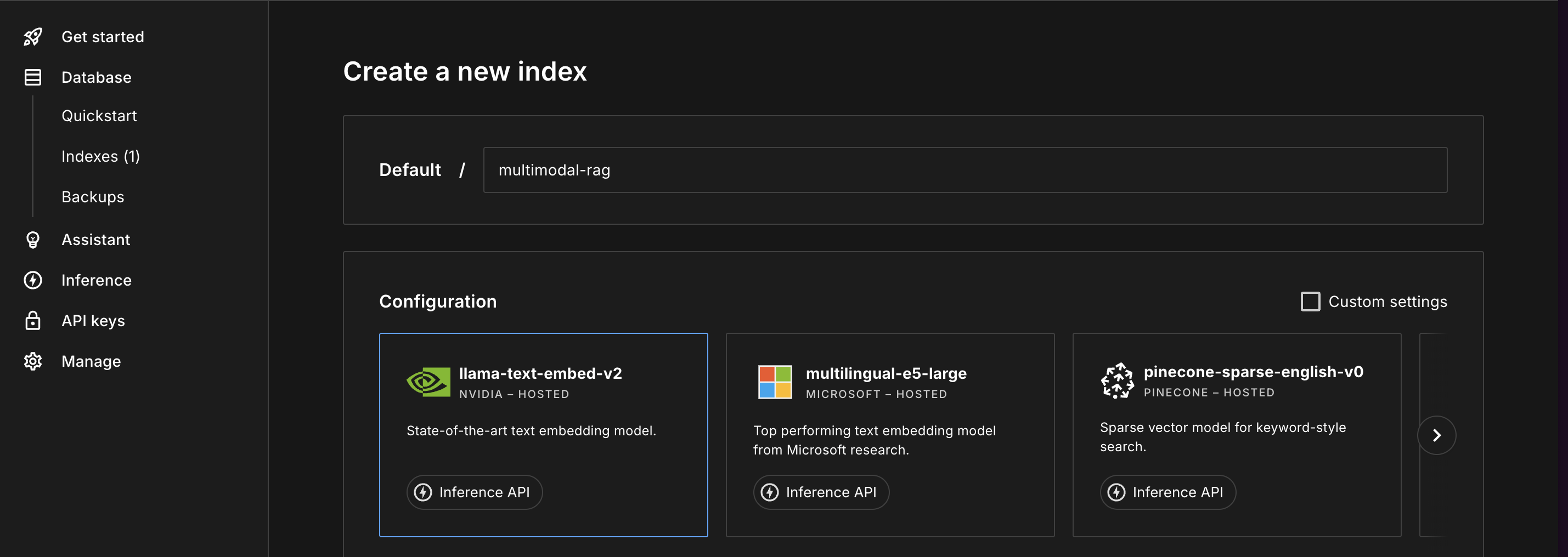 Go to [Pinecone Console](https://app.pinecone.io) → **Create Index**.
* **Name**: `multimodal-rag`
* **Dimensions**: `1024` (this must match VoyageAI's voyage-3 model)
* **Metric**: `cosine`
The dimension setting is critical. VoyageAI's voyage-3 model outputs 1024-dimensional vectors. If you use a different embedding model, check its output dimensions.
***
## Set environment variables
Before running any code, set these environment variables in your terminal:
```bash theme={null}
export REDUCTO_API_KEY="your-reducto-key"
export PINECONE_API_KEY="your-pinecone-key"
export VOYAGEAI_API_KEY="your-voyageai-key"
export AWS_ACCESS_KEY_ID="your-aws-access-key"
export AWS_SECRET_ACCESS_KEY="your-aws-secret-key"
export S3_BUCKET_NAME="your-bucket-name"
```
***
## Sample document
For this cookbook, we'll use an open-access research paper from PubMed Central about hepatitis B treatment. This paper has 16 pages with multiple figures, charts, and data tables, making it ideal for demonstrating multimodal RAG.
Go to [Pinecone Console](https://app.pinecone.io) → **Create Index**.
* **Name**: `multimodal-rag`
* **Dimensions**: `1024` (this must match VoyageAI's voyage-3 model)
* **Metric**: `cosine`
The dimension setting is critical. VoyageAI's voyage-3 model outputs 1024-dimensional vectors. If you use a different embedding model, check its output dimensions.
***
## Set environment variables
Before running any code, set these environment variables in your terminal:
```bash theme={null}
export REDUCTO_API_KEY="your-reducto-key"
export PINECONE_API_KEY="your-pinecone-key"
export VOYAGEAI_API_KEY="your-voyageai-key"
export AWS_ACCESS_KEY_ID="your-aws-access-key"
export AWS_SECRET_ACCESS_KEY="your-aws-secret-key"
export S3_BUCKET_NAME="your-bucket-name"
```
***
## Sample document
For this cookbook, we'll use an open-access research paper from PubMed Central about hepatitis B treatment. This paper has 16 pages with multiple figures, charts, and data tables, making it ideal for demonstrating multimodal RAG.
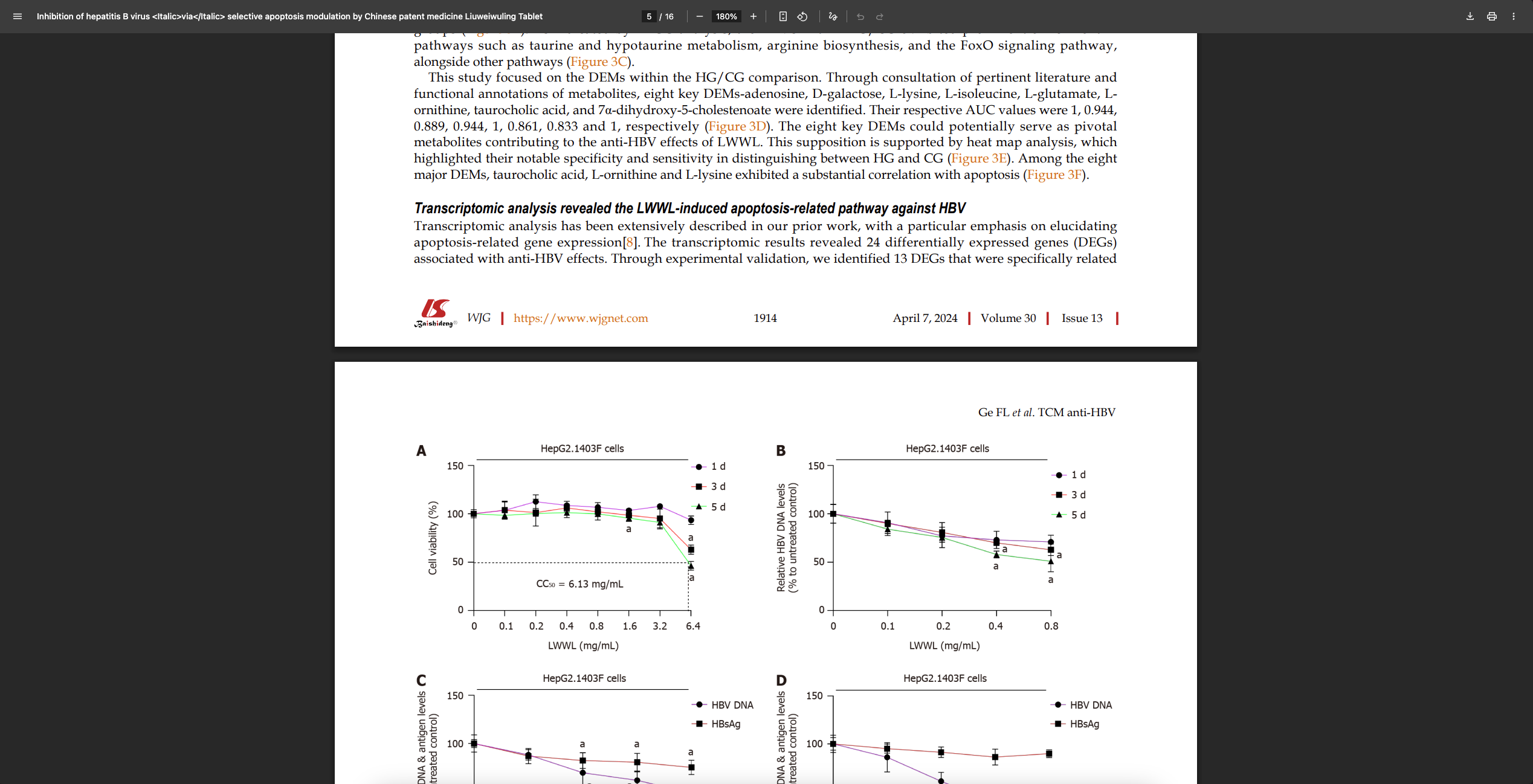 **Download the sample PDF:**
```
https://ftp.ncbi.nlm.nih.gov/pub/pmc/oa_pdf/14/14/WJG-30-1911.PMC11036500.pdf
```
Save it as `research_paper.pdf` in your working directory.
You can use any PDF with charts or figures. Annual reports, scientific papers, and technical documentation work well for multimodal RAG.
***
## Step 1: Parse the document with image extraction
### Initialize the client
First, we create a Reducto client using our API key:
```python Python theme={null}
import os
from reducto import Reducto
client = Reducto(api_key=os.environ["REDUCTO_API_KEY"])
```
```javascript JavaScript theme={null}
import Reducto from "reductoai";
const client = new Reducto({ apiKey: process.env.REDUCTO_API_KEY });
```
### Upload the document
Before parsing, we need to upload the file to Reducto's servers. The `upload()` method returns a file ID that we'll use in the parse call:
```python Python theme={null}
from pathlib import Path
upload = client.upload(file=Path("research_paper.pdf"))
print(f"File ID: {upload.file_id}")
```
```javascript JavaScript theme={null}
import fs from "fs";
const upload = await client.upload({
file: fs.createReadStream("research_paper.pdf"),
});
console.log(`File ID: ${upload.file_id}`);
```
```
File ID: reducto://c0584170-17a0-44f5-baf4-727467b71b84.pdf
```
### Parse with image extraction
Now we parse the document. The key settings here are:
* **`return_images`**: Tells Reducto to crop and return images for figures and tables
* **`chunk_mode`**: Controls how text is grouped into chunks
```python Python theme={null}
result = client.parse.run(
input=upload.file_id,
settings={
"return_images": ["figure", "table"]
},
retrieval={
"chunking": {
"chunk_mode": "section"
}
}
)
print(f"Parsed {result.usage.num_pages} pages")
print(f"Got {len(result.result.chunks)} chunks")
```
```javascript JavaScript theme={null}
const result = await client.parse.run({
input: upload.file_id,
settings: {
return_images: ["figure", "table"]
},
retrieval: {
chunking: {
chunk_mode: "section"
}
}
});
console.log(`Parsed ${result.usage.num_pages} pages`);
console.log(`Got ${result.result.chunks.length} chunks`);
```
```
Parsed 16 pages
Got 39 chunks
```
**Why `chunk_mode: "section"`?**
We use section-based chunking because it keeps figures together with their surrounding explanatory text. If a figure appears in the "Results" section, the chunk will include both the figure and the text that explains it. This improves retrieval quality because the embedding captures the full context.
Other options:
* `page`: One chunk per page. Simpler but may split related content.
* `variable`: Adaptive chunking based on content density.
***
## Step 2: Understand the response structure
Before we start uploading images, let's look at what Reducto actually returns. This helps us understand what data we're working with.
### Exploring chunks and blocks
Each chunk contains multiple blocks. A block can be text, a figure, a table, or other content types:
```python Python theme={null}
# Look at the first chunk
chunk = result.result.chunks[0]
print(f"Chunk has {len(chunk.blocks)} blocks")
print(f"Embed text preview: {chunk.embed[:200]}...")
```
```javascript JavaScript theme={null}
// Look at the first chunk
const chunk = result.result.chunks[0];
console.log(`Chunk has ${chunk.blocks.length} blocks`);
console.log(`Embed text preview: ${chunk.embed.slice(0, 200)}...`);
```
```
Chunk has 5 blocks
Embed text preview: # Inhibition of hepatitis B virus via selective apoptosis
modulation by Chinese patent medicine Liuweiwuling Tablet
## Core Tip
Liuweiwuling Tablet (LWWL) exhibits a selective pro-apoptotic effect...
```
### Finding figures and tables
Let's find all figures and tables in the document:
```python Python theme={null}
figure_count = 0
table_count = 0
for chunk in result.result.chunks:
for block in chunk.blocks:
if block.type == "Figure":
figure_count += 1
elif block.type == "Table":
table_count += 1
print(f"Found {figure_count} figures and {table_count} tables")
```
```javascript JavaScript theme={null}
let figureCount = 0;
let tableCount = 0;
for (const chunk of result.result.chunks) {
for (const block of chunk.blocks) {
if (block.type === "Figure") {
figureCount++;
} else if (block.type === "Table") {
tableCount++;
}
}
}
console.log(`Found ${figureCount} figures and ${tableCount} tables`);
```
```
Found 39 figures and 1 table
```
### Examining a figure block
Each figure block has several important fields:
```python Python theme={null}
# Find the first figure
for chunk in result.result.chunks:
for block in chunk.blocks:
if block.type == "Figure":
print(f"Type: {block.type}")
print(f"Page: {block.bbox.page}")
print(f"Image URL: {block.image_url[:80]}...")
print(f"Content: {block.content[:150]}...")
break
else:
continue
break
```
```javascript JavaScript theme={null}
// Find the first figure
outer: for (const chunk of result.result.chunks) {
for (const block of chunk.blocks) {
if (block.type === "Figure") {
console.log(`Type: ${block.type}`);
console.log(`Page: ${block.bbox.page}`);
console.log(`Image URL: ${block.image_url.slice(0, 80)}...`);
console.log(`Content: ${block.content.slice(0, 150)}...`);
break outer;
}
}
}
```
```
Type: Figure
Page: 1
Image URL: https://prod-storage20241010144745140900000001.s3.amazonaws.com/6eb2fb19...
Content: - Title: World Journal of Gastroenterology
- Logo/abbreviation: "W J G" — three white script letters each inside a black square...
```
**Key fields explained:**
| Field | What it contains |
| ----------------- | --------------------------------------------------------------- |
| `block.type` | "Figure", "Table", "Text", etc. |
| `block.bbox.page` | Page number (1-indexed) |
| `block.image_url` | Temporary URL to the cropped image. **Expires in 1 hour.** |
| `block.content` | AI-generated description of the figure |
| `chunk.embed` | Full text optimized for embedding, includes figure descriptions |
The `content` field contains Reducto's AI-generated description of the figure. This is incredibly useful, as it means your vector search can find figures based on what they show, not just the surrounding text.
***
## Step 3: Upload images to S3
Now we need to save these images permanently. Reducto's URLs expire in 1 hour, so we'll upload each image to S3 immediately.
### Initialize the S3 client
```python Python theme={null}
import boto3
s3 = boto3.client("s3")
bucket_name = os.environ["S3_BUCKET_NAME"]
```
```javascript JavaScript theme={null}
import { S3Client, PutObjectCommand, GetBucketLocationCommand } from "@aws-sdk/client-s3";
const s3 = new S3Client({ region: "us-east-1" }); // Will be updated after getting bucket region
const bucketName = process.env.S3_BUCKET_NAME;
```
### Determine the bucket region
S3 URLs include the region. If we get this wrong, the URLs won't work:
```python Python theme={null}
region = s3.get_bucket_location(Bucket=bucket_name).get("LocationConstraint")
if region is None:
region = "us-east-1" # us-east-1 returns None for LocationConstraint
print(f"Bucket region: {region}")
```
```javascript JavaScript theme={null}
const locationResponse = await s3.send(
new GetBucketLocationCommand({ Bucket: bucketName })
);
const region = locationResponse.LocationConstraint || "us-east-1";
console.log(`Bucket region: ${region}`);
```
```
Bucket region: ap-south-1
```
### Create the upload function
This function downloads an image from Reducto and uploads it to S3:
```python Python theme={null}
import requests
def upload_image_to_s3(image_url, s3_key):
"""Download image from Reducto and upload to S3."""
# Download from Reducto
response = requests.get(image_url)
response.raise_for_status()
# Upload to S3
s3.put_object(
Bucket=bucket_name,
Key=s3_key,
Body=response.content,
ContentType="image/png"
)
# Return the permanent S3 URL
return f"https://{bucket_name}.s3.{region}.amazonaws.com/{s3_key}"
```
```javascript JavaScript theme={null}
async function uploadImageToS3(imageUrl, s3Key) {
// Download from Reducto
const response = await fetch(imageUrl);
if (!response.ok) throw new Error(`Failed to fetch: ${response.status}`);
const imageBuffer = Buffer.from(await response.arrayBuffer());
// Upload to S3
await s3.send(new PutObjectCommand({
Bucket: bucketName,
Key: s3Key,
Body: imageBuffer,
ContentType: "image/png"
}));
// Return the permanent S3 URL
return `https://${bucketName}.s3.${region}.amazonaws.com/${s3Key}`;
}
```
**Why this URL format?**
S3 URLs follow the pattern `https://{bucket}.s3.{region}.amazonaws.com/{key}`. Including the region is important, otherwise S3 may redirect requests, which can cause issues with some clients.
### Upload all images
Now we loop through all chunks. For each chunk, we check if it contains any figures or tables. If it does, we upload those images to S3 and store the URLs. If it doesn't, we still index the chunk but without an image URL.
This is the key difference from image-only indexing: **we index everything**, both text-only chunks and chunks with figures.
```python Python theme={null}
all_items = []
for chunk_idx, chunk in enumerate(result.result.chunks):
# Find any figures/tables in this chunk
images_in_chunk = []
for block in chunk.blocks:
if block.type in ["Figure", "Table"] and block.image_url:
image_id = f"chunk-{chunk_idx}-{block.type.lower()}-page{block.bbox.page}"
s3_key = f"multimodal-rag/{image_id}.png"
s3_url = upload_image_to_s3(block.image_url, s3_key)
images_in_chunk.append({
"s3_url": s3_url,
"block_type": block.type,
"page": block.bbox.page
})
# Get the page number from the first block
page = chunk.blocks[0].bbox.page if chunk.blocks else 1
# Index this chunk (with or without images)
item = {
"id": f"chunk-{chunk_idx}",
"text": chunk.embed,
"page": page,
"has_images": len(images_in_chunk) > 0
}
# If this chunk has images, include the first one
# (for chunks with multiple figures, you could store all URLs)
if images_in_chunk:
item["image_url"] = images_in_chunk[0]["s3_url"]
item["block_type"] = images_in_chunk[0]["block_type"]
all_items.append(item)
# Count what we have
chunks_with_images = sum(1 for item in all_items if item.get("has_images"))
chunks_text_only = len(all_items) - chunks_with_images
print(f"Total chunks: {len(all_items)}")
print(f" - With images: {chunks_with_images}")
print(f" - Text only: {chunks_text_only}")
```
```javascript JavaScript theme={null}
const allItems = [];
for (let chunkIdx = 0; chunkIdx < result.result.chunks.length; chunkIdx++) {
const chunk = result.result.chunks[chunkIdx];
// Find any figures/tables in this chunk
const imagesInChunk = [];
for (const block of chunk.blocks) {
if (["Figure", "Table"].includes(block.type) && block.image_url) {
const imageId = `chunk-${chunkIdx}-${block.type.toLowerCase()}-page${block.bbox.page}`;
const s3Key = `multimodal-rag/${imageId}.png`;
const s3Url = await uploadImageToS3(block.image_url, s3Key);
imagesInChunk.push({
s3_url: s3Url,
block_type: block.type,
page: block.bbox.page
});
}
}
// Get the page number from the first block
const page = chunk.blocks.length > 0 ? chunk.blocks[0].bbox.page : 1;
// Index this chunk (with or without images)
const item = {
id: `chunk-${chunkIdx}`,
text: chunk.embed,
page: page,
has_images: imagesInChunk.length > 0
};
// If this chunk has images, include the first one
if (imagesInChunk.length > 0) {
item.image_url = imagesInChunk[0].s3_url;
item.block_type = imagesInChunk[0].block_type;
}
allItems.push(item);
}
// Count what we have
const chunksWithImages = allItems.filter(item => item.has_images).length;
const chunksTextOnly = allItems.length - chunksWithImages;
console.log(`Total chunks: ${allItems.length}`);
console.log(` - With images: ${chunksWithImages}`);
console.log(` - Text only: ${chunksTextOnly}`);
```
```
Total chunks: 39
- With images: 33
- Text only: 6
```
Now our index will contain the entire document. Text-only queries will find relevant text chunks, while queries about figures will find chunks that have associated images.
### Verify an image is accessible
Let's make sure our S3 URLs work:
```python Python theme={null}
# Find a chunk that has an image
test_item = next(item for item in all_items if item.get("image_url"))
test_url = test_item["image_url"]
print(f"Testing: {test_url}")
response = requests.head(test_url)
print(f"Status: {response.status_code}")
```
```javascript JavaScript theme={null}
// Find a chunk that has an image
const testItem = allItems.find(item => item.image_url);
const testUrl = testItem.image_url;
console.log(`Testing: ${testUrl}`);
const testResponse = await fetch(testUrl, { method: "HEAD" });
console.log(`Status: ${testResponse.status}`);
```
```
Testing: https://reducto-multimodal-rag-demo.s3.ap-south-1.amazonaws.com/multimodal-rag/chunk-0-figure-page1.png
Status: 200
```
If you get a 403 Forbidden error, your bucket policy isn't set correctly. Go back to the S3 setup and make sure you've enabled public access and added the bucket policy.
***
## Step 4: Index into Pinecone
With images safely stored in S3, we can now create vector embeddings and store them in Pinecone.
### Initialize the clients
```python Python theme={null}
from pinecone import Pinecone
import voyageai
pc = Pinecone(api_key=os.environ["PINECONE_API_KEY"])
index = pc.Index("multimodal-rag")
vo = voyageai.Client(api_key=os.environ["VOYAGEAI_API_KEY"])
```
```javascript JavaScript theme={null}
import { Pinecone } from "@pinecone-database/pinecone";
import { VoyageAIClient } from "voyageai";
const pc = new Pinecone({ apiKey: process.env.PINECONE_API_KEY });
const index = pc.index("multimodal-rag");
const vo = new VoyageAIClient({ apiKey: process.env.VOYAGEAI_API_KEY });
```
### Understanding what we're indexing
For each chunk, we store:
* **Vector**: Embedding of the text (from `chunk.embed`)
* **Metadata**: Text preview, page number, and optionally an S3 image URL
The vector enables semantic search across the entire document. When a chunk has an associated image, the metadata includes the S3 URL so we can retrieve it at query time.
### Create embeddings and upsert
```python Python theme={null}
for item in all_items:
# Create embedding from the chunk's embed text
embedding_response = vo.embed(
[item["text"][:8000]], # VoyageAI has input limits
model="voyage-3"
)
embedding = embedding_response.embeddings[0]
# Build metadata (image_url only included if chunk has images)
metadata = {
"text": item["text"][:1000], # Preview for display
"page": item["page"],
"has_images": item["has_images"]
}
if item.get("image_url"):
metadata["image_url"] = item["image_url"]
metadata["block_type"] = item.get("block_type", "Figure")
# Upsert to Pinecone
index.upsert(vectors=[{
"id": item["id"],
"values": embedding,
"metadata": metadata
}])
print(f"Indexed {len(all_items)} items")
```
```javascript JavaScript theme={null}
for (const item of allItems) {
// Create embedding from the chunk's embed text
const embeddingResponse = await vo.embed({
input: [item.text.slice(0, 8000)], // VoyageAI has input limits
model: "voyage-3"
});
const embedding = embeddingResponse.data[0].embedding;
// Build metadata (image_url only included if chunk has images)
const metadata = {
text: item.text.slice(0, 1000), // Preview for display
page: item.page,
has_images: item.has_images
};
if (item.image_url) {
metadata.image_url = item.image_url;
metadata.block_type = item.block_type || "Figure";
}
// Upsert to Pinecone
await index.upsert([{
id: item.id,
values: embedding,
metadata: metadata
}]);
}
console.log(`Indexed ${allItems.length} items`);
```
```
Indexed 39 items
```
**Why do we truncate the text?**
* For embeddings (`[:8000]`): VoyageAI has input token limits
* For metadata (`[:1000]`): Pinecone has metadata size limits (\~40KB per vector)
We store enough text in metadata to display a preview, but the full context is captured in the embedding.
VoyageAI's free tier has rate limits (3 requests per minute). For production use with many documents, add rate limiting or upgrade your plan.
***
## Step 5: Query and retrieve
Now we can search our index. When someone asks a question, we:
1. Embed their query using the same model (voyage-3)
2. Find the most similar vectors in Pinecone
3. Return the matches with their S3 image URLs
### Create the search function
```python Python theme={null}
def search(query: str, top_k: int = 3):
"""Search for relevant chunks with images."""
# Embed the query
query_embedding = vo.embed(
[query],
model="voyage-3"
).embeddings[0]
# Search Pinecone
results = index.query(
vector=query_embedding,
top_k=top_k,
include_metadata=True
)
return results.matches
```
```javascript JavaScript theme={null}
async function search(query, topK = 3) {
// Embed the query
const embeddingResponse = await vo.embed({
input: [query],
model: "voyage-3"
});
const queryEmbedding = embeddingResponse.data[0].embedding;
// Search Pinecone
const results = await index.query({
vector: queryEmbedding,
topK: topK,
includeMetadata: true
});
return results.matches;
}
```
### Test the search
```python Python theme={null}
matches = search("cell viability and treatment effects")
for match in matches:
print(f"Score: {match.score:.3f}")
print(f"Page: {match.metadata['page']}")
print(f"Has image: {match.metadata.get('has_images', False)}")
if match.metadata.get("image_url"):
print(f"Image: {match.metadata['image_url']}")
print(f"Text preview: {match.metadata['text'][:100]}...")
print("---")
```
```javascript JavaScript theme={null}
const matches = await search("cell viability and treatment effects");
for (const match of matches) {
console.log(`Score: ${match.score.toFixed(3)}`);
console.log(`Page: ${match.metadata.page}`);
console.log(`Has image: ${match.metadata.has_images || false}`);
if (match.metadata.image_url) {
console.log(`Image: ${match.metadata.image_url}`);
}
console.log(`Text preview: ${match.metadata.text.slice(0, 100)}...`);
console.log("---");
}
```
```
Score: 0.354
Page: 1
Has image: True
Image: https://reducto-multimodal-rag-demo.s3.ap-south-1.amazonaws.com/multimodal-rag/chunk-8-figure-page1.png
Text preview: # Inhibition of hepatitis B virus via selective apoptosis modulation by Chinese patent medicine Liuwe...
---
Score: 0.227
Page: 1
Has image: True
Image: https://reducto-multimodal-rag-demo.s3.ap-south-1.amazonaws.com/multimodal-rag/chunk-3-figure-page1.png
Text preview: # Inhibition of hepatitis B virus via selective apoptosis modulation by Chinese patent medicine Liuwe...
---
Score: 0.133
Page: 1
Has image: False
Text preview: The study investigated the effects of LWWL on hepatocyte apoptosis using flow cytometry analysis...
---
```
The search returns a mix of results. Some chunks have associated images, others are text-only. Both contribute to answering the question.
***
## Step 6: Send to your LLM
You now have everything needed for multimodal generation:
* **Text context**: `match.metadata["text"]`
* **Image URLs**: `match.metadata["image_url"]` (for chunks with images)
Pass these to any vision-capable LLM (Claude, GPT-4V, Gemini). Most vision APIs accept either image URLs directly or base64-encoded images.
***
## Reducto features for better results
These Reducto settings can improve your multimodal RAG pipeline:
Reducto automatically generates AI descriptions of figures and includes them in the `embed` field. This is why queries like "show me the revenue chart" can find relevant figures even if "revenue" doesn't appear in surrounding text.
This is controlled by `summarize_figures` (default: `True`). Keep it enabled for multimodal RAG.
For documents with complex charts, enable agentic figure extraction for higher accuracy:
```python Python theme={null}
result = client.parse.run(
input=upload.file_id,
settings={"return_images": ["figure", "table"]},
enhance={
"agentic": [{"scope": "figure"}]
}
)
```
```javascript JavaScript theme={null}
const result = await client.parse.run({
input: upload.file_id,
settings: { return_images: ["figure", "table"] },
enhance: {
agentic: [{ scope: "figure" }]
}
});
```
This uses vision LLMs to better understand chart content. It adds latency and cost but improves extraction quality.
Enable `embedding_optimized` for output specifically tuned for vector embeddings:
```python Python theme={null}
result = client.parse.run(
input=upload.file_id,
retrieval={
"chunking": {"chunk_mode": "section"},
"embedding_optimized": True
}
)
```
```javascript JavaScript theme={null}
const result = await client.parse.run({
input: upload.file_id,
retrieval: {
chunking: { chunk_mode: "section" },
embedding_optimized: true
}
});
```
If you only want certain content types, use `filter_blocks` to exclude others from the embed field:
```python Python theme={null}
result = client.parse.run(
input=upload.file_id,
retrieval={
"filter_blocks": ["Header", "Footer", "Page Number"]
}
)
```
```javascript JavaScript theme={null}
const result = await client.parse.run({
input: upload.file_id,
retrieval: {
filter_blocks: ["Header", "Footer", "Page Number"]
}
});
```
***
## Best practices
The `chunk_mode` setting affects how figures relate to surrounding text:
* **`section`**: Groups content by document sections. Best for structured documents like research papers.
* **`page`**: One chunk per page. Simple and predictable.
* **`variable`**: Adaptive chunking based on content density.
For multimodal RAG, `section` usually works best because it keeps figures with their explanatory text.
Always use `chunk.embed` (not `chunk.content`) for your vector embeddings. The embed field includes AI-generated figure descriptions that make visual content searchable.
Sending images to your LLM adds latency and cost. Consider routing:
* Simple factual questions → Text-only RAG
* Questions about trends, comparisons, or visuals → Multimodal RAG
You can implement this by checking `has_images` in retrieved chunks before deciding which path to take.
VoyageAI's free tier has a 3 requests per minute limit. For production:
* Batch multiple texts in a single embedding call
* Add delays between calls
* Upgrade to a paid plan for higher limits
More images means higher LLM costs and slower responses. For most questions, 2-3 images is sufficient. Use `top_k=3` in your search function.
***
## Complete example
Here's the full pipeline in a single script:
```python Python theme={null}
import os
from pathlib import Path
import requests
import boto3
from pinecone import Pinecone
import voyageai
from reducto import Reducto
# Initialize clients
reducto = Reducto()
s3 = boto3.client("s3")
pc = Pinecone(api_key=os.environ["PINECONE_API_KEY"])
voyage = voyageai.Client()
bucket_name = os.environ["S3_BUCKET_NAME"]
index_name = "multimodal-rag"
# Get bucket region for S3 URLs
region = s3.get_bucket_location(Bucket=bucket_name).get("LocationConstraint") or "us-east-1"
def upload_image_to_s3(image_url, s3_key):
"""Download image from Reducto and upload to S3."""
response = requests.get(image_url)
response.raise_for_status()
s3.put_object(Bucket=bucket_name, Key=s3_key, Body=response.content, ContentType="image/png")
return f"https://{bucket_name}.s3.{region}.amazonaws.com/{s3_key}"
def index_document(file_path):
"""Parse document, upload images to S3, and index in Pinecone."""
# Parse with image extraction
upload = reducto.upload(file=Path(file_path))
result = reducto.parse.run(
input=upload.file_id,
settings={"return_images": ["figure", "table"]},
retrieval={"chunking": {"chunk_mode": "section"}}
)
# Process chunks and upload images
records = []
for i, chunk in enumerate(result.result.chunks):
image_url = None
for block in chunk.blocks:
if block.type in ["Figure", "Table"] and block.image_url:
s3_key = f"{result.job_id}/chunk_{i}.png"
image_url = upload_image_to_s3(block.image_url, s3_key)
break
# Embed and prepare record
embedding = voyage.embed([chunk.embed], model="voyage-3").embeddings[0]
records.append({
"id": f"{result.job_id}_{i}",
"values": embedding,
"metadata": {
"text": chunk.embed,
"page": chunk.blocks[0].bbox.page if chunk.blocks else 0,
"image_url": image_url or "",
"has_image": image_url is not None
}
})
# Upsert to Pinecone
index = pc.Index(index_name)
index.upsert(vectors=records)
return len(records)
def search(query, top_k=3):
"""Search for relevant chunks."""
embedding = voyage.embed([query], model="voyage-3").embeddings[0]
index = pc.Index(index_name)
results = index.query(vector=embedding, top_k=top_k, include_metadata=True)
return results.matches
def query_with_images(query):
"""Search and prepare context for LLM."""
matches = search(query, top_k=3)
context = "\n\n".join([m.metadata["text"] for m in matches])
image_urls = [m.metadata["image_url"] for m in matches if m.metadata.get("image_url")]
return {"context": context, "images": image_urls, "query": query}
# Usage
indexed = index_document("research-paper.pdf")
print(f"Indexed {indexed} chunks")
result = query_with_images("What do the experimental results show?")
print(f"Context: {len(result['context'])} chars, Images: {len(result['images'])}")
# Pass result to your vision LLM
```
```javascript JavaScript theme={null}
import fs from "fs";
import Reducto from "reductoai";
import { S3Client, PutObjectCommand, GetBucketLocationCommand } from "@aws-sdk/client-s3";
import { Pinecone } from "@pinecone-database/pinecone";
import { VoyageAIClient } from "voyageai";
// Initialize clients
const reducto = new Reducto();
const s3 = new S3Client({ region: "us-east-1" });
const pc = new Pinecone({ apiKey: process.env.PINECONE_API_KEY });
const voyage = new VoyageAIClient();
const bucketName = process.env.S3_BUCKET_NAME;
const indexName = "multimodal-rag";
// Get bucket region for S3 URLs
const locationResponse = await s3.send(new GetBucketLocationCommand({ Bucket: bucketName }));
const region = locationResponse.LocationConstraint || "us-east-1";
async function uploadImageToS3(imageUrl, s3Key) {
const response = await fetch(imageUrl);
if (!response.ok) throw new Error(`Failed to fetch: ${response.status}`);
const imageBuffer = Buffer.from(await response.arrayBuffer());
await s3.send(new PutObjectCommand({
Bucket: bucketName, Key: s3Key, Body: imageBuffer, ContentType: "image/png"
}));
return `https://${bucketName}.s3.${region}.amazonaws.com/${s3Key}`;
}
async function indexDocument(filePath) {
// Parse with image extraction
const upload = await reducto.upload({ file: fs.createReadStream(filePath) });
const result = await reducto.parse.run({
input: upload.file_id,
settings: { return_images: ["figure", "table"] },
retrieval: { chunking: { chunk_mode: "section" } }
});
// Process chunks and upload images
const records = [];
for (let i = 0; i < result.result.chunks.length; i++) {
const chunk = result.result.chunks[i];
let imageUrl = null;
for (const block of chunk.blocks) {
if (["Figure", "Table"].includes(block.type) && block.image_url) {
const s3Key = `${result.job_id}/chunk_${i}.png`;
imageUrl = await uploadImageToS3(block.image_url, s3Key);
break;
}
}
// Embed and prepare record
const embeddingResponse = await voyage.embed({ input: [chunk.embed], model: "voyage-3" });
records.push({
id: `${result.job_id}_${i}`,
values: embeddingResponse.data[0].embedding,
metadata: {
text: chunk.embed,
page: chunk.blocks.length > 0 ? chunk.blocks[0].bbox.page : 0,
image_url: imageUrl || "",
has_image: imageUrl !== null
}
});
}
// Upsert to Pinecone
const index = pc.index(indexName);
await index.upsert(records);
return records.length;
}
async function search(query, topK = 3) {
const embeddingResponse = await voyage.embed({ input: [query], model: "voyage-3" });
const index = pc.index(indexName);
const results = await index.query({
vector: embeddingResponse.data[0].embedding, topK, includeMetadata: true
});
return results.matches;
}
async function queryWithImages(query) {
const matches = await search(query, 3);
const context = matches.map(m => m.metadata.text).join("\n\n");
const imageUrls = matches.filter(m => m.metadata.image_url).map(m => m.metadata.image_url);
return { context, images: imageUrls, query };
}
// Usage
const indexed = await indexDocument("research-paper.pdf");
console.log(`Indexed ${indexed} chunks`);
const result = await queryWithImages("What do the experimental results show?");
console.log(`Context: ${result.context.length} chars, Images: ${result.images.length}`);
// Pass result to your vision LLM
```
***
## Next steps
Process multiple documents in parallel.
Learn about different chunking strategies.
Configure image extraction and other parse options.
Understand the full parse response structure.
**Download the sample PDF:**
```
https://ftp.ncbi.nlm.nih.gov/pub/pmc/oa_pdf/14/14/WJG-30-1911.PMC11036500.pdf
```
Save it as `research_paper.pdf` in your working directory.
You can use any PDF with charts or figures. Annual reports, scientific papers, and technical documentation work well for multimodal RAG.
***
## Step 1: Parse the document with image extraction
### Initialize the client
First, we create a Reducto client using our API key:
```python Python theme={null}
import os
from reducto import Reducto
client = Reducto(api_key=os.environ["REDUCTO_API_KEY"])
```
```javascript JavaScript theme={null}
import Reducto from "reductoai";
const client = new Reducto({ apiKey: process.env.REDUCTO_API_KEY });
```
### Upload the document
Before parsing, we need to upload the file to Reducto's servers. The `upload()` method returns a file ID that we'll use in the parse call:
```python Python theme={null}
from pathlib import Path
upload = client.upload(file=Path("research_paper.pdf"))
print(f"File ID: {upload.file_id}")
```
```javascript JavaScript theme={null}
import fs from "fs";
const upload = await client.upload({
file: fs.createReadStream("research_paper.pdf"),
});
console.log(`File ID: ${upload.file_id}`);
```
```
File ID: reducto://c0584170-17a0-44f5-baf4-727467b71b84.pdf
```
### Parse with image extraction
Now we parse the document. The key settings here are:
* **`return_images`**: Tells Reducto to crop and return images for figures and tables
* **`chunk_mode`**: Controls how text is grouped into chunks
```python Python theme={null}
result = client.parse.run(
input=upload.file_id,
settings={
"return_images": ["figure", "table"]
},
retrieval={
"chunking": {
"chunk_mode": "section"
}
}
)
print(f"Parsed {result.usage.num_pages} pages")
print(f"Got {len(result.result.chunks)} chunks")
```
```javascript JavaScript theme={null}
const result = await client.parse.run({
input: upload.file_id,
settings: {
return_images: ["figure", "table"]
},
retrieval: {
chunking: {
chunk_mode: "section"
}
}
});
console.log(`Parsed ${result.usage.num_pages} pages`);
console.log(`Got ${result.result.chunks.length} chunks`);
```
```
Parsed 16 pages
Got 39 chunks
```
**Why `chunk_mode: "section"`?**
We use section-based chunking because it keeps figures together with their surrounding explanatory text. If a figure appears in the "Results" section, the chunk will include both the figure and the text that explains it. This improves retrieval quality because the embedding captures the full context.
Other options:
* `page`: One chunk per page. Simpler but may split related content.
* `variable`: Adaptive chunking based on content density.
***
## Step 2: Understand the response structure
Before we start uploading images, let's look at what Reducto actually returns. This helps us understand what data we're working with.
### Exploring chunks and blocks
Each chunk contains multiple blocks. A block can be text, a figure, a table, or other content types:
```python Python theme={null}
# Look at the first chunk
chunk = result.result.chunks[0]
print(f"Chunk has {len(chunk.blocks)} blocks")
print(f"Embed text preview: {chunk.embed[:200]}...")
```
```javascript JavaScript theme={null}
// Look at the first chunk
const chunk = result.result.chunks[0];
console.log(`Chunk has ${chunk.blocks.length} blocks`);
console.log(`Embed text preview: ${chunk.embed.slice(0, 200)}...`);
```
```
Chunk has 5 blocks
Embed text preview: # Inhibition of hepatitis B virus via selective apoptosis
modulation by Chinese patent medicine Liuweiwuling Tablet
## Core Tip
Liuweiwuling Tablet (LWWL) exhibits a selective pro-apoptotic effect...
```
### Finding figures and tables
Let's find all figures and tables in the document:
```python Python theme={null}
figure_count = 0
table_count = 0
for chunk in result.result.chunks:
for block in chunk.blocks:
if block.type == "Figure":
figure_count += 1
elif block.type == "Table":
table_count += 1
print(f"Found {figure_count} figures and {table_count} tables")
```
```javascript JavaScript theme={null}
let figureCount = 0;
let tableCount = 0;
for (const chunk of result.result.chunks) {
for (const block of chunk.blocks) {
if (block.type === "Figure") {
figureCount++;
} else if (block.type === "Table") {
tableCount++;
}
}
}
console.log(`Found ${figureCount} figures and ${tableCount} tables`);
```
```
Found 39 figures and 1 table
```
### Examining a figure block
Each figure block has several important fields:
```python Python theme={null}
# Find the first figure
for chunk in result.result.chunks:
for block in chunk.blocks:
if block.type == "Figure":
print(f"Type: {block.type}")
print(f"Page: {block.bbox.page}")
print(f"Image URL: {block.image_url[:80]}...")
print(f"Content: {block.content[:150]}...")
break
else:
continue
break
```
```javascript JavaScript theme={null}
// Find the first figure
outer: for (const chunk of result.result.chunks) {
for (const block of chunk.blocks) {
if (block.type === "Figure") {
console.log(`Type: ${block.type}`);
console.log(`Page: ${block.bbox.page}`);
console.log(`Image URL: ${block.image_url.slice(0, 80)}...`);
console.log(`Content: ${block.content.slice(0, 150)}...`);
break outer;
}
}
}
```
```
Type: Figure
Page: 1
Image URL: https://prod-storage20241010144745140900000001.s3.amazonaws.com/6eb2fb19...
Content: - Title: World Journal of Gastroenterology
- Logo/abbreviation: "W J G" — three white script letters each inside a black square...
```
**Key fields explained:**
| Field | What it contains |
| ----------------- | --------------------------------------------------------------- |
| `block.type` | "Figure", "Table", "Text", etc. |
| `block.bbox.page` | Page number (1-indexed) |
| `block.image_url` | Temporary URL to the cropped image. **Expires in 1 hour.** |
| `block.content` | AI-generated description of the figure |
| `chunk.embed` | Full text optimized for embedding, includes figure descriptions |
The `content` field contains Reducto's AI-generated description of the figure. This is incredibly useful, as it means your vector search can find figures based on what they show, not just the surrounding text.
***
## Step 3: Upload images to S3
Now we need to save these images permanently. Reducto's URLs expire in 1 hour, so we'll upload each image to S3 immediately.
### Initialize the S3 client
```python Python theme={null}
import boto3
s3 = boto3.client("s3")
bucket_name = os.environ["S3_BUCKET_NAME"]
```
```javascript JavaScript theme={null}
import { S3Client, PutObjectCommand, GetBucketLocationCommand } from "@aws-sdk/client-s3";
const s3 = new S3Client({ region: "us-east-1" }); // Will be updated after getting bucket region
const bucketName = process.env.S3_BUCKET_NAME;
```
### Determine the bucket region
S3 URLs include the region. If we get this wrong, the URLs won't work:
```python Python theme={null}
region = s3.get_bucket_location(Bucket=bucket_name).get("LocationConstraint")
if region is None:
region = "us-east-1" # us-east-1 returns None for LocationConstraint
print(f"Bucket region: {region}")
```
```javascript JavaScript theme={null}
const locationResponse = await s3.send(
new GetBucketLocationCommand({ Bucket: bucketName })
);
const region = locationResponse.LocationConstraint || "us-east-1";
console.log(`Bucket region: ${region}`);
```
```
Bucket region: ap-south-1
```
### Create the upload function
This function downloads an image from Reducto and uploads it to S3:
```python Python theme={null}
import requests
def upload_image_to_s3(image_url, s3_key):
"""Download image from Reducto and upload to S3."""
# Download from Reducto
response = requests.get(image_url)
response.raise_for_status()
# Upload to S3
s3.put_object(
Bucket=bucket_name,
Key=s3_key,
Body=response.content,
ContentType="image/png"
)
# Return the permanent S3 URL
return f"https://{bucket_name}.s3.{region}.amazonaws.com/{s3_key}"
```
```javascript JavaScript theme={null}
async function uploadImageToS3(imageUrl, s3Key) {
// Download from Reducto
const response = await fetch(imageUrl);
if (!response.ok) throw new Error(`Failed to fetch: ${response.status}`);
const imageBuffer = Buffer.from(await response.arrayBuffer());
// Upload to S3
await s3.send(new PutObjectCommand({
Bucket: bucketName,
Key: s3Key,
Body: imageBuffer,
ContentType: "image/png"
}));
// Return the permanent S3 URL
return `https://${bucketName}.s3.${region}.amazonaws.com/${s3Key}`;
}
```
**Why this URL format?**
S3 URLs follow the pattern `https://{bucket}.s3.{region}.amazonaws.com/{key}`. Including the region is important, otherwise S3 may redirect requests, which can cause issues with some clients.
### Upload all images
Now we loop through all chunks. For each chunk, we check if it contains any figures or tables. If it does, we upload those images to S3 and store the URLs. If it doesn't, we still index the chunk but without an image URL.
This is the key difference from image-only indexing: **we index everything**, both text-only chunks and chunks with figures.
```python Python theme={null}
all_items = []
for chunk_idx, chunk in enumerate(result.result.chunks):
# Find any figures/tables in this chunk
images_in_chunk = []
for block in chunk.blocks:
if block.type in ["Figure", "Table"] and block.image_url:
image_id = f"chunk-{chunk_idx}-{block.type.lower()}-page{block.bbox.page}"
s3_key = f"multimodal-rag/{image_id}.png"
s3_url = upload_image_to_s3(block.image_url, s3_key)
images_in_chunk.append({
"s3_url": s3_url,
"block_type": block.type,
"page": block.bbox.page
})
# Get the page number from the first block
page = chunk.blocks[0].bbox.page if chunk.blocks else 1
# Index this chunk (with or without images)
item = {
"id": f"chunk-{chunk_idx}",
"text": chunk.embed,
"page": page,
"has_images": len(images_in_chunk) > 0
}
# If this chunk has images, include the first one
# (for chunks with multiple figures, you could store all URLs)
if images_in_chunk:
item["image_url"] = images_in_chunk[0]["s3_url"]
item["block_type"] = images_in_chunk[0]["block_type"]
all_items.append(item)
# Count what we have
chunks_with_images = sum(1 for item in all_items if item.get("has_images"))
chunks_text_only = len(all_items) - chunks_with_images
print(f"Total chunks: {len(all_items)}")
print(f" - With images: {chunks_with_images}")
print(f" - Text only: {chunks_text_only}")
```
```javascript JavaScript theme={null}
const allItems = [];
for (let chunkIdx = 0; chunkIdx < result.result.chunks.length; chunkIdx++) {
const chunk = result.result.chunks[chunkIdx];
// Find any figures/tables in this chunk
const imagesInChunk = [];
for (const block of chunk.blocks) {
if (["Figure", "Table"].includes(block.type) && block.image_url) {
const imageId = `chunk-${chunkIdx}-${block.type.toLowerCase()}-page${block.bbox.page}`;
const s3Key = `multimodal-rag/${imageId}.png`;
const s3Url = await uploadImageToS3(block.image_url, s3Key);
imagesInChunk.push({
s3_url: s3Url,
block_type: block.type,
page: block.bbox.page
});
}
}
// Get the page number from the first block
const page = chunk.blocks.length > 0 ? chunk.blocks[0].bbox.page : 1;
// Index this chunk (with or without images)
const item = {
id: `chunk-${chunkIdx}`,
text: chunk.embed,
page: page,
has_images: imagesInChunk.length > 0
};
// If this chunk has images, include the first one
if (imagesInChunk.length > 0) {
item.image_url = imagesInChunk[0].s3_url;
item.block_type = imagesInChunk[0].block_type;
}
allItems.push(item);
}
// Count what we have
const chunksWithImages = allItems.filter(item => item.has_images).length;
const chunksTextOnly = allItems.length - chunksWithImages;
console.log(`Total chunks: ${allItems.length}`);
console.log(` - With images: ${chunksWithImages}`);
console.log(` - Text only: ${chunksTextOnly}`);
```
```
Total chunks: 39
- With images: 33
- Text only: 6
```
Now our index will contain the entire document. Text-only queries will find relevant text chunks, while queries about figures will find chunks that have associated images.
### Verify an image is accessible
Let's make sure our S3 URLs work:
```python Python theme={null}
# Find a chunk that has an image
test_item = next(item for item in all_items if item.get("image_url"))
test_url = test_item["image_url"]
print(f"Testing: {test_url}")
response = requests.head(test_url)
print(f"Status: {response.status_code}")
```
```javascript JavaScript theme={null}
// Find a chunk that has an image
const testItem = allItems.find(item => item.image_url);
const testUrl = testItem.image_url;
console.log(`Testing: ${testUrl}`);
const testResponse = await fetch(testUrl, { method: "HEAD" });
console.log(`Status: ${testResponse.status}`);
```
```
Testing: https://reducto-multimodal-rag-demo.s3.ap-south-1.amazonaws.com/multimodal-rag/chunk-0-figure-page1.png
Status: 200
```
If you get a 403 Forbidden error, your bucket policy isn't set correctly. Go back to the S3 setup and make sure you've enabled public access and added the bucket policy.
***
## Step 4: Index into Pinecone
With images safely stored in S3, we can now create vector embeddings and store them in Pinecone.
### Initialize the clients
```python Python theme={null}
from pinecone import Pinecone
import voyageai
pc = Pinecone(api_key=os.environ["PINECONE_API_KEY"])
index = pc.Index("multimodal-rag")
vo = voyageai.Client(api_key=os.environ["VOYAGEAI_API_KEY"])
```
```javascript JavaScript theme={null}
import { Pinecone } from "@pinecone-database/pinecone";
import { VoyageAIClient } from "voyageai";
const pc = new Pinecone({ apiKey: process.env.PINECONE_API_KEY });
const index = pc.index("multimodal-rag");
const vo = new VoyageAIClient({ apiKey: process.env.VOYAGEAI_API_KEY });
```
### Understanding what we're indexing
For each chunk, we store:
* **Vector**: Embedding of the text (from `chunk.embed`)
* **Metadata**: Text preview, page number, and optionally an S3 image URL
The vector enables semantic search across the entire document. When a chunk has an associated image, the metadata includes the S3 URL so we can retrieve it at query time.
### Create embeddings and upsert
```python Python theme={null}
for item in all_items:
# Create embedding from the chunk's embed text
embedding_response = vo.embed(
[item["text"][:8000]], # VoyageAI has input limits
model="voyage-3"
)
embedding = embedding_response.embeddings[0]
# Build metadata (image_url only included if chunk has images)
metadata = {
"text": item["text"][:1000], # Preview for display
"page": item["page"],
"has_images": item["has_images"]
}
if item.get("image_url"):
metadata["image_url"] = item["image_url"]
metadata["block_type"] = item.get("block_type", "Figure")
# Upsert to Pinecone
index.upsert(vectors=[{
"id": item["id"],
"values": embedding,
"metadata": metadata
}])
print(f"Indexed {len(all_items)} items")
```
```javascript JavaScript theme={null}
for (const item of allItems) {
// Create embedding from the chunk's embed text
const embeddingResponse = await vo.embed({
input: [item.text.slice(0, 8000)], // VoyageAI has input limits
model: "voyage-3"
});
const embedding = embeddingResponse.data[0].embedding;
// Build metadata (image_url only included if chunk has images)
const metadata = {
text: item.text.slice(0, 1000), // Preview for display
page: item.page,
has_images: item.has_images
};
if (item.image_url) {
metadata.image_url = item.image_url;
metadata.block_type = item.block_type || "Figure";
}
// Upsert to Pinecone
await index.upsert([{
id: item.id,
values: embedding,
metadata: metadata
}]);
}
console.log(`Indexed ${allItems.length} items`);
```
```
Indexed 39 items
```
**Why do we truncate the text?**
* For embeddings (`[:8000]`): VoyageAI has input token limits
* For metadata (`[:1000]`): Pinecone has metadata size limits (\~40KB per vector)
We store enough text in metadata to display a preview, but the full context is captured in the embedding.
VoyageAI's free tier has rate limits (3 requests per minute). For production use with many documents, add rate limiting or upgrade your plan.
***
## Step 5: Query and retrieve
Now we can search our index. When someone asks a question, we:
1. Embed their query using the same model (voyage-3)
2. Find the most similar vectors in Pinecone
3. Return the matches with their S3 image URLs
### Create the search function
```python Python theme={null}
def search(query: str, top_k: int = 3):
"""Search for relevant chunks with images."""
# Embed the query
query_embedding = vo.embed(
[query],
model="voyage-3"
).embeddings[0]
# Search Pinecone
results = index.query(
vector=query_embedding,
top_k=top_k,
include_metadata=True
)
return results.matches
```
```javascript JavaScript theme={null}
async function search(query, topK = 3) {
// Embed the query
const embeddingResponse = await vo.embed({
input: [query],
model: "voyage-3"
});
const queryEmbedding = embeddingResponse.data[0].embedding;
// Search Pinecone
const results = await index.query({
vector: queryEmbedding,
topK: topK,
includeMetadata: true
});
return results.matches;
}
```
### Test the search
```python Python theme={null}
matches = search("cell viability and treatment effects")
for match in matches:
print(f"Score: {match.score:.3f}")
print(f"Page: {match.metadata['page']}")
print(f"Has image: {match.metadata.get('has_images', False)}")
if match.metadata.get("image_url"):
print(f"Image: {match.metadata['image_url']}")
print(f"Text preview: {match.metadata['text'][:100]}...")
print("---")
```
```javascript JavaScript theme={null}
const matches = await search("cell viability and treatment effects");
for (const match of matches) {
console.log(`Score: ${match.score.toFixed(3)}`);
console.log(`Page: ${match.metadata.page}`);
console.log(`Has image: ${match.metadata.has_images || false}`);
if (match.metadata.image_url) {
console.log(`Image: ${match.metadata.image_url}`);
}
console.log(`Text preview: ${match.metadata.text.slice(0, 100)}...`);
console.log("---");
}
```
```
Score: 0.354
Page: 1
Has image: True
Image: https://reducto-multimodal-rag-demo.s3.ap-south-1.amazonaws.com/multimodal-rag/chunk-8-figure-page1.png
Text preview: # Inhibition of hepatitis B virus via selective apoptosis modulation by Chinese patent medicine Liuwe...
---
Score: 0.227
Page: 1
Has image: True
Image: https://reducto-multimodal-rag-demo.s3.ap-south-1.amazonaws.com/multimodal-rag/chunk-3-figure-page1.png
Text preview: # Inhibition of hepatitis B virus via selective apoptosis modulation by Chinese patent medicine Liuwe...
---
Score: 0.133
Page: 1
Has image: False
Text preview: The study investigated the effects of LWWL on hepatocyte apoptosis using flow cytometry analysis...
---
```
The search returns a mix of results. Some chunks have associated images, others are text-only. Both contribute to answering the question.
***
## Step 6: Send to your LLM
You now have everything needed for multimodal generation:
* **Text context**: `match.metadata["text"]`
* **Image URLs**: `match.metadata["image_url"]` (for chunks with images)
Pass these to any vision-capable LLM (Claude, GPT-4V, Gemini). Most vision APIs accept either image URLs directly or base64-encoded images.
***
## Reducto features for better results
These Reducto settings can improve your multimodal RAG pipeline:
Reducto automatically generates AI descriptions of figures and includes them in the `embed` field. This is why queries like "show me the revenue chart" can find relevant figures even if "revenue" doesn't appear in surrounding text.
This is controlled by `summarize_figures` (default: `True`). Keep it enabled for multimodal RAG.
For documents with complex charts, enable agentic figure extraction for higher accuracy:
```python Python theme={null}
result = client.parse.run(
input=upload.file_id,
settings={"return_images": ["figure", "table"]},
enhance={
"agentic": [{"scope": "figure"}]
}
)
```
```javascript JavaScript theme={null}
const result = await client.parse.run({
input: upload.file_id,
settings: { return_images: ["figure", "table"] },
enhance: {
agentic: [{ scope: "figure" }]
}
});
```
This uses vision LLMs to better understand chart content. It adds latency and cost but improves extraction quality.
Enable `embedding_optimized` for output specifically tuned for vector embeddings:
```python Python theme={null}
result = client.parse.run(
input=upload.file_id,
retrieval={
"chunking": {"chunk_mode": "section"},
"embedding_optimized": True
}
)
```
```javascript JavaScript theme={null}
const result = await client.parse.run({
input: upload.file_id,
retrieval: {
chunking: { chunk_mode: "section" },
embedding_optimized: true
}
});
```
If you only want certain content types, use `filter_blocks` to exclude others from the embed field:
```python Python theme={null}
result = client.parse.run(
input=upload.file_id,
retrieval={
"filter_blocks": ["Header", "Footer", "Page Number"]
}
)
```
```javascript JavaScript theme={null}
const result = await client.parse.run({
input: upload.file_id,
retrieval: {
filter_blocks: ["Header", "Footer", "Page Number"]
}
});
```
***
## Best practices
The `chunk_mode` setting affects how figures relate to surrounding text:
* **`section`**: Groups content by document sections. Best for structured documents like research papers.
* **`page`**: One chunk per page. Simple and predictable.
* **`variable`**: Adaptive chunking based on content density.
For multimodal RAG, `section` usually works best because it keeps figures with their explanatory text.
Always use `chunk.embed` (not `chunk.content`) for your vector embeddings. The embed field includes AI-generated figure descriptions that make visual content searchable.
Sending images to your LLM adds latency and cost. Consider routing:
* Simple factual questions → Text-only RAG
* Questions about trends, comparisons, or visuals → Multimodal RAG
You can implement this by checking `has_images` in retrieved chunks before deciding which path to take.
VoyageAI's free tier has a 3 requests per minute limit. For production:
* Batch multiple texts in a single embedding call
* Add delays between calls
* Upgrade to a paid plan for higher limits
More images means higher LLM costs and slower responses. For most questions, 2-3 images is sufficient. Use `top_k=3` in your search function.
***
## Complete example
Here's the full pipeline in a single script:
```python Python theme={null}
import os
from pathlib import Path
import requests
import boto3
from pinecone import Pinecone
import voyageai
from reducto import Reducto
# Initialize clients
reducto = Reducto()
s3 = boto3.client("s3")
pc = Pinecone(api_key=os.environ["PINECONE_API_KEY"])
voyage = voyageai.Client()
bucket_name = os.environ["S3_BUCKET_NAME"]
index_name = "multimodal-rag"
# Get bucket region for S3 URLs
region = s3.get_bucket_location(Bucket=bucket_name).get("LocationConstraint") or "us-east-1"
def upload_image_to_s3(image_url, s3_key):
"""Download image from Reducto and upload to S3."""
response = requests.get(image_url)
response.raise_for_status()
s3.put_object(Bucket=bucket_name, Key=s3_key, Body=response.content, ContentType="image/png")
return f"https://{bucket_name}.s3.{region}.amazonaws.com/{s3_key}"
def index_document(file_path):
"""Parse document, upload images to S3, and index in Pinecone."""
# Parse with image extraction
upload = reducto.upload(file=Path(file_path))
result = reducto.parse.run(
input=upload.file_id,
settings={"return_images": ["figure", "table"]},
retrieval={"chunking": {"chunk_mode": "section"}}
)
# Process chunks and upload images
records = []
for i, chunk in enumerate(result.result.chunks):
image_url = None
for block in chunk.blocks:
if block.type in ["Figure", "Table"] and block.image_url:
s3_key = f"{result.job_id}/chunk_{i}.png"
image_url = upload_image_to_s3(block.image_url, s3_key)
break
# Embed and prepare record
embedding = voyage.embed([chunk.embed], model="voyage-3").embeddings[0]
records.append({
"id": f"{result.job_id}_{i}",
"values": embedding,
"metadata": {
"text": chunk.embed,
"page": chunk.blocks[0].bbox.page if chunk.blocks else 0,
"image_url": image_url or "",
"has_image": image_url is not None
}
})
# Upsert to Pinecone
index = pc.Index(index_name)
index.upsert(vectors=records)
return len(records)
def search(query, top_k=3):
"""Search for relevant chunks."""
embedding = voyage.embed([query], model="voyage-3").embeddings[0]
index = pc.Index(index_name)
results = index.query(vector=embedding, top_k=top_k, include_metadata=True)
return results.matches
def query_with_images(query):
"""Search and prepare context for LLM."""
matches = search(query, top_k=3)
context = "\n\n".join([m.metadata["text"] for m in matches])
image_urls = [m.metadata["image_url"] for m in matches if m.metadata.get("image_url")]
return {"context": context, "images": image_urls, "query": query}
# Usage
indexed = index_document("research-paper.pdf")
print(f"Indexed {indexed} chunks")
result = query_with_images("What do the experimental results show?")
print(f"Context: {len(result['context'])} chars, Images: {len(result['images'])}")
# Pass result to your vision LLM
```
```javascript JavaScript theme={null}
import fs from "fs";
import Reducto from "reductoai";
import { S3Client, PutObjectCommand, GetBucketLocationCommand } from "@aws-sdk/client-s3";
import { Pinecone } from "@pinecone-database/pinecone";
import { VoyageAIClient } from "voyageai";
// Initialize clients
const reducto = new Reducto();
const s3 = new S3Client({ region: "us-east-1" });
const pc = new Pinecone({ apiKey: process.env.PINECONE_API_KEY });
const voyage = new VoyageAIClient();
const bucketName = process.env.S3_BUCKET_NAME;
const indexName = "multimodal-rag";
// Get bucket region for S3 URLs
const locationResponse = await s3.send(new GetBucketLocationCommand({ Bucket: bucketName }));
const region = locationResponse.LocationConstraint || "us-east-1";
async function uploadImageToS3(imageUrl, s3Key) {
const response = await fetch(imageUrl);
if (!response.ok) throw new Error(`Failed to fetch: ${response.status}`);
const imageBuffer = Buffer.from(await response.arrayBuffer());
await s3.send(new PutObjectCommand({
Bucket: bucketName, Key: s3Key, Body: imageBuffer, ContentType: "image/png"
}));
return `https://${bucketName}.s3.${region}.amazonaws.com/${s3Key}`;
}
async function indexDocument(filePath) {
// Parse with image extraction
const upload = await reducto.upload({ file: fs.createReadStream(filePath) });
const result = await reducto.parse.run({
input: upload.file_id,
settings: { return_images: ["figure", "table"] },
retrieval: { chunking: { chunk_mode: "section" } }
});
// Process chunks and upload images
const records = [];
for (let i = 0; i < result.result.chunks.length; i++) {
const chunk = result.result.chunks[i];
let imageUrl = null;
for (const block of chunk.blocks) {
if (["Figure", "Table"].includes(block.type) && block.image_url) {
const s3Key = `${result.job_id}/chunk_${i}.png`;
imageUrl = await uploadImageToS3(block.image_url, s3Key);
break;
}
}
// Embed and prepare record
const embeddingResponse = await voyage.embed({ input: [chunk.embed], model: "voyage-3" });
records.push({
id: `${result.job_id}_${i}`,
values: embeddingResponse.data[0].embedding,
metadata: {
text: chunk.embed,
page: chunk.blocks.length > 0 ? chunk.blocks[0].bbox.page : 0,
image_url: imageUrl || "",
has_image: imageUrl !== null
}
});
}
// Upsert to Pinecone
const index = pc.index(indexName);
await index.upsert(records);
return records.length;
}
async function search(query, topK = 3) {
const embeddingResponse = await voyage.embed({ input: [query], model: "voyage-3" });
const index = pc.index(indexName);
const results = await index.query({
vector: embeddingResponse.data[0].embedding, topK, includeMetadata: true
});
return results.matches;
}
async function queryWithImages(query) {
const matches = await search(query, 3);
const context = matches.map(m => m.metadata.text).join("\n\n");
const imageUrls = matches.filter(m => m.metadata.image_url).map(m => m.metadata.image_url);
return { context, images: imageUrls, query };
}
// Usage
const indexed = await indexDocument("research-paper.pdf");
console.log(`Indexed ${indexed} chunks`);
const result = await queryWithImages("What do the experimental results show?");
console.log(`Context: ${result.context.length} chars, Images: ${result.images.length}`);
// Pass result to your vision LLM
```
***
## Next steps
Process multiple documents in parallel.
Learn about different chunking strategies.
Configure image extraction and other parse options.
Understand the full parse response structure.