> ## Documentation Index
> Fetch the complete documentation index at: https://docs.reducto.ai/llms.txt
> Use this file to discover all available pages before exploring further.
# Layout & Table Extraction to Analytics
> Extract and analyze financial data from 10-K annual reports using Parse, Extract, and table extraction
Extract structured financial data from SEC 10-K filings for investment analysis, competitive intelligence, or compliance automation.
***
## Sample Document
Download the sample: [10k-apple.pdf](/samples/10k-apple.pdf)
***
## Create API Key
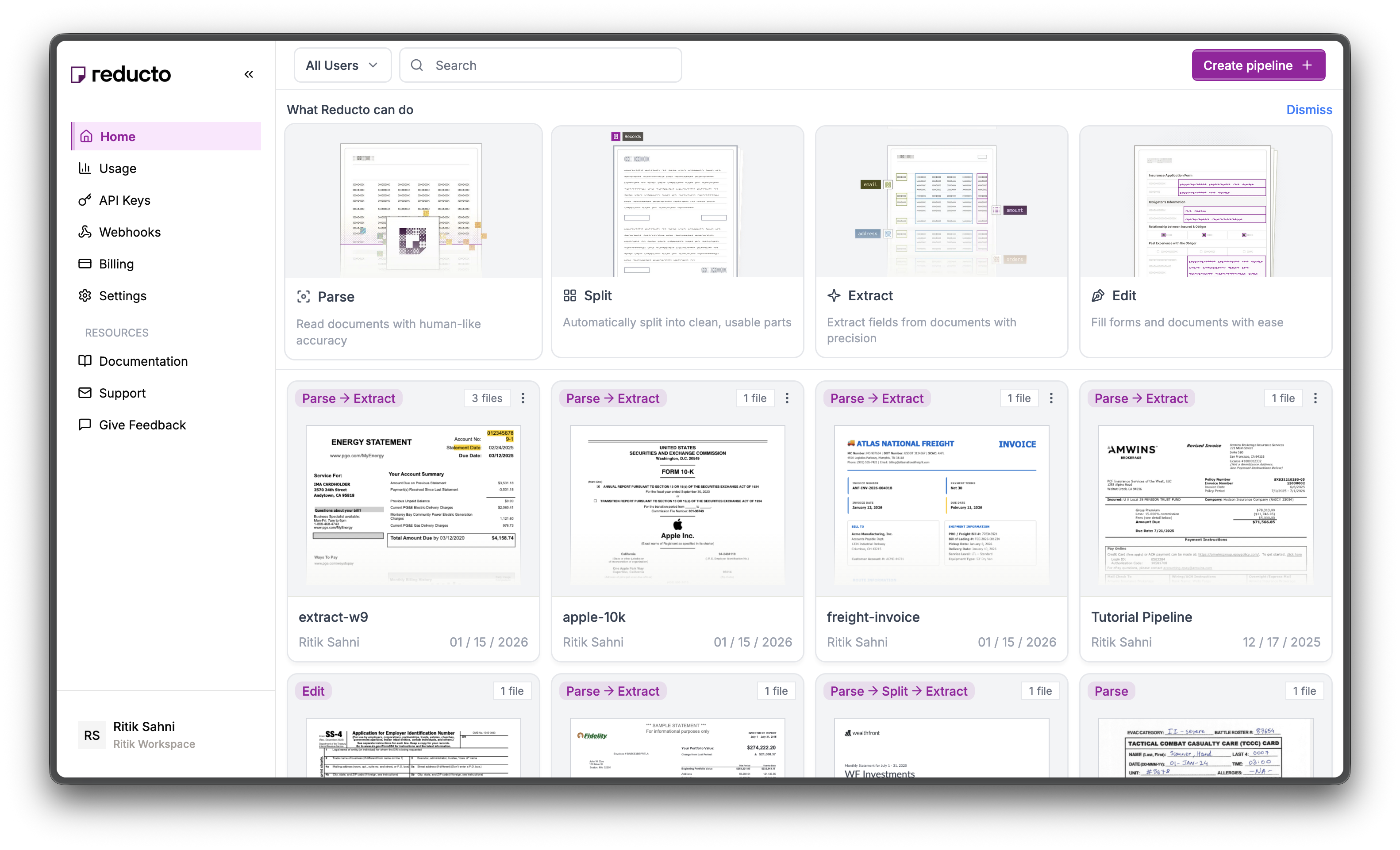
Go to [studio.reducto.ai](https://studio.reducto.ai) and sign in. From the home page, click **API Keys** in the left sidebar.
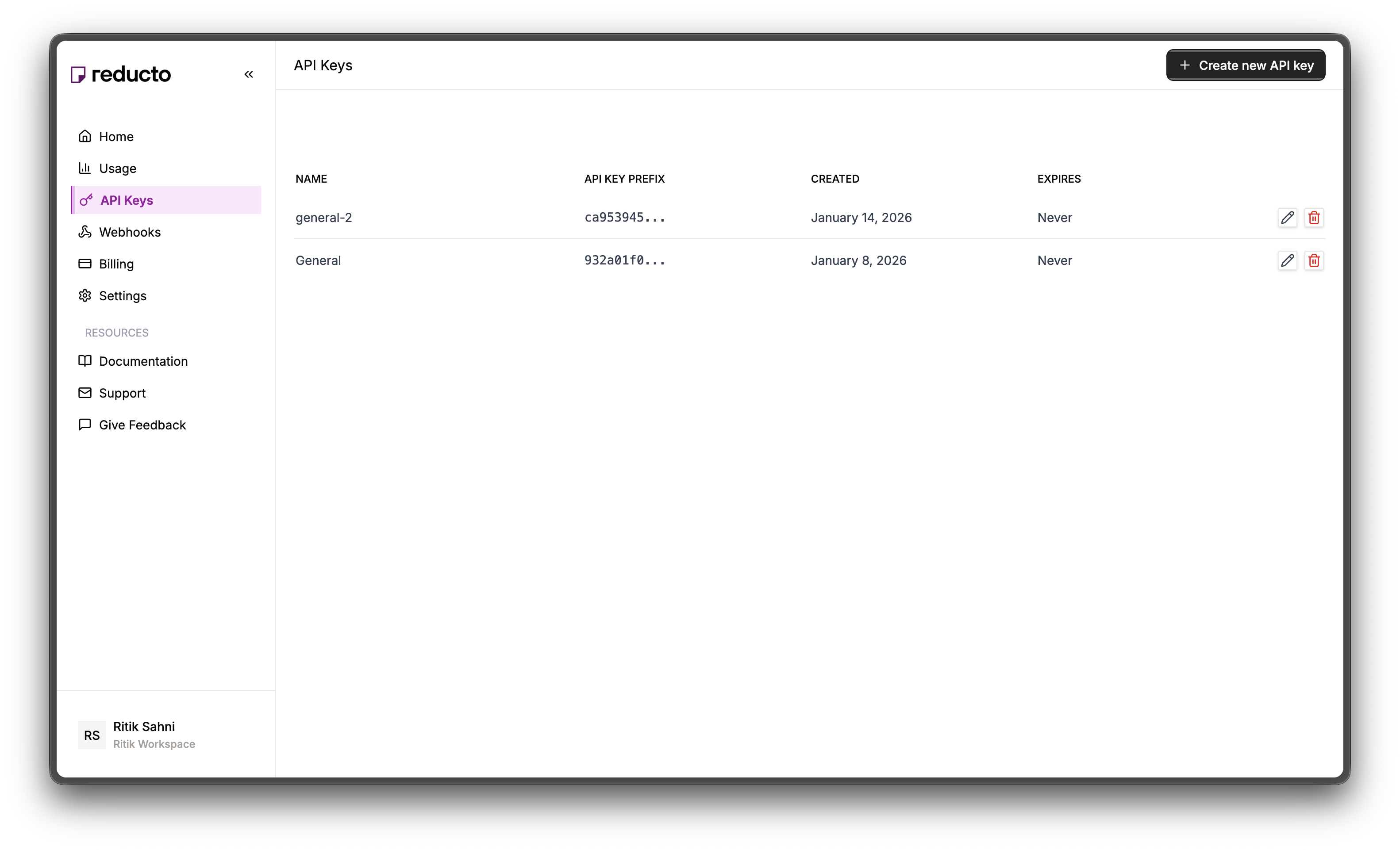
 The API Keys page shows your existing keys. Click **+ Create new API key** in the top right corner.
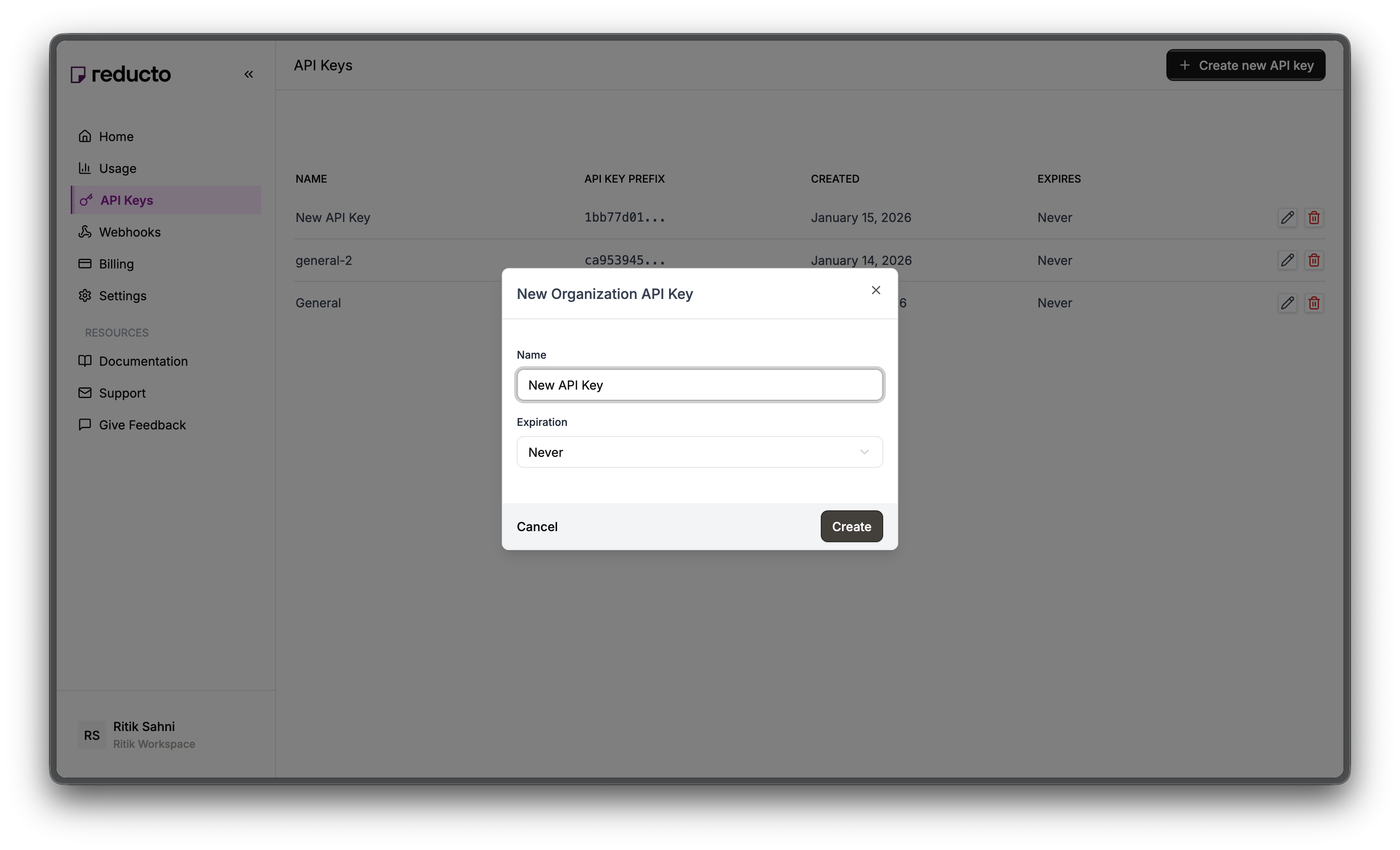
 In the modal, enter a name for your key and set an expiration policy (or select "Never" for no expiration). Click **Create**.
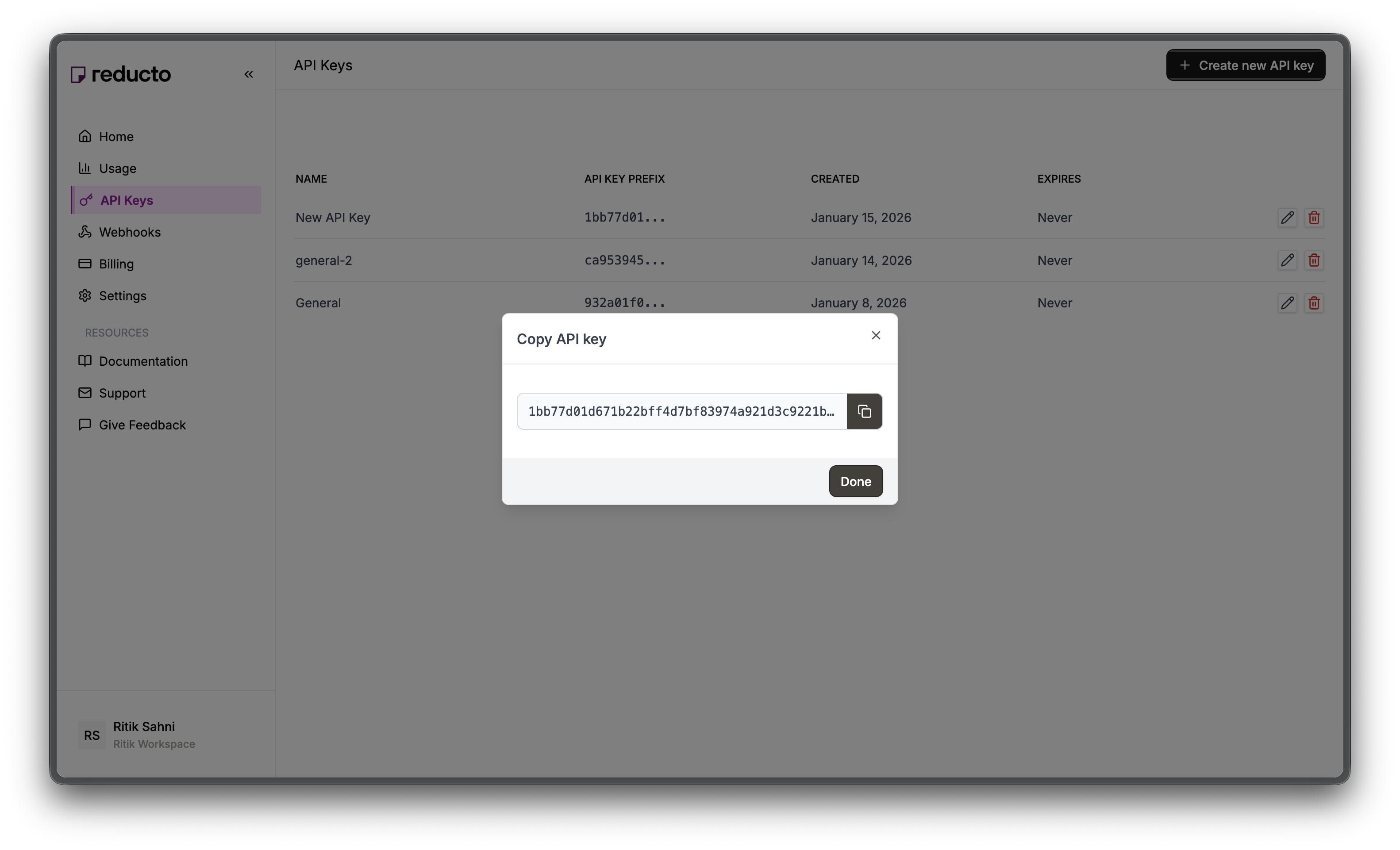
 Copy your new API key and store it securely. You won't be able to see it again after closing this dialog.
 Set the key as an environment variable:
```bash theme={null}
export REDUCTO_API_KEY="your-api-key-here"
```
***
## Studio Walkthrough
Go to [studio.reducto.ai](https://studio.reducto.ai) and create an Extract pipeline. Upload the 10-K PDF.
Extract runs Parse under the hood, then uses an LLM to locate and return only the specific fields you define. This is ideal for pulling financial metrics from 10-K filings.
Before defining your schema, check the Parse settings that Extract will use. Open the **Configurations** tab to access settings.
Set the key as an environment variable:
```bash theme={null}
export REDUCTO_API_KEY="your-api-key-here"
```
***
## Studio Walkthrough
Go to [studio.reducto.ai](https://studio.reducto.ai) and create an Extract pipeline. Upload the 10-K PDF.
Extract runs Parse under the hood, then uses an LLM to locate and return only the specific fields you define. This is ideal for pulling financial metrics from 10-K filings.
Before defining your schema, check the Parse settings that Extract will use. Open the **Configurations** tab to access settings.
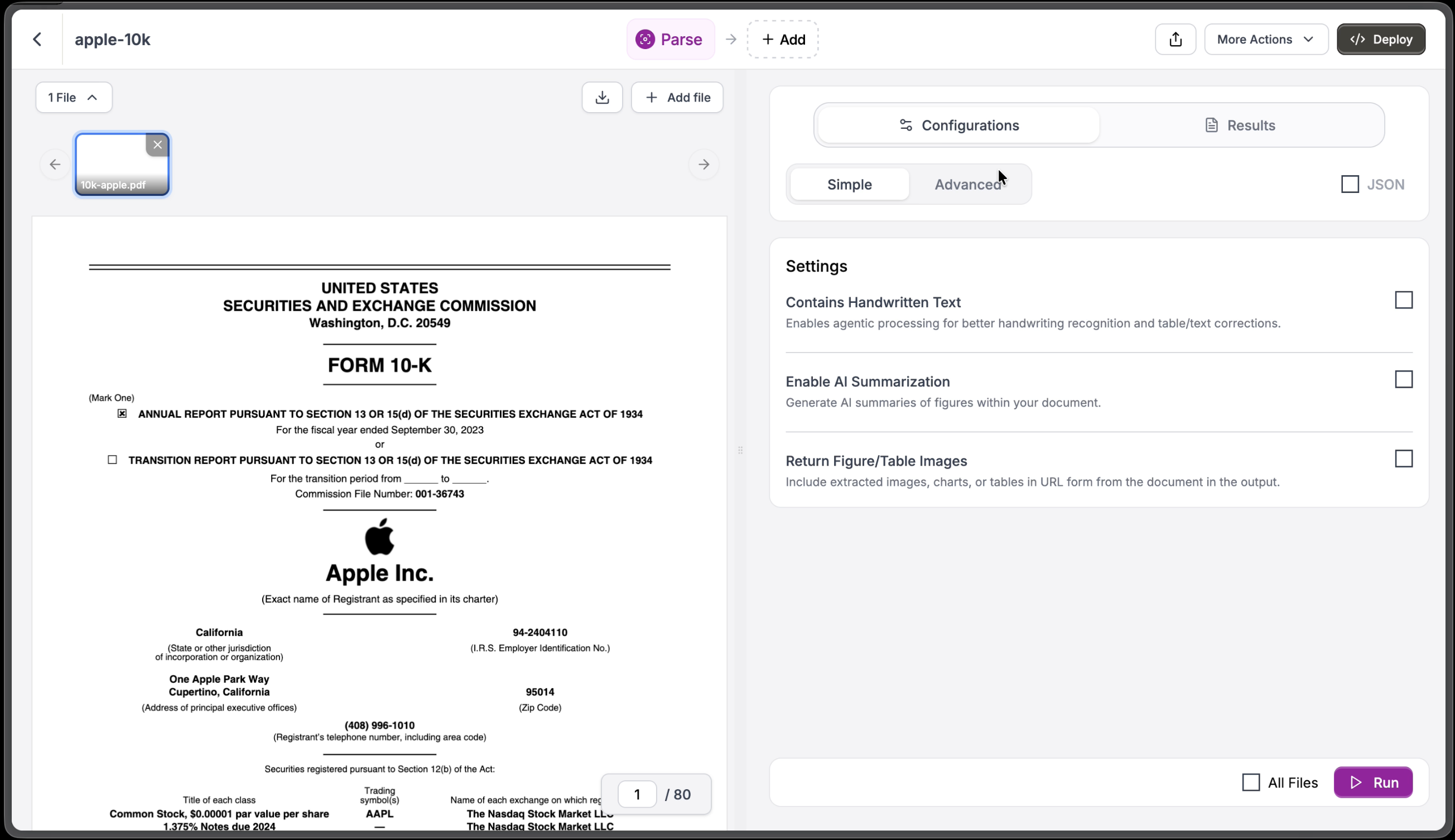 Key settings for financial documents:
* **Enable AI Summarization** — Generate summaries of figures and charts
* **Return Figure/Table Images** — Include extracted images of charts and tables
Click **Run** to see the parsed content. Reducto parses financial tables with their structure preserved, including multi-year comparative data.
Key settings for financial documents:
* **Enable AI Summarization** — Generate summaries of figures and charts
* **Return Figure/Table Images** — Include extracted images of charts and tables
Click **Run** to see the parsed content. Reducto parses financial tables with their structure preserved, including multi-year comparative data.
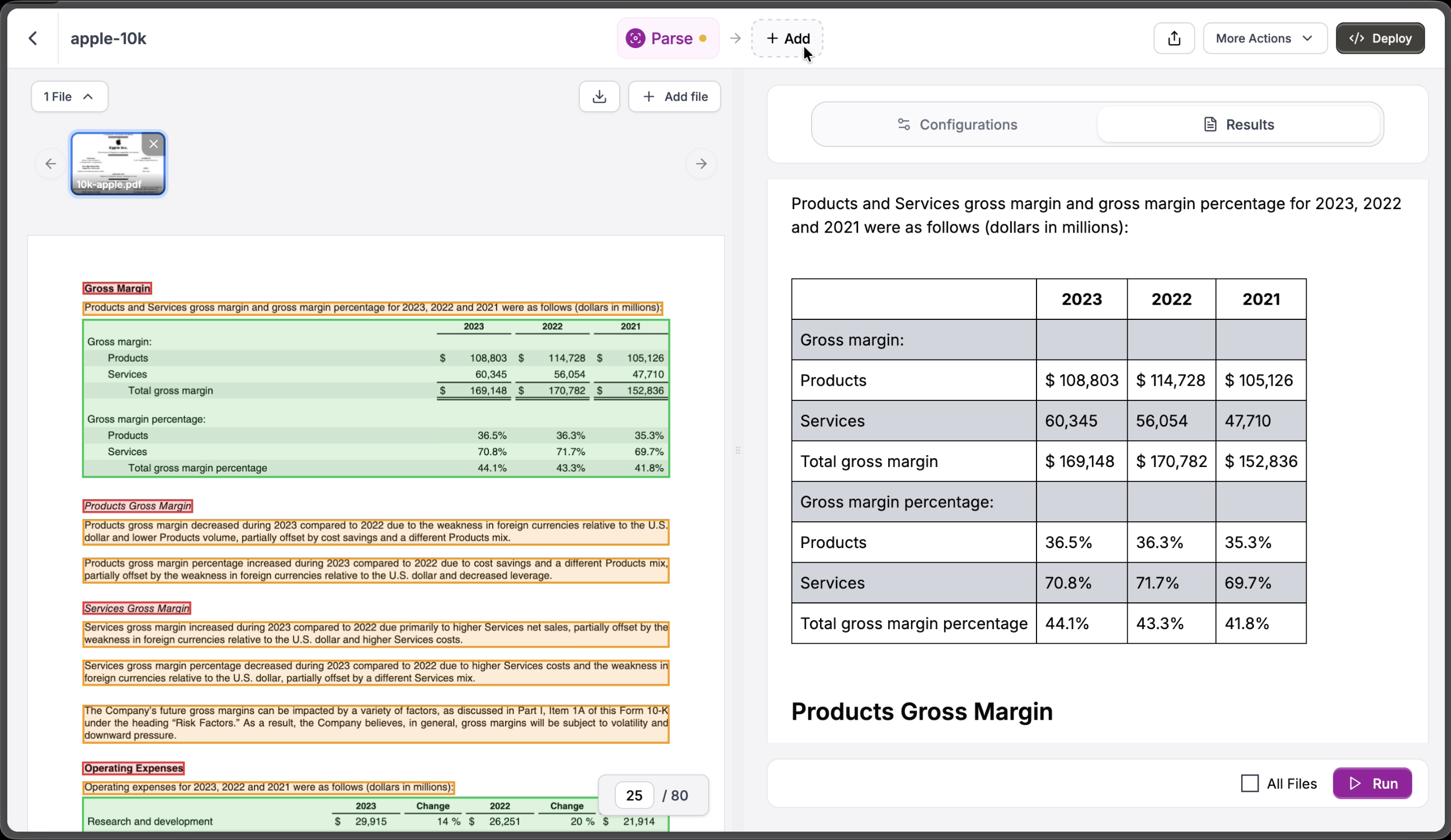 Notice how the Products and Services gross margin table keeps proper row/column structure with data for 2023, 2022, and 2021. If a value doesn't appear in Parse output, Extract can't find it either.
Click **Extract** to switch views. While Parse gives you the full document content, Extract lets you define a schema to pull only the specific fields you need as structured JSON.
For 10-K analysis, we want to extract two categories of data:
* **Company info** — Name, ticker symbol, fiscal year end, and SEC CIK number from the cover page
* **Income statement** — Key metrics like total revenue, cost of sales, gross profit, operating expenses, and operating income from the financial statements
Click **Import** in the Schema Builder to paste this pre-defined JSON schema:
```json theme={null}
{
"type": "object",
"properties": {
"company_info": {
"type": "object",
"properties": {
"name": {
"type": "string",
"description": "Company name from cover page"
},
"ticker": {
"type": "string",
"description": "Stock ticker symbol"
},
"fiscal_year_end": {
"type": "string",
"description": "Fiscal year end date"
},
"cik": {
"type": "string",
"description": "SEC CIK number"
}
}
},
"income_statement": {
"type": "object",
"description": "Data from Consolidated Statements of Operations",
"properties": {
"total_revenue": {
"type": "number",
"description": "Total net sales/revenue in millions"
},
"cost_of_sales": {
"type": "number",
"description": "Cost of goods sold in millions"
},
"gross_profit": {
"type": "number",
"description": "Gross profit (revenue minus COGS)"
},
"operating_expenses": {
"type": "number",
"description": "Total operating expenses"
},
"operating_income": {
"type": "number",
"description": "Operating income"
}
}
}
}
}
```
Notice how the Products and Services gross margin table keeps proper row/column structure with data for 2023, 2022, and 2021. If a value doesn't appear in Parse output, Extract can't find it either.
Click **Extract** to switch views. While Parse gives you the full document content, Extract lets you define a schema to pull only the specific fields you need as structured JSON.
For 10-K analysis, we want to extract two categories of data:
* **Company info** — Name, ticker symbol, fiscal year end, and SEC CIK number from the cover page
* **Income statement** — Key metrics like total revenue, cost of sales, gross profit, operating expenses, and operating income from the financial statements
Click **Import** in the Schema Builder to paste this pre-defined JSON schema:
```json theme={null}
{
"type": "object",
"properties": {
"company_info": {
"type": "object",
"properties": {
"name": {
"type": "string",
"description": "Company name from cover page"
},
"ticker": {
"type": "string",
"description": "Stock ticker symbol"
},
"fiscal_year_end": {
"type": "string",
"description": "Fiscal year end date"
},
"cik": {
"type": "string",
"description": "SEC CIK number"
}
}
},
"income_statement": {
"type": "object",
"description": "Data from Consolidated Statements of Operations",
"properties": {
"total_revenue": {
"type": "number",
"description": "Total net sales/revenue in millions"
},
"cost_of_sales": {
"type": "number",
"description": "Cost of goods sold in millions"
},
"gross_profit": {
"type": "number",
"description": "Gross profit (revenue minus COGS)"
},
"operating_expenses": {
"type": "number",
"description": "Total operating expenses"
},
"operating_income": {
"type": "number",
"description": "Operating income"
}
}
}
}
}
```
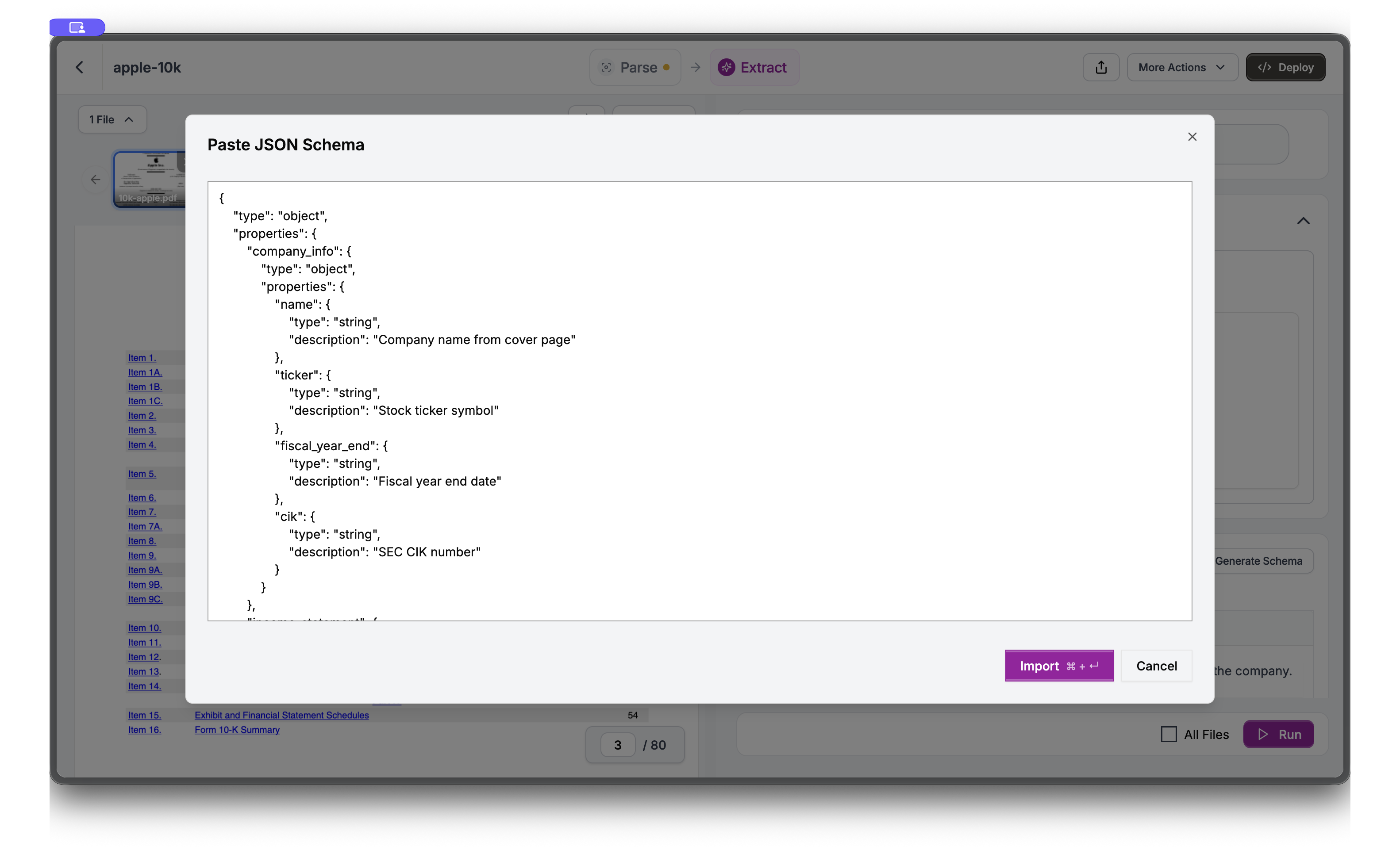 The Schema Builder shows your imported schema with nested structure. Click **Run** to execute the extraction.
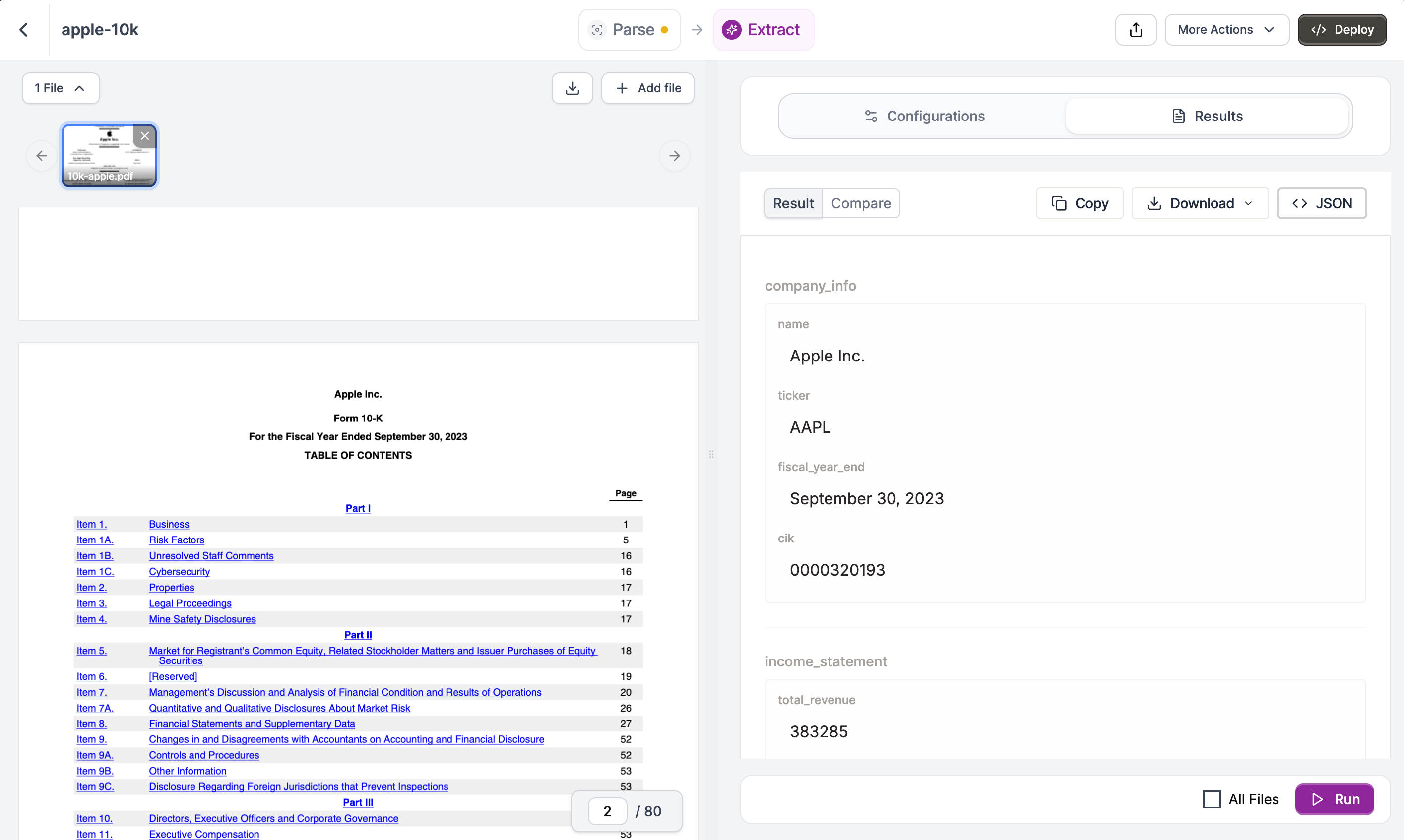
The Results tab shows your extracted data matching your schema. Use the toolbar to copy or download the results or switch to JSON.
The Schema Builder shows your imported schema with nested structure. Click **Run** to execute the extraction.
The Results tab shows your extracted data matching your schema. Use the toolbar to copy or download the results or switch to JSON.
 ***
## Using the API
To run this extraction programmatically, click **Deploy** in Studio.
***
## Using the API
To run this extraction programmatically, click **Deploy** in Studio.
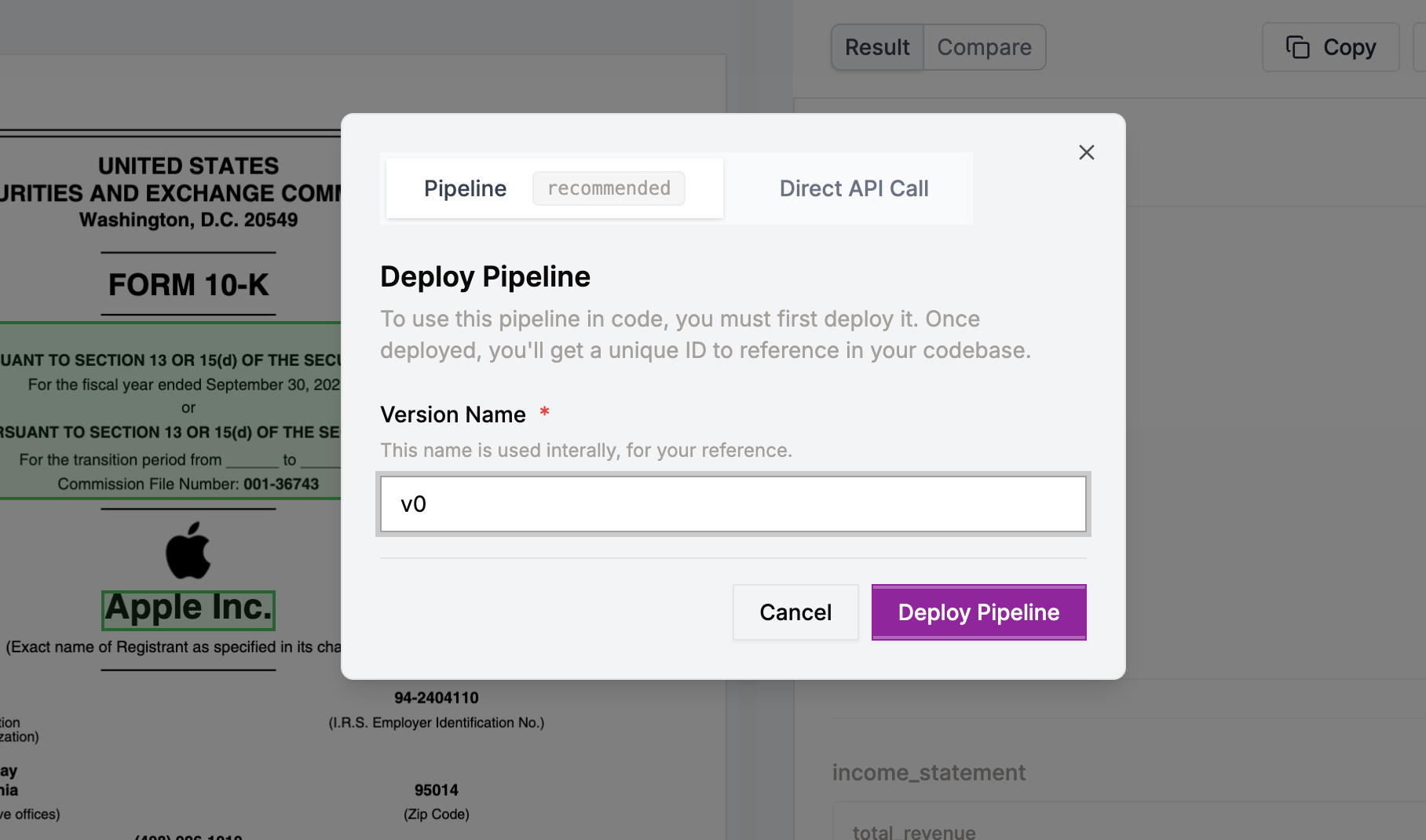 **Pipeline ID** creates a stable endpoint with a single identifier. Your code stays simple regardless of workflow complexity. Update settings in Studio and redeploy without changing code.
```python Python theme={null}
from pathlib import Path
from reducto import Reducto
client = Reducto()
upload = client.upload(file=Path("10k-apple.pdf"))
result = client.pipeline.run(
input=upload,
pipeline_id="k97c67gd5jahhs5anj3zr1gqd97zadrg"
)
```
```typescript TypeScript theme={null}
import Reducto from "reductoai";
import fs from "fs";
const client = new Reducto();
const upload = await client.upload({
file: fs.createReadStream("10k-apple.pdf"),
});
const result = await client.pipeline.run({
input: upload,
pipelineId: "k97c67gd5jahhs5anj3zr1gqd97zadrg",
});
```
```bash cURL theme={null}
# First, upload your file
curl -X POST "https://platform.reducto.ai/upload" \
-H "Authorization: Bearer $REDUCTO_API_KEY" \
-F "file=@10k-apple.pdf"
# This returns a response like: {"upload_id": "abc123"}
# Use the upload_id in the next request
# Run the pipeline
curl -X POST "https://platform.reducto.ai/pipeline" \
-H "Authorization: Bearer $REDUCTO_API_KEY" \
-H "Content-Type: application/json" \
-d '{
"input": "reducto://abc123",
"pipeline_id": "k97c67gd5jahhs5anj3zr1gqd97zadrg"
}'
```
**Direct API Call** exports the raw configuration as code. Use this when you need runtime flexibility or want configuration in version control.
```python Python theme={null}
from pathlib import Path
from reducto import Reducto
client = Reducto()
upload_response = client.upload(file=Path("10k-apple.pdf"))
instructions = {
"schema": {
"type": "object",
"properties": {
"company_info": {
"type": "object",
"properties": {
"name": {"type": "string", "description": "Company name from cover page"},
"ticker": {"type": "string", "description": "Stock ticker symbol"},
"fiscal_year_end": {"type": "string", "description": "Fiscal year end date"},
"cik": {"type": "string", "description": "SEC CIK number"}
},
"required": ["name", "ticker", "fiscal_year_end", "cik"]
},
"income_statement": {
"type": "object",
"description": "Data from Consolidated Statements of Operations",
"properties": {
"total_revenue": {"type": "number", "description": "Total net sales/revenue in millions"},
"cost_of_sales": {"type": "number", "description": "Cost of goods sold in millions"},
"gross_profit": {"type": "number", "description": "Gross profit (revenue minus COGS)"},
"operating_expenses": {"type": "number", "description": "Total operating expenses"},
"operating_income": {"type": "number", "description": "Operating income"}
},
"required": ["total_revenue", "cost_of_sales", "gross_profit", "operating_expenses", "operating_income"]
}
},
"required": ["company_info", "income_statement"]
}
}
settings = {
"citations": {"enabled": True, "numerical_confidence": False}
}
result = client.extract.run(
input=upload_response,
instructions=instructions,
settings=settings
)
print(result)
```
```typescript TypeScript theme={null}
import Reducto from 'reductoai';
import fs from 'fs';
const client = new Reducto();
const uploadResponse = await client.upload({
file: fs.createReadStream("10k-apple.pdf")
});
const instructions = {
"schema": {
"type": "object",
"properties": {
"company_info": {
"type": "object",
"properties": {
"name": {"type": "string", "description": "Company name from cover page"},
"ticker": {"type": "string", "description": "Stock ticker symbol"},
"fiscal_year_end": {"type": "string", "description": "Fiscal year end date"},
"cik": {"type": "string", "description": "SEC CIK number"}
},
"required": ["name", "ticker", "fiscal_year_end", "cik"]
},
"income_statement": {
"type": "object",
"description": "Data from Consolidated Statements of Operations",
"properties": {
"total_revenue": {"type": "number", "description": "Total net sales/revenue in millions"},
"cost_of_sales": {"type": "number", "description": "Cost of goods sold in millions"},
"gross_profit": {"type": "number", "description": "Gross profit (revenue minus COGS)"},
"operating_expenses": {"type": "number", "description": "Total operating expenses"},
"operating_income": {"type": "number", "description": "Operating income"}
},
"required": ["total_revenue", "cost_of_sales", "gross_profit", "operating_expenses", "operating_income"]
}
},
"required": ["company_info", "income_statement"]
}
};
const settings = {
"citations": {"enabled": true, "numerical_confidence": false}
};
const result = await client.extract.run({
input: uploadResponse,
instructions,
settings
});
```
```bash cURL theme={null}
# First, upload your file
curl -X POST "https://platform.reducto.ai/upload" \
-H "Authorization: Bearer $REDUCTO_API_KEY" \
-F "file=@10k-apple.pdf"
# This returns a response like: {"upload_id": "abc123"}
# Use the upload_id in the next request
# Extract the document
curl -X POST "https://platform.reducto.ai/extract" \
-H "Authorization: Bearer $REDUCTO_API_KEY" \
-H "Content-Type: application/json" \
-d '{
"input": "abc123",
"instructions": {
"schema": {
"type": "object",
"properties": {
"company_info": {
"type": "object",
"properties": {
"name": {"type": "string", "description": "Company name from cover page"},
"ticker": {"type": "string", "description": "Stock ticker symbol"},
"fiscal_year_end": {"type": "string", "description": "Fiscal year end date"},
"cik": {"type": "string", "description": "SEC CIK number"}
},
"required": ["name", "ticker", "fiscal_year_end", "cik"]
},
"income_statement": {
"type": "object",
"description": "Data from Consolidated Statements of Operations",
"properties": {
"total_revenue": {"type": "number", "description": "Total net sales/revenue in millions"},
"cost_of_sales": {"type": "number", "description": "Cost of goods sold in millions"},
"gross_profit": {"type": "number", "description": "Gross profit (revenue minus COGS)"},
"operating_expenses": {"type": "number", "description": "Total operating expenses"},
"operating_income": {"type": "number", "description": "Operating income"}
},
"required": ["total_revenue", "cost_of_sales", "gross_profit", "operating_expenses", "operating_income"]
}
},
"required": ["company_info", "income_statement"]
}
},
"settings": {
"citations": {"enabled": true, "numerical_confidence": false}
}
}'
```
***
## Next Steps
Configure table extraction
Optimize document sectioning
Extract multi-year data
Chain multiple operations
**Pipeline ID** creates a stable endpoint with a single identifier. Your code stays simple regardless of workflow complexity. Update settings in Studio and redeploy without changing code.
```python Python theme={null}
from pathlib import Path
from reducto import Reducto
client = Reducto()
upload = client.upload(file=Path("10k-apple.pdf"))
result = client.pipeline.run(
input=upload,
pipeline_id="k97c67gd5jahhs5anj3zr1gqd97zadrg"
)
```
```typescript TypeScript theme={null}
import Reducto from "reductoai";
import fs from "fs";
const client = new Reducto();
const upload = await client.upload({
file: fs.createReadStream("10k-apple.pdf"),
});
const result = await client.pipeline.run({
input: upload,
pipelineId: "k97c67gd5jahhs5anj3zr1gqd97zadrg",
});
```
```bash cURL theme={null}
# First, upload your file
curl -X POST "https://platform.reducto.ai/upload" \
-H "Authorization: Bearer $REDUCTO_API_KEY" \
-F "file=@10k-apple.pdf"
# This returns a response like: {"upload_id": "abc123"}
# Use the upload_id in the next request
# Run the pipeline
curl -X POST "https://platform.reducto.ai/pipeline" \
-H "Authorization: Bearer $REDUCTO_API_KEY" \
-H "Content-Type: application/json" \
-d '{
"input": "reducto://abc123",
"pipeline_id": "k97c67gd5jahhs5anj3zr1gqd97zadrg"
}'
```
**Direct API Call** exports the raw configuration as code. Use this when you need runtime flexibility or want configuration in version control.
```python Python theme={null}
from pathlib import Path
from reducto import Reducto
client = Reducto()
upload_response = client.upload(file=Path("10k-apple.pdf"))
instructions = {
"schema": {
"type": "object",
"properties": {
"company_info": {
"type": "object",
"properties": {
"name": {"type": "string", "description": "Company name from cover page"},
"ticker": {"type": "string", "description": "Stock ticker symbol"},
"fiscal_year_end": {"type": "string", "description": "Fiscal year end date"},
"cik": {"type": "string", "description": "SEC CIK number"}
},
"required": ["name", "ticker", "fiscal_year_end", "cik"]
},
"income_statement": {
"type": "object",
"description": "Data from Consolidated Statements of Operations",
"properties": {
"total_revenue": {"type": "number", "description": "Total net sales/revenue in millions"},
"cost_of_sales": {"type": "number", "description": "Cost of goods sold in millions"},
"gross_profit": {"type": "number", "description": "Gross profit (revenue minus COGS)"},
"operating_expenses": {"type": "number", "description": "Total operating expenses"},
"operating_income": {"type": "number", "description": "Operating income"}
},
"required": ["total_revenue", "cost_of_sales", "gross_profit", "operating_expenses", "operating_income"]
}
},
"required": ["company_info", "income_statement"]
}
}
settings = {
"citations": {"enabled": True, "numerical_confidence": False}
}
result = client.extract.run(
input=upload_response,
instructions=instructions,
settings=settings
)
print(result)
```
```typescript TypeScript theme={null}
import Reducto from 'reductoai';
import fs from 'fs';
const client = new Reducto();
const uploadResponse = await client.upload({
file: fs.createReadStream("10k-apple.pdf")
});
const instructions = {
"schema": {
"type": "object",
"properties": {
"company_info": {
"type": "object",
"properties": {
"name": {"type": "string", "description": "Company name from cover page"},
"ticker": {"type": "string", "description": "Stock ticker symbol"},
"fiscal_year_end": {"type": "string", "description": "Fiscal year end date"},
"cik": {"type": "string", "description": "SEC CIK number"}
},
"required": ["name", "ticker", "fiscal_year_end", "cik"]
},
"income_statement": {
"type": "object",
"description": "Data from Consolidated Statements of Operations",
"properties": {
"total_revenue": {"type": "number", "description": "Total net sales/revenue in millions"},
"cost_of_sales": {"type": "number", "description": "Cost of goods sold in millions"},
"gross_profit": {"type": "number", "description": "Gross profit (revenue minus COGS)"},
"operating_expenses": {"type": "number", "description": "Total operating expenses"},
"operating_income": {"type": "number", "description": "Operating income"}
},
"required": ["total_revenue", "cost_of_sales", "gross_profit", "operating_expenses", "operating_income"]
}
},
"required": ["company_info", "income_statement"]
}
};
const settings = {
"citations": {"enabled": true, "numerical_confidence": false}
};
const result = await client.extract.run({
input: uploadResponse,
instructions,
settings
});
```
```bash cURL theme={null}
# First, upload your file
curl -X POST "https://platform.reducto.ai/upload" \
-H "Authorization: Bearer $REDUCTO_API_KEY" \
-F "file=@10k-apple.pdf"
# This returns a response like: {"upload_id": "abc123"}
# Use the upload_id in the next request
# Extract the document
curl -X POST "https://platform.reducto.ai/extract" \
-H "Authorization: Bearer $REDUCTO_API_KEY" \
-H "Content-Type: application/json" \
-d '{
"input": "abc123",
"instructions": {
"schema": {
"type": "object",
"properties": {
"company_info": {
"type": "object",
"properties": {
"name": {"type": "string", "description": "Company name from cover page"},
"ticker": {"type": "string", "description": "Stock ticker symbol"},
"fiscal_year_end": {"type": "string", "description": "Fiscal year end date"},
"cik": {"type": "string", "description": "SEC CIK number"}
},
"required": ["name", "ticker", "fiscal_year_end", "cik"]
},
"income_statement": {
"type": "object",
"description": "Data from Consolidated Statements of Operations",
"properties": {
"total_revenue": {"type": "number", "description": "Total net sales/revenue in millions"},
"cost_of_sales": {"type": "number", "description": "Cost of goods sold in millions"},
"gross_profit": {"type": "number", "description": "Gross profit (revenue minus COGS)"},
"operating_expenses": {"type": "number", "description": "Total operating expenses"},
"operating_income": {"type": "number", "description": "Operating income"}
},
"required": ["total_revenue", "cost_of_sales", "gross_profit", "operating_expenses", "operating_income"]
}
},
"required": ["company_info", "income_statement"]
}
},
"settings": {
"citations": {"enabled": true, "numerical_confidence": false}
}
}'
```
***
## Next Steps
Configure table extraction
Optimize document sectioning
Extract multi-year data
Chain multiple operations